> ## Documentation Index
> Fetch the complete documentation index at: https://docs.sameitem.com/llms.txt
> Use this file to discover all available pages before exploring further.
# Set Up SIMB Automations to Share Items Across Boards
> Set up SIMB automation recipes to automatically share items to other boards when statuses change, people are assigned, or new items are created.
Automations let SIMB do the work of sharing items for you. Instead of opening each item and manually choosing boards, you define a rule — a trigger and an action — and the app handles every share automatically from that point forward. This is the right approach when you need consistent, scalable sharing across a whole board: routing tasks by status, distributing work to team boards by assignment, or mirroring new items to a client-facing board the moment they're created.
## Available Trigger Types
Choose the trigger that matches the event in your workflow:
| Trigger | Example recipe |
| ---------------------- | --------------------------------------------------------------- |
| **Status changes** | "When Status changes to In Progress, add item to Sprint Board." |
| **Person is assigned** | "When Person is assigned, add item to Team Tasks." |
| **Item is created** | "When an item is created, add it to the Main Board." |
| **Dropdown changes** | "When Label changes to Marketing, add item to Marketing Board." |
| **Button is clicked** | "When a button is clicked, add item to Review Board." |
## Set Up a SIMB Automation
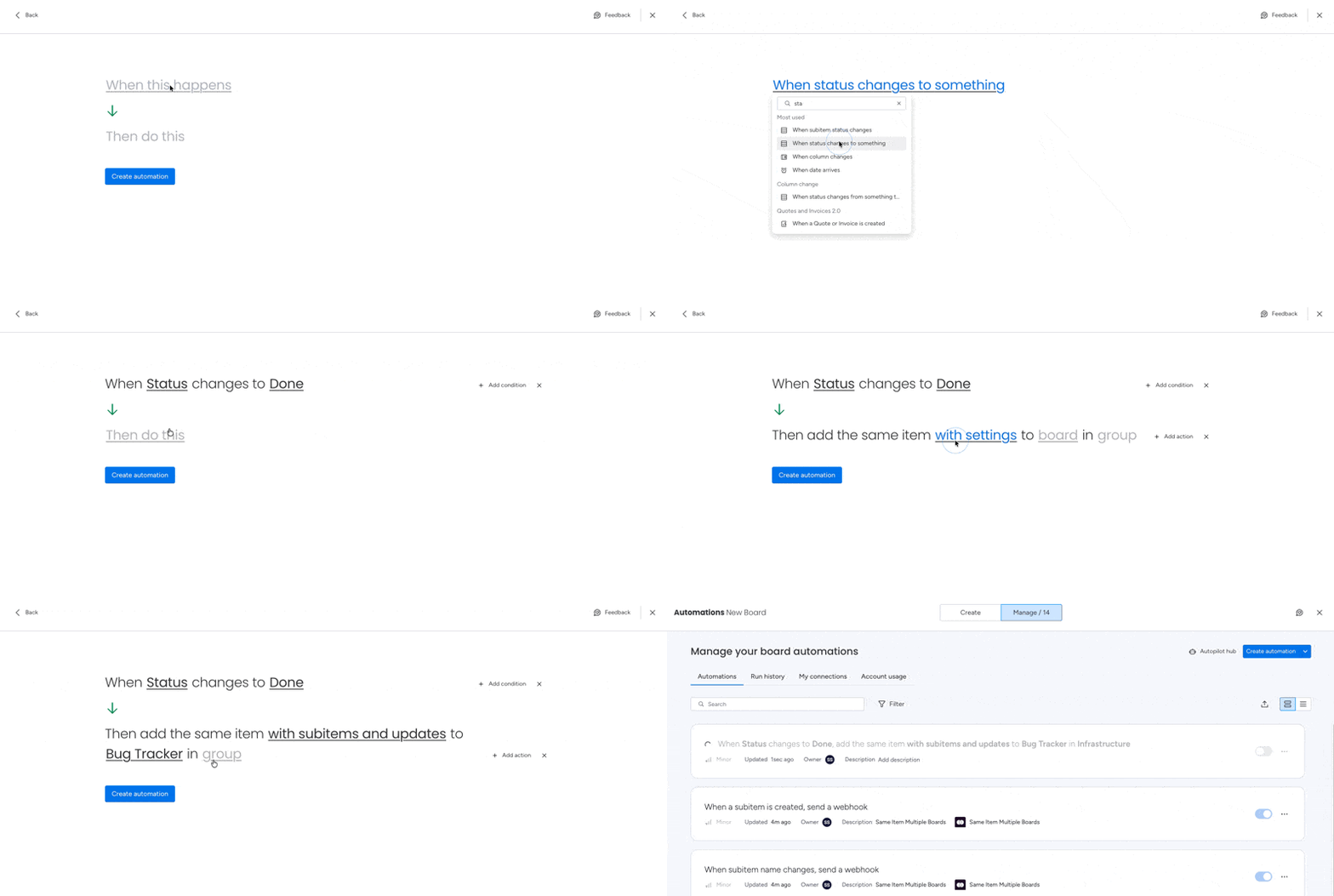 On the board where you want the automation to trigger, click the **Automate** button in the top-right corner of the board (it shows a robot icon). This opens the Automations Center.
Click **Create Custom Automation** (sometimes labeled **Add custom automation**). This opens the automation builder where you define your own trigger-action rule.
Select the event that should start the automation — for example, a status change, a person assignment, or item creation. Configure any required fields, such as which status value to watch for.
Click the action slot in the automation builder. Navigate to the **Apps** section (scroll or search if needed) and select **Same Item Multiple Boards**. The action will be set to **Add the same item with settings to board**.
Select the board where the item should appear when the automation fires. You can also pick the specific **group** within that board — if you don't, items land in the destination board's first group.
Click **Create Automation**. The automation is now active — every time the trigger condition is met, SIMB automatically adds the item to your chosen destination board.
## Unlink or Remove Items with Automations
Automations don't only share items — they can also **unlink or remove** them automatically when a condition is met, for example pulling an item off a board when its status changes to *Done*. You build these exactly like a sharing automation: a trigger paired with a SIMB removal action.
On the source board, click **Automate** in the top-right corner.
On the board where you want the automation to trigger, click the **Automate** button in the top-right corner of the board (it shows a robot icon). This opens the Automations Center.
Click **Create Custom Automation** (sometimes labeled **Add custom automation**). This opens the automation builder where you define your own trigger-action rule.
Select the event that should start the automation — for example, a status change, a person assignment, or item creation. Configure any required fields, such as which status value to watch for.
Click the action slot in the automation builder. Navigate to the **Apps** section (scroll or search if needed) and select **Same Item Multiple Boards**. The action will be set to **Add the same item with settings to board**.
Select the board where the item should appear when the automation fires. You can also pick the specific **group** within that board — if you don't, items land in the destination board's first group.
Click **Create Automation**. The automation is now active — every time the trigger condition is met, SIMB automatically adds the item to your chosen destination board.
## Unlink or Remove Items with Automations
Automations don't only share items — they can also **unlink or remove** them automatically when a condition is met, for example pulling an item off a board when its status changes to *Done*. You build these exactly like a sharing automation: a trigger paired with a SIMB removal action.
On the source board, click **Automate** in the top-right corner.
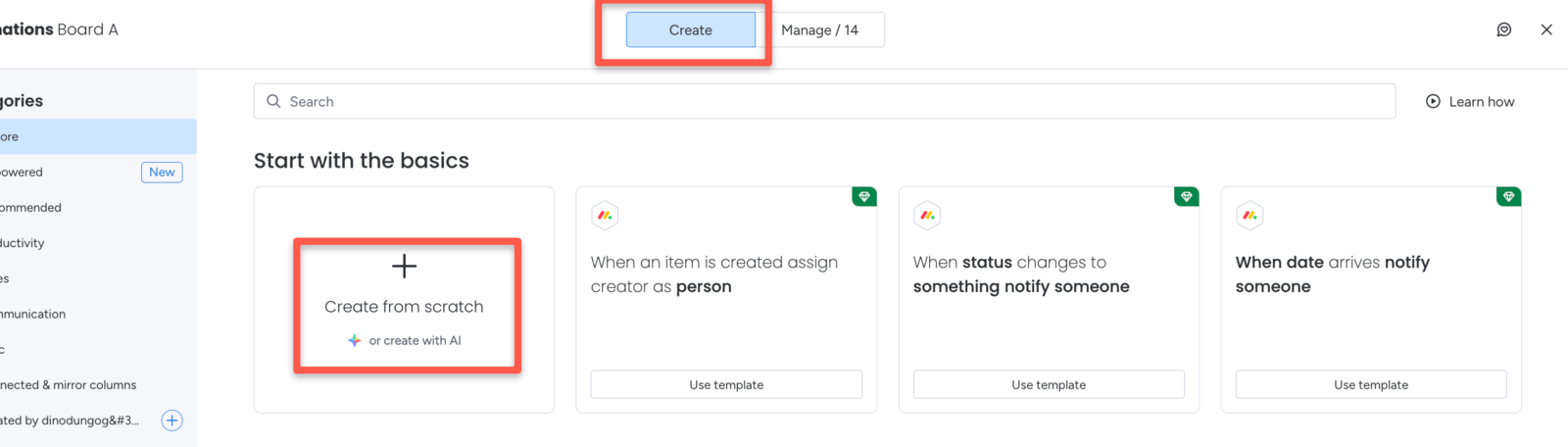
 Click **Create**, then **Create from scratch** to open the automation builder.
 Pick the event that should remove the item — for example, when a status changes to a specific value.
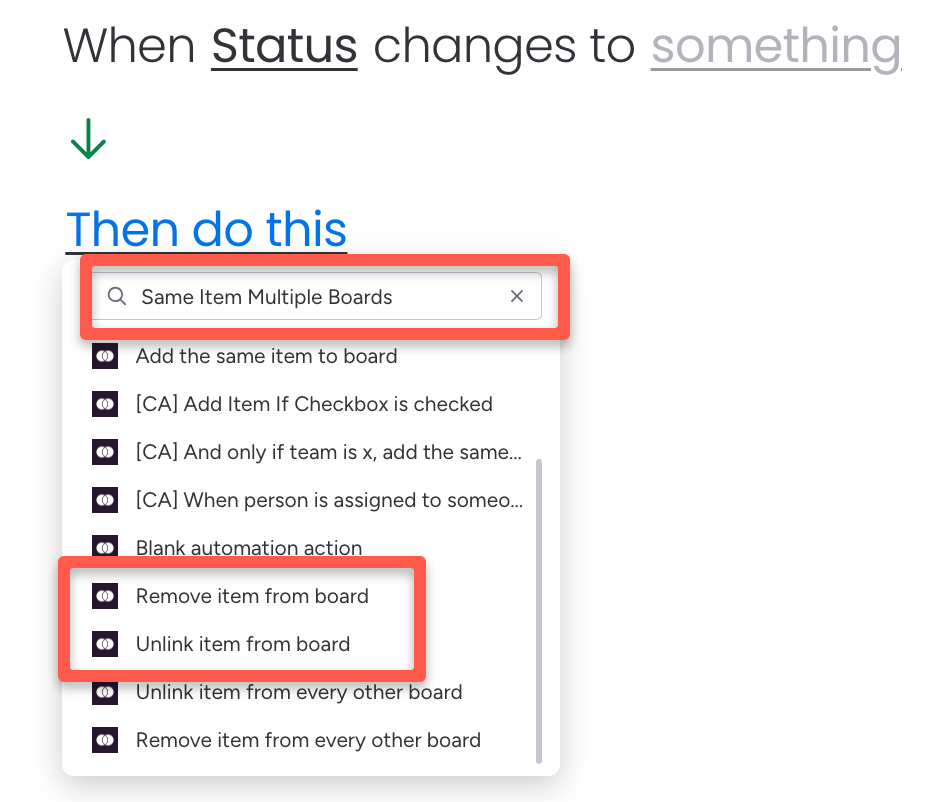
In the action slot, choose **Same Item Multiple Boards** and pick the removal action that fits:
* **Unlink item from Board** — stops syncing and removes the item from that board; frees up app usage.
* **Remove item from Board** — deletes the item from that board and deducts usage.
Pick the event that should remove the item — for example, when a status changes to a specific value.
In the action slot, choose **Same Item Multiple Boards** and pick the removal action that fits:
* **Unlink item from Board** — stops syncing and removes the item from that board; frees up app usage.
* **Remove item from Board** — deletes the item from that board and deducts usage.
 Click **Create Automation**. From now on, every time the trigger fires, SIMB removes the item for you.
### Remove From Every Other Board at Once
For bulk cleanup, SIMB also offers actions that act on **every other board** an item is shared to, not just one:
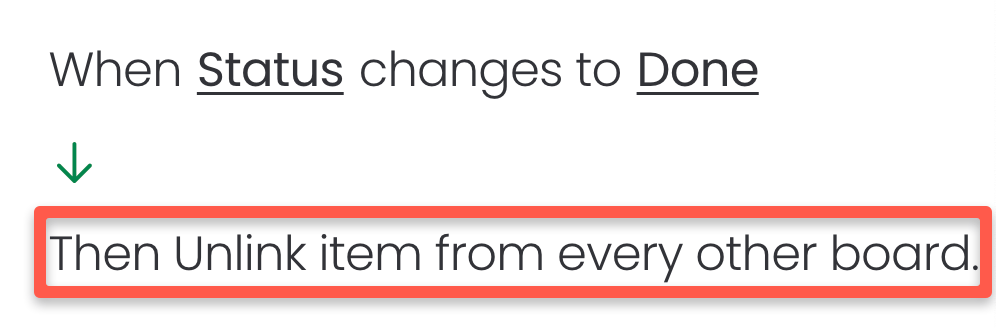
* **Unlink item from every other board** — keeps the item on the current board and unlinks it everywhere else.
* **Delete item from every other board** — keeps the current board's copy and deletes all the others.
Click **Create Automation**. From now on, every time the trigger fires, SIMB removes the item for you.
### Remove From Every Other Board at Once
For bulk cleanup, SIMB also offers actions that act on **every other board** an item is shared to, not just one:
* **Unlink item from every other board** — keeps the item on the current board and unlinks it everywhere else.
* **Delete item from every other board** — keeps the current board's copy and deletes all the others.
 ## Good to Know
**Automations work independently from the SIMB item view.** You don't need to have the item view added to your board for automations to function — they are a completely separate way to use the app.
* **Synced items stay connected.** When an item is added to another board via automation, column values continue to sync between boards according to your column mapping settings (matching name and type).
* **Automations are not retroactive.** They apply only to events that happen *after* the automation is created. Items that already meet the trigger condition at the time you save the automation will not be automatically shared.
* **You can stack multiple automations.** Set up as many automation rules as you need on the same board — for example, one that fires on status changes and another that fires when a new item is created.
* **Column Mapping preview is not available in automations.** Columns sync based on name and type matching alone. Use [Column Mapping](/features/column-mapping) during a manual share to align your boards before relying on automations.
Missing columns on the destination board will **not** be created automatically by an automation. Make sure the destination board already has the columns you need, or use [Column Mapping](/features/column-mapping) during a manual share to create them first.
## Good to Know
**Automations work independently from the SIMB item view.** You don't need to have the item view added to your board for automations to function — they are a completely separate way to use the app.
* **Synced items stay connected.** When an item is added to another board via automation, column values continue to sync between boards according to your column mapping settings (matching name and type).
* **Automations are not retroactive.** They apply only to events that happen *after* the automation is created. Items that already meet the trigger condition at the time you save the automation will not be automatically shared.
* **You can stack multiple automations.** Set up as many automation rules as you need on the same board — for example, one that fires on status changes and another that fires when a new item is created.
* **Column Mapping preview is not available in automations.** Columns sync based on name and type matching alone. Use [Column Mapping](/features/column-mapping) during a manual share to align your boards before relying on automations.
Missing columns on the destination board will **not** be created automatically by an automation. Make sure the destination board already has the columns you need, or use [Column Mapping](/features/column-mapping) during a manual share to create them first.