> ## Documentation Index
> Fetch the complete documentation index at: https://docs.sameitem.com/llms.txt
> Use this file to discover all available pages before exploring further.
# Add Multiple Items to Another Board in Bulk with SIMB
> Use the Batch Actions toolbar in monday.com to share multiple items to another board simultaneously, saving time on large-scale sharing tasks.
Batch Actions let you share a large number of items to another board in a single operation, without opening each item individually. You select the items you want to share directly on the board, use the Batch Actions toolbar that appears at the bottom of your screen, and point SIMB at a destination board. This is the fastest way to handle large-scale sharing tasks — onboarding a new project, distributing work across departments, or setting up a client-facing board from an existing backlog.
## Share Multiple Items at Once
Click the checkbox to the left of each item you want to share. To select a consecutive range quickly, click the first item's checkbox, then **Shift + Click** the last item in the range — everything in between will be selected automatically.
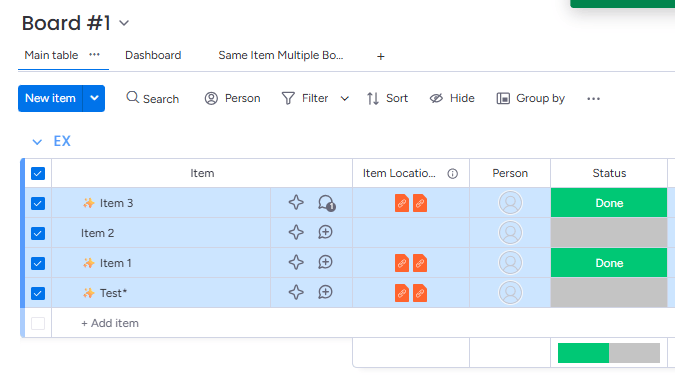 Once at least one item is checked, a toolbar appears at the bottom of your screen. This is the Batch Actions toolbar, which surfaces actions you can perform on all selected items at once.
 In the Batch Actions toolbar, click **Apps**. This opens a list of installed apps that support batch operations.
Select **Same Item Multiple Boards** from the app list. SIMB opens a pop-up window.
In the SIMB pop-up, choose the board where all selected items should appear.
In the Batch Actions toolbar, click **Apps**. This opens a list of installed apps that support batch operations.
Select **Same Item Multiple Boards** from the app list. SIMB opens a pop-up window.
In the SIMB pop-up, choose the board where all selected items should appear.
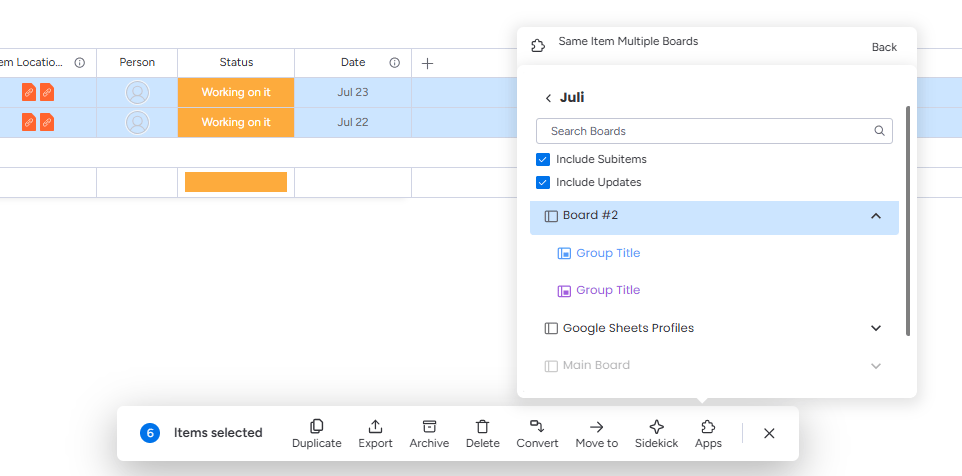 Click **Add** to confirm. All selected items are immediately added to the destination board, maintaining their names, column values, and structure.
Batch Actions work especially well for these scenarios:
* **Onboarding new projects** — share an entire project's task list to a team board in seconds
* **Cross-department distribution** — push selected items from a master board to department-specific boards at once
* **Client board setup** — quickly populate a client-facing board with relevant items from your internal board
## Column Mapping Is Not Available for Batch Actions
Unlike manual single-item sharing, Batch Actions do not show the Column Mapping preview. SIMB shares all selected items immediately when you click **Add**, without an opportunity to review or fix column alignment first.
To ensure columns sync correctly during a batch share, use [Column Mapping](/features/column-mapping) on a single item first to align the two boards — then use Batch Actions for the remainder. Any columns you create or fix during that manual share will be in place for the batch.
## Share Subitems to Another Board
You can also use Batch Actions to send subitems to another board as regular top-level items. This is useful when subitems have grown into standalone tasks that need to live on a different board.
Click the parent item to expand its subitems row, or open the item detail view to see the subitems section.
Click the checkboxes next to the subitems you want to share. Use **Shift + Click** to select a range.
The Batch Actions toolbar appears at the bottom of the screen. Click **Apps**.
Select **Same Item Multiple Boards** from the app list.
Choose the board where the subitems should appear and click **Add**. The subitems are added to the destination board as regular items.
Click **Add** to confirm. All selected items are immediately added to the destination board, maintaining their names, column values, and structure.
Batch Actions work especially well for these scenarios:
* **Onboarding new projects** — share an entire project's task list to a team board in seconds
* **Cross-department distribution** — push selected items from a master board to department-specific boards at once
* **Client board setup** — quickly populate a client-facing board with relevant items from your internal board
## Column Mapping Is Not Available for Batch Actions
Unlike manual single-item sharing, Batch Actions do not show the Column Mapping preview. SIMB shares all selected items immediately when you click **Add**, without an opportunity to review or fix column alignment first.
To ensure columns sync correctly during a batch share, use [Column Mapping](/features/column-mapping) on a single item first to align the two boards — then use Batch Actions for the remainder. Any columns you create or fix during that manual share will be in place for the batch.
## Share Subitems to Another Board
You can also use Batch Actions to send subitems to another board as regular top-level items. This is useful when subitems have grown into standalone tasks that need to live on a different board.
Click the parent item to expand its subitems row, or open the item detail view to see the subitems section.
Click the checkboxes next to the subitems you want to share. Use **Shift + Click** to select a range.
The Batch Actions toolbar appears at the bottom of the screen. Click **Apps**.
Select **Same Item Multiple Boards** from the app list.
Choose the board where the subitems should appear and click **Add**. The subitems are added to the destination board as regular items.