> ## Documentation Index
> Fetch the complete documentation index at: https://docs.sameitem.com/llms.txt
> Use this file to discover all available pages before exploring further.
# Use Column Mapping to Preview and Fix Sync Before Sharing
> Column Mapping shows which columns will sync, lets you create missing columns in one click, and prevents cross-board sync errors before they happen.
Column Mapping is a built-in preview that appears when you manually share a single item to another board. Before the item is added, SIMB compares the columns on both boards and shows you exactly which values will sync, which won't, and which columns are missing on the destination board entirely. You can create any missing columns with a single click — right from the mapping window — before completing the share. This makes cross-board syncing predictable and eliminates the most common source of sync issues.
Column Mapping is only available when **manually sharing a single item** via the SIMB item view. It does not appear when using automations or batch actions — those flows skip the mapping step. If you rely on automations, use Column Mapping during a manual share first to align your boards.
## What Column Mapping Shows
The mapping window categorizes every column on the source board into one of three states:
| Indicator | Meaning |
| -------------- | ----------------------------------------------------------------------------------------------------------------------- |
| 🟢 **Match** | Column exists on both boards with the same name and same type — it will sync. |
| ⚪ **Mismatch** | Column exists on both boards but the name or type differs — it will **not** sync. |
| ⚠️ **Missing** | Column exists on the source board but is absent from the destination board — it will **not** sync unless you create it. |
## Preview and Fix Column Alignment
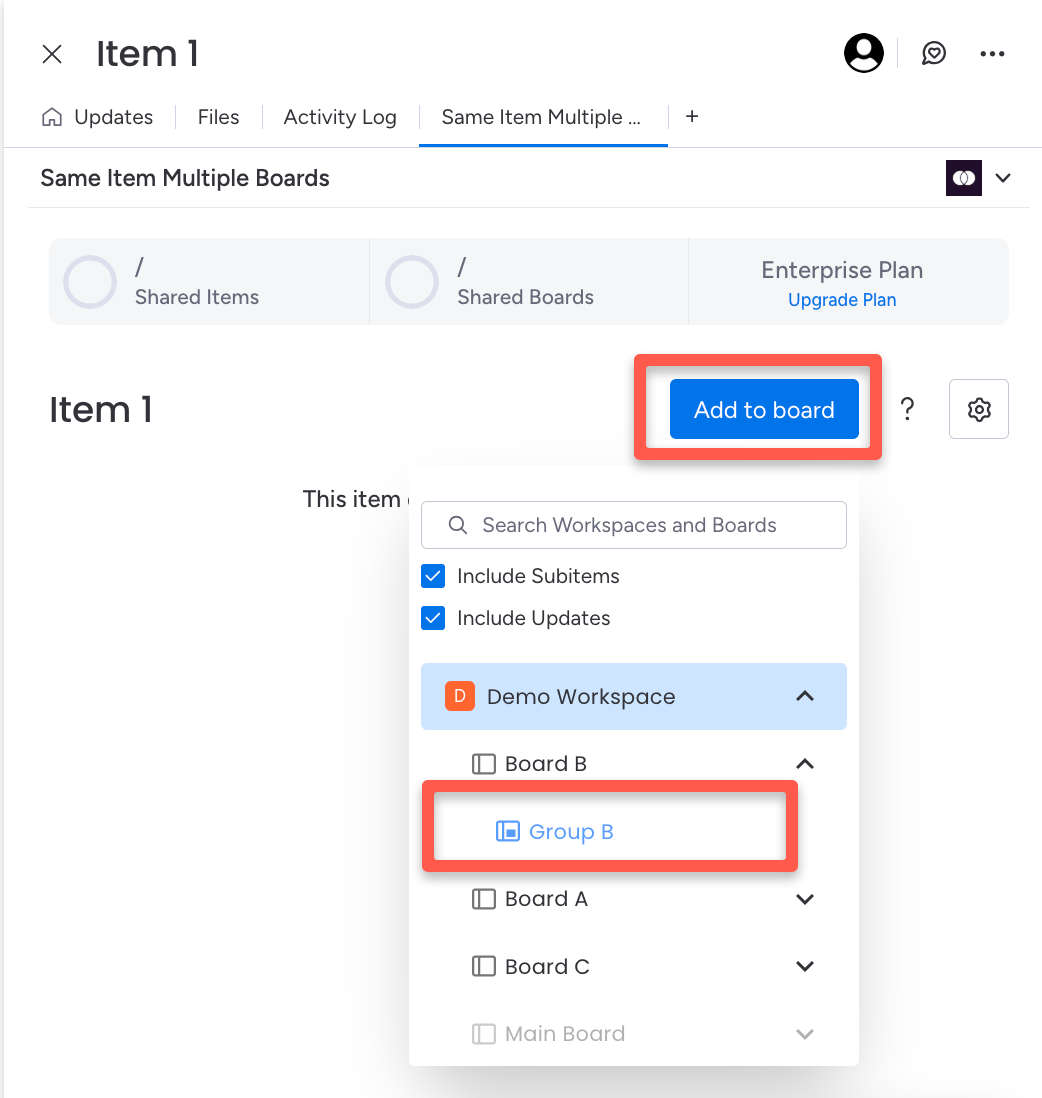
Click the item and navigate to the **Same Item Multiple Boards** tab inside the item view.
 Choose the board where you want the item to appear. SIMB will immediately fetch that board's column structure.
 A mapping panel opens, showing every column categorized as matching, mismatched, or missing. Green indicators mark columns that will sync. Warnings flag anything that needs attention.
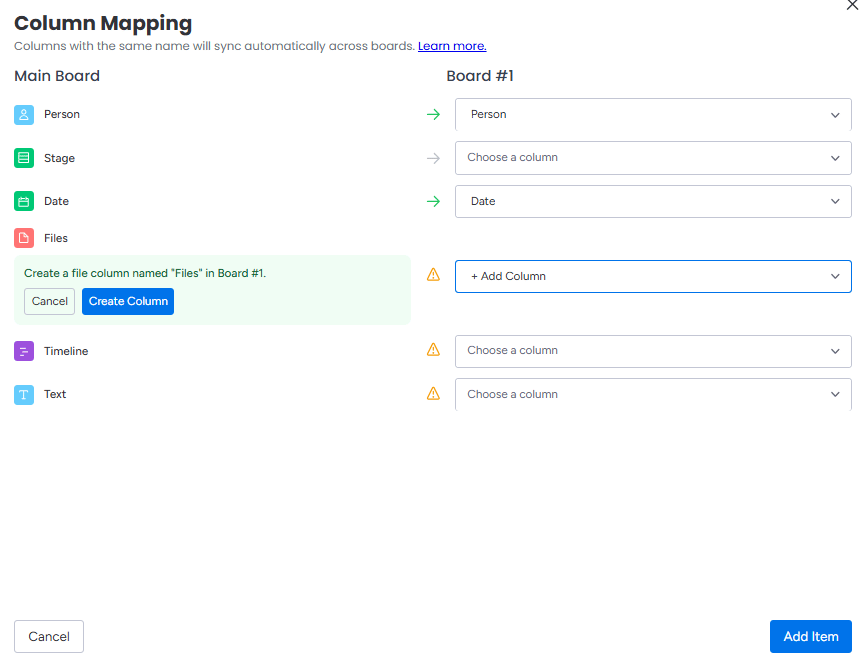 For any column marked as missing, you'll see a **Create column** button. Click it to automatically add that column to the destination board with the identical name and type. Repeat for each column you want to sync.
 Once you're satisfied with the mapping, click **Add Item**. The item appears on the destination board and begins syncing all matched columns immediately.
## Creating Missing Columns in One Click
When you click **Create column** next to a missing column, SIMB creates a new column on the destination board that:
* Uses the **exact same name** as the source column
* Uses the **exact same column type** (Status, Text, Date, People, etc.)
This means the newly created column is immediately eligible for syncing — no manual configuration required.
Run Column Mapping on a manual share before activating automations on the same board pair. Once your columns are aligned, automations will sync those columns correctly without any further setup.
## Important Notes
* Column names must match **exactly** — including capitalization and spacing. `due date` and `Due Date` are treated as different columns.
* Column **type** must match. A Status column on one board will not sync with a Text column on another, even if the names are identical.
* Mismatched columns simply don't sync — no error is raised on the item.
* Column Mapping does not apply to automations. Automations determine sync eligibility solely by comparing column names and types at the time the automation fires.
* You can rename or edit columns after syncing has started, but if you change a name so it no longer matches, syncing for that column will stop.
## Troubleshooting Tips
If a column isn't syncing after sharing:
Open both boards and confirm the column names are character-for-character identical, including case and spaces.
Both columns must be the same type. Rename isn't enough — the type must also match (e.g., Status to Status, Date to Date).
Re-open the SIMB item view, select the destination board, and review the mapping window. It will clearly show any mismatch or missing column.
Formula, Mirror, and Connected Boards columns are not supported for syncing. These will never appear as green in the mapping view.
Once you're satisfied with the mapping, click **Add Item**. The item appears on the destination board and begins syncing all matched columns immediately.
## Creating Missing Columns in One Click
When you click **Create column** next to a missing column, SIMB creates a new column on the destination board that:
* Uses the **exact same name** as the source column
* Uses the **exact same column type** (Status, Text, Date, People, etc.)
This means the newly created column is immediately eligible for syncing — no manual configuration required.
Run Column Mapping on a manual share before activating automations on the same board pair. Once your columns are aligned, automations will sync those columns correctly without any further setup.
## Important Notes
* Column names must match **exactly** — including capitalization and spacing. `due date` and `Due Date` are treated as different columns.
* Column **type** must match. A Status column on one board will not sync with a Text column on another, even if the names are identical.
* Mismatched columns simply don't sync — no error is raised on the item.
* Column Mapping does not apply to automations. Automations determine sync eligibility solely by comparing column names and types at the time the automation fires.
* You can rename or edit columns after syncing has started, but if you change a name so it no longer matches, syncing for that column will stop.
## Troubleshooting Tips
If a column isn't syncing after sharing:
Open both boards and confirm the column names are character-for-character identical, including case and spaces.
Both columns must be the same type. Rename isn't enough — the type must also match (e.g., Status to Status, Date to Date).
Re-open the SIMB item view, select the destination board, and review the mapping window. It will clearly show any mismatch or missing column.
Formula, Mirror, and Connected Boards columns are not supported for syncing. These will never appear as green in the mapping view.