> ## Documentation Index
> Fetch the complete documentation index at: https://docs.sameitem.com/llms.txt
> Use this file to discover all available pages before exploring further.
# Fix Out-of-Sync Items Using the SIMB Discrepancy Report
> The Discrepancy Report shows where shared items are out of sync across boards, so you can quickly apply the latest value and restore data consistency.
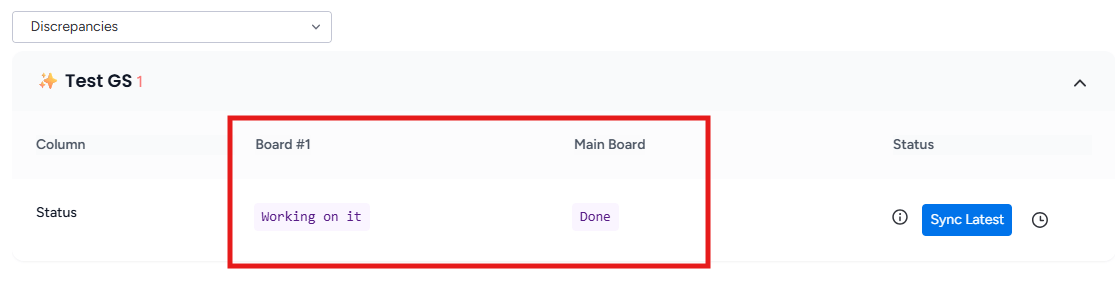
The **Discrepancy Report** is your tool for catching and correcting data mismatches across connected boards. When a shared item shows different values on different boards — for example, "Done" on one board and "Stuck" on another — the Discrepancy Report surfaces those differences in one place and lets you resolve them with a single click. Use it any time you suspect data has fallen out of sync or after fixing column mismatches that previously blocked syncing.
## What is a discrepancy?
A discrepancy occurs when the **same item carries different values on different boards**. This typically happens when column names or types didn't match at the time an update was made, so SIMB couldn't propagate the change. Once you fix the column names and types so they match, future updates sync correctly — but any values that diverged in the past are **not retroactively corrected**. That's what the Discrepancy Report is for.
**Example:** A task is marked "Done" on your Project Roadmap board, but it still shows "Stuck" on your Engineering Sprint board because the Status column was named differently when the update was made. After you align the column names, the Discrepancy Report lets you push the correct value — "Done" — across all boards.
 ## Access the Discrepancy Report
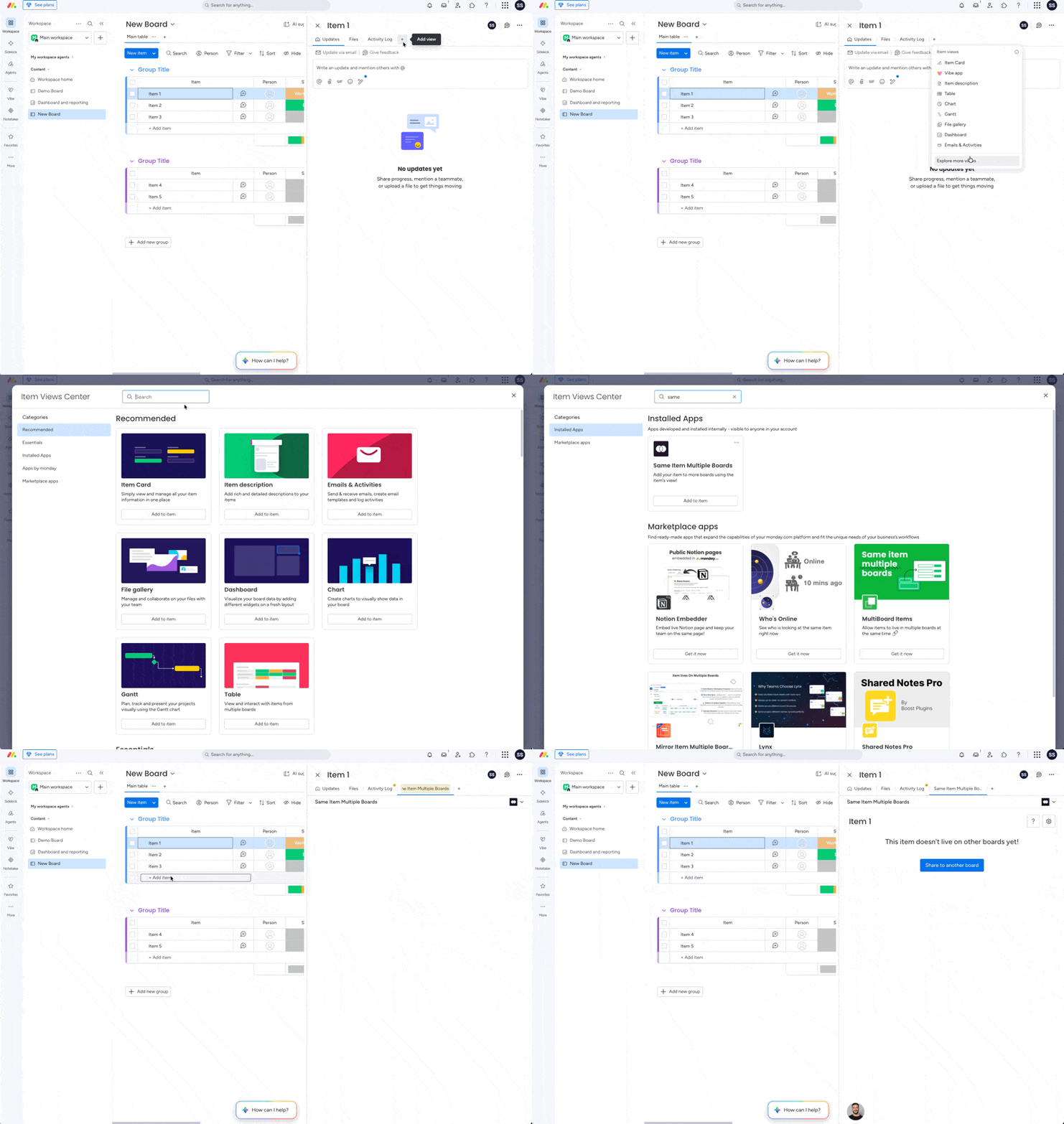
The Discrepancy Report lives inside the Same Item Multiple Boards view. To add it to a board:
1. Click **Add View** in your board's view bar.
2. Select **Apps**, then **Explore more apps**.
3. Search for **Same Item Multiple Boards** and open the view.
## Review and fix discrepancies
Navigate to the board where the shared items originate and open the **Same Item Multiple Boards** view you added above.
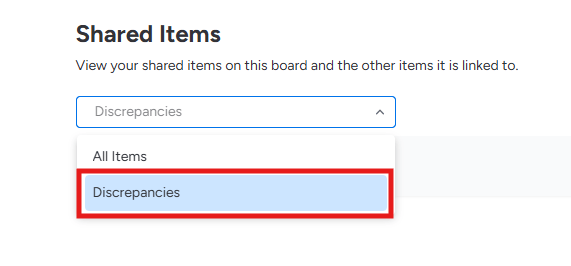
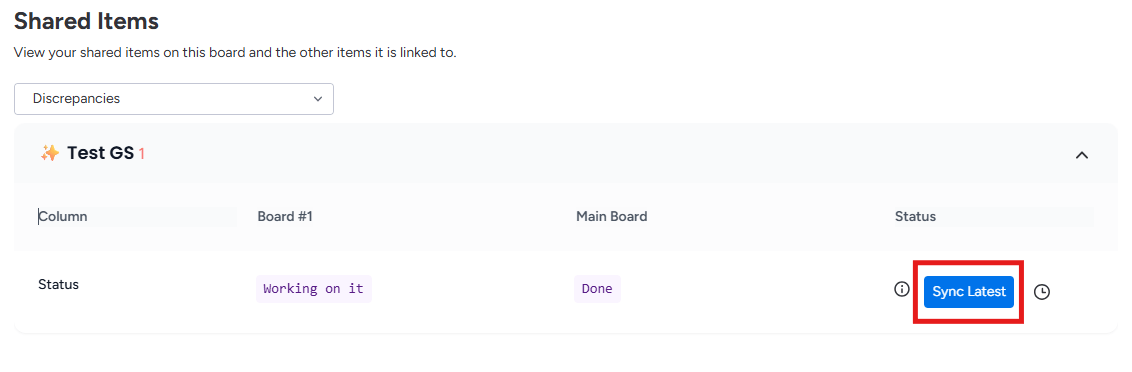
At the top of the SIMB view, click the dropdown that shows **All items** and select **Discrepancies**. The view will filter to show only items that have sync mismatches across boards.
## Access the Discrepancy Report

The Discrepancy Report lives inside the Same Item Multiple Boards view. To add it to a board:
1. Click **Add View** in your board's view bar.
2. Select **Apps**, then **Explore more apps**.
3. Search for **Same Item Multiple Boards** and open the view.
## Review and fix discrepancies
Navigate to the board where the shared items originate and open the **Same Item Multiple Boards** view you added above.
At the top of the SIMB view, click the dropdown that shows **All items** and select **Discrepancies**. The view will filter to show only items that have sync mismatches across boards.
 Click the arrow (▶) next to an item's name to expand it. You'll see a history of what changed, when it changed, and who made the change — giving you full context before deciding which value to apply.
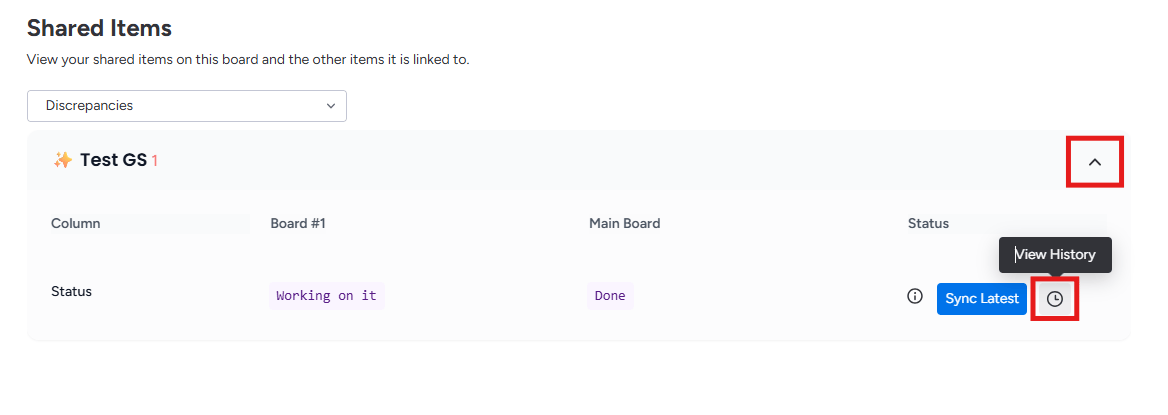 Next to the mismatched field, click **Sync Latest**. SIMB applies the most recent value across all connected boards, resolving the discrepancy immediately.
 If you don't see the discrepancies you expected, check your column names and types on both boards. Columns with different names or different column types are invisible to SIMB's sync engine — they won't appear in the Discrepancy Report even if their values differ.
## Use the Discrepancy Report after fixing column mismatches
The Discrepancy Report also works as a follow-up step after you've corrected column mismatches. Once your board columns have matching names and types, go to the Discrepancy Report and run through any outstanding items to bring historical values back into alignment. This two-step process — fix columns first, then sync discrepancies — is the most reliable way to fully restore data consistency.
For instructions on how to align column names and types before using the Discrepancy Report, see [How to Fix Column Mismatches Across Boards](/troubleshooting/column-mismatches).
If you don't see the discrepancies you expected, check your column names and types on both boards. Columns with different names or different column types are invisible to SIMB's sync engine — they won't appear in the Discrepancy Report even if their values differ.
## Use the Discrepancy Report after fixing column mismatches
The Discrepancy Report also works as a follow-up step after you've corrected column mismatches. Once your board columns have matching names and types, go to the Discrepancy Report and run through any outstanding items to bring historical values back into alignment. This two-step process — fix columns first, then sync discrepancies — is the most reliable way to fully restore data consistency.
For instructions on how to align column names and types before using the Discrepancy Report, see [How to Fix Column Mismatches Across Boards](/troubleshooting/column-mismatches).