> ## Documentation Index
> Fetch the complete documentation index at: https://docs.sameitem.com/llms.txt
> Use this file to discover all available pages before exploring further.
# Track Where Your Shared Items Live with Item Locations
> The Item Locations Column automatically shows every board where a shared item lives, letting you navigate directly to that item with one click.
When you share an item across multiple boards with SIMB, it can quickly become hard to remember exactly where that item lives. The **Item Locations Column** solves this by automatically displaying every board the item exists on, directly inside the item row. Instead of manually hunting through boards, you get instant visibility and one-click navigation — right from where you're already working.
## How it works
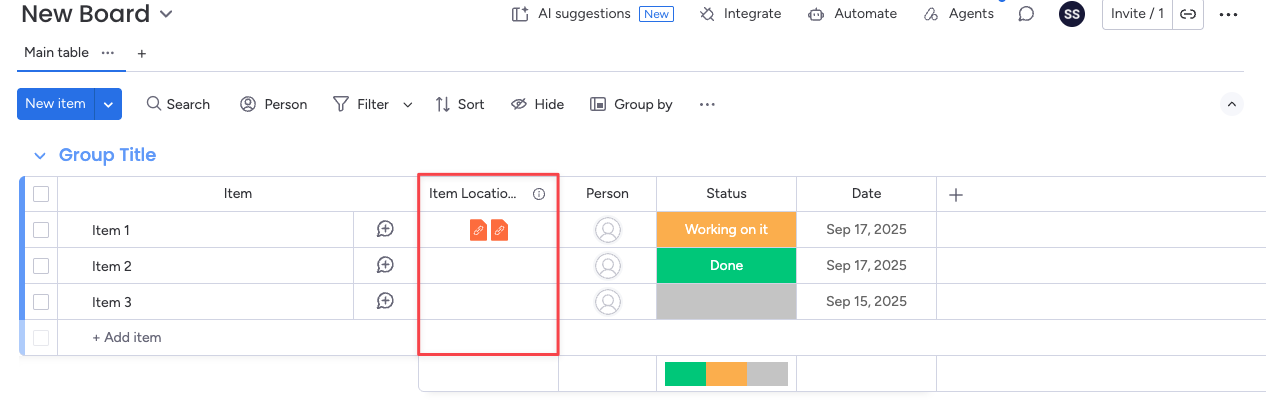
The Item Locations Column is created automatically on both the source board and the target board the moment you add an item to another board using SIMB. You don't need to add the column yourself — it appears as soon as a cross-board connection is established.
The Item Locations Column only appears after an item has been added to at least one other board. If a board has no shared items yet, the column will not be visible.
Once the column is present, you can interact with it in three ways:
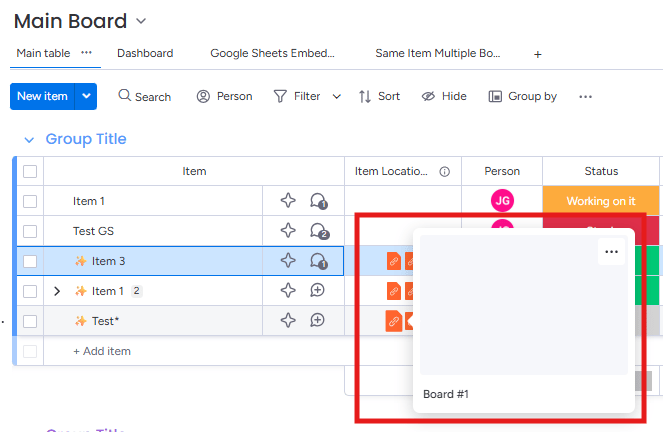
Hover over the icons inside the column to see the names of every board where the item currently exists.
Click a board name to jump directly to that item on the selected board — no searching required.
If the column isn't needed for your workflow, disable it from SIMB settings at any time.
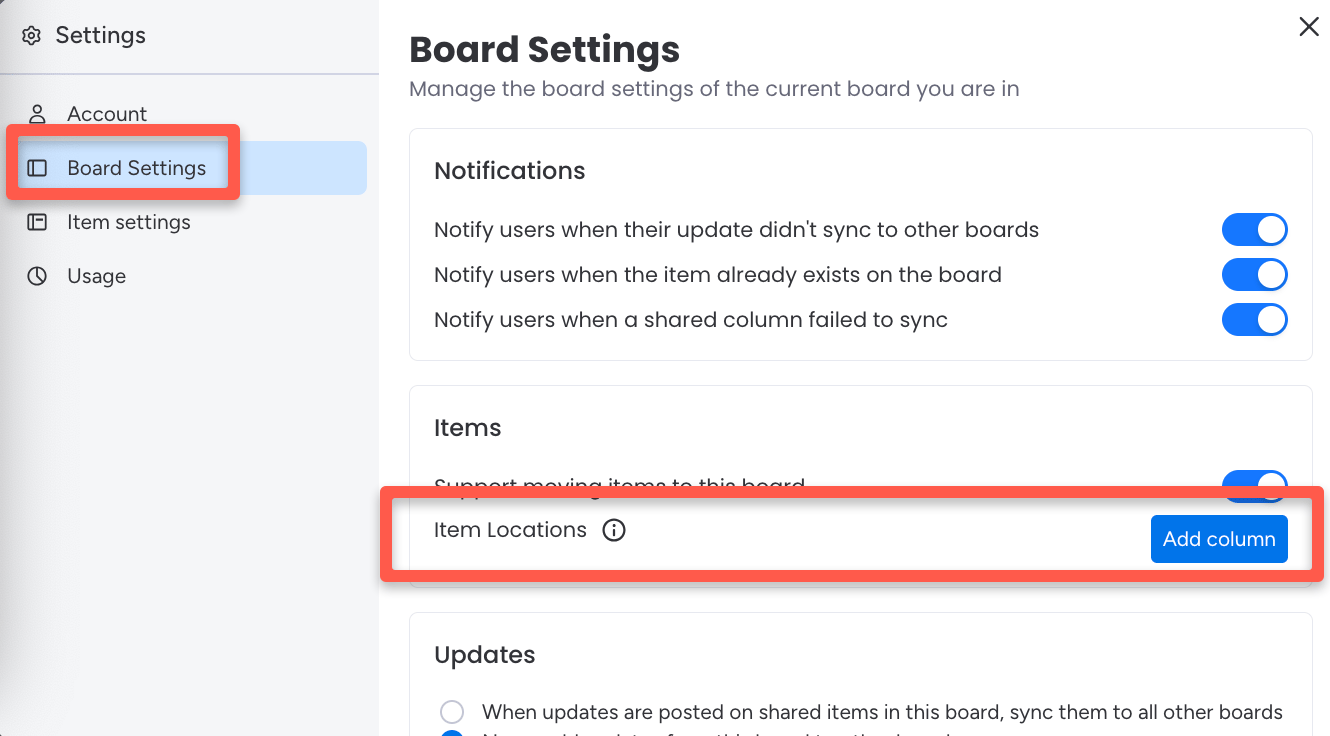
If you disabled or deleted the column, you can restore it from Board Settings inside the SIMB tab.
 ## Disable the Item Locations Column
If this feature doesn't fit your workflow, you can turn it off at any time.
Click on any item to open it, then select the **Same Item Multiple Boards** tab.
Click the **Settings** (⚙️) icon in the top corner of the SIMB tab.
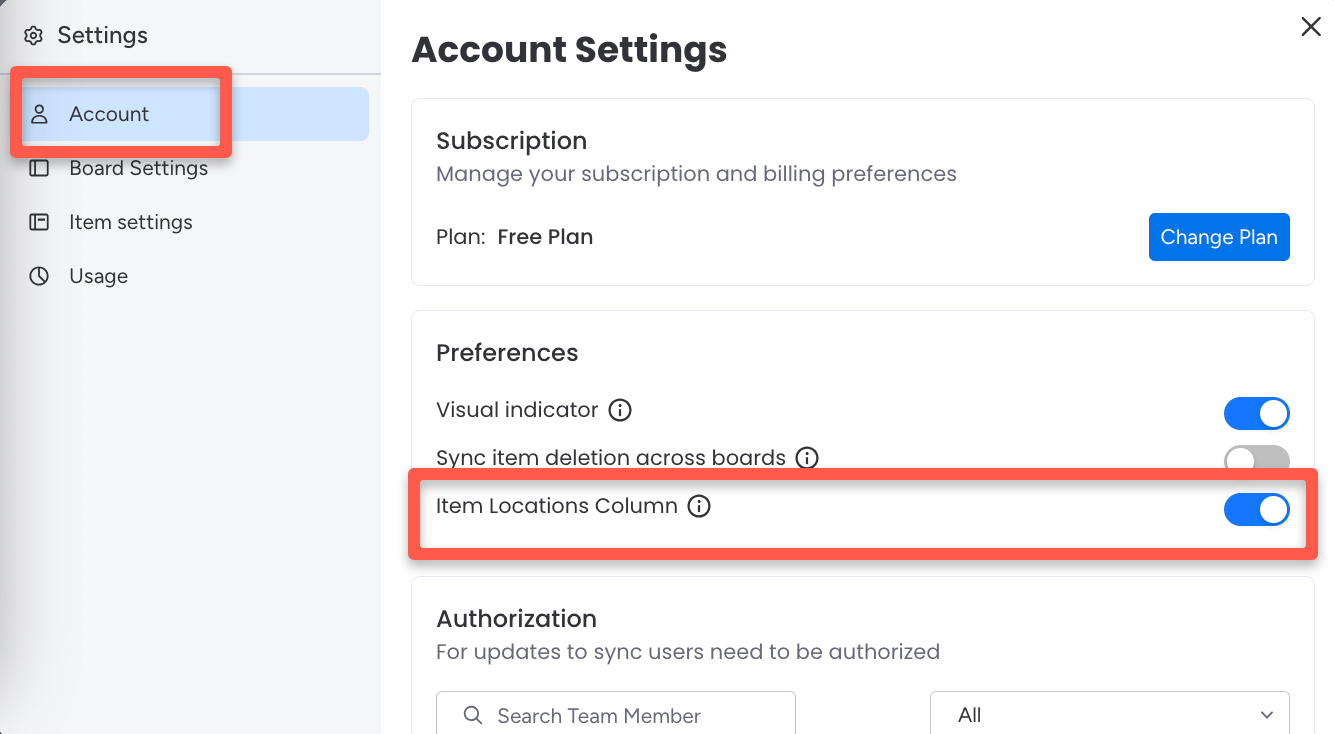
Find the **Item Locations Column** toggle and switch it off.
## Disable the Item Locations Column
If this feature doesn't fit your workflow, you can turn it off at any time.
Click on any item to open it, then select the **Same Item Multiple Boards** tab.
Click the **Settings** (⚙️) icon in the top corner of the SIMB tab.
Find the **Item Locations Column** toggle and switch it off.
 Once disabled, SIMB will no longer create this column for newly shared items.
Disabling the toggle only prevents the column from being added to future items. Any Item Locations Columns that already exist on your board will remain visible until you manually delete them.
## Re-enable the Item Locations Column
If you disabled the column earlier and want to bring it back, you can restore it through Board Settings.
Click on any item to open it, then select the **Same Item Multiple Boards** tab.
Click the **Settings** (⚙️) icon.
Select **Board Settings** from the settings menu.
Click **Add Column** next to **Item Locations**. The column will be restored on your board immediately.
Once disabled, SIMB will no longer create this column for newly shared items.
Disabling the toggle only prevents the column from being added to future items. Any Item Locations Columns that already exist on your board will remain visible until you manually delete them.
## Re-enable the Item Locations Column
If you disabled the column earlier and want to bring it back, you can restore it through Board Settings.
Click on any item to open it, then select the **Same Item Multiple Boards** tab.
Click the **Settings** (⚙️) icon.
Select **Board Settings** from the settings menu.
Click **Add Column** next to **Item Locations**. The column will be restored on your board immediately.