> ## Documentation Index
> Fetch the complete documentation index at: https://docs.sameitem.com/llms.txt
> Use this file to discover all available pages before exploring further.
# Manually Share Items to Multiple Boards in monday.com
> Use the SIMB item view to choose exactly which boards each item appears on, with full control over column sync and where your work lives.
Manual sharing gives you direct, item-by-item control over where your work appears in monday.com. Instead of relying on rules or automations, you open an item, pick the boards you want it to live on, and add it — the item then exists on every selected board simultaneously, fully synced, with no duplication. This approach works best when only certain items need to be shared, or when you want to review column alignment before sharing.
## Share an Item Manually
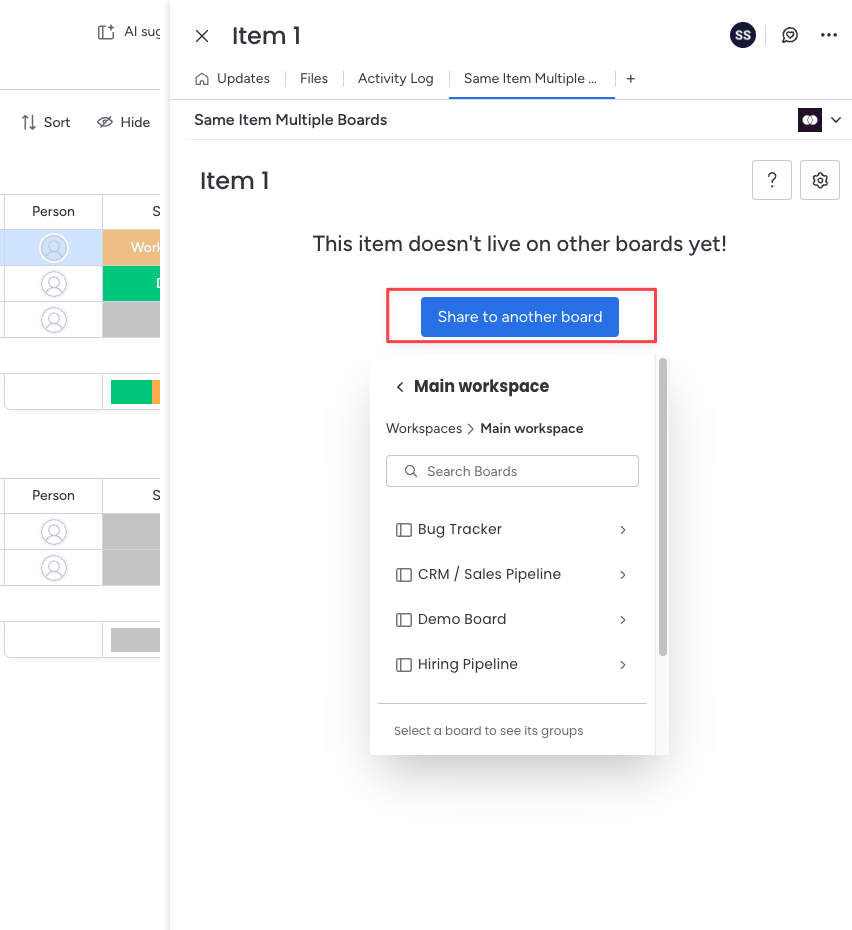
Click the item you want to share to open its detail view.
Inside the item, navigate to the **Same Item Multiple Boards** tab. If you don't see it, ask your board admin to add the SIMB item view to the board.
Browse or search the list of available boards. Check the box next to every board where you want this item to appear.
Click **Add** to confirm. The item immediately appears on every board you selected and begins syncing column values in real time.
## What Happens After Sharing
Once you click **Add**, the item appears on the destination board in its default group. Any columns that share the same name **and** the same column type between the two boards will start syncing automatically — change a Status on one board and it updates everywhere the item lives. Columns that don't match won't sync, but they won't block the share either.
Before clicking **Add**, SIMB shows you a Column Mapping preview that highlights exactly which columns will sync, which won't, and which are missing on the destination board. Use this to create any missing columns in one click before completing the share. See [Column Mapping](/features/column-mapping) for the full walkthrough.
## Visual Indicator
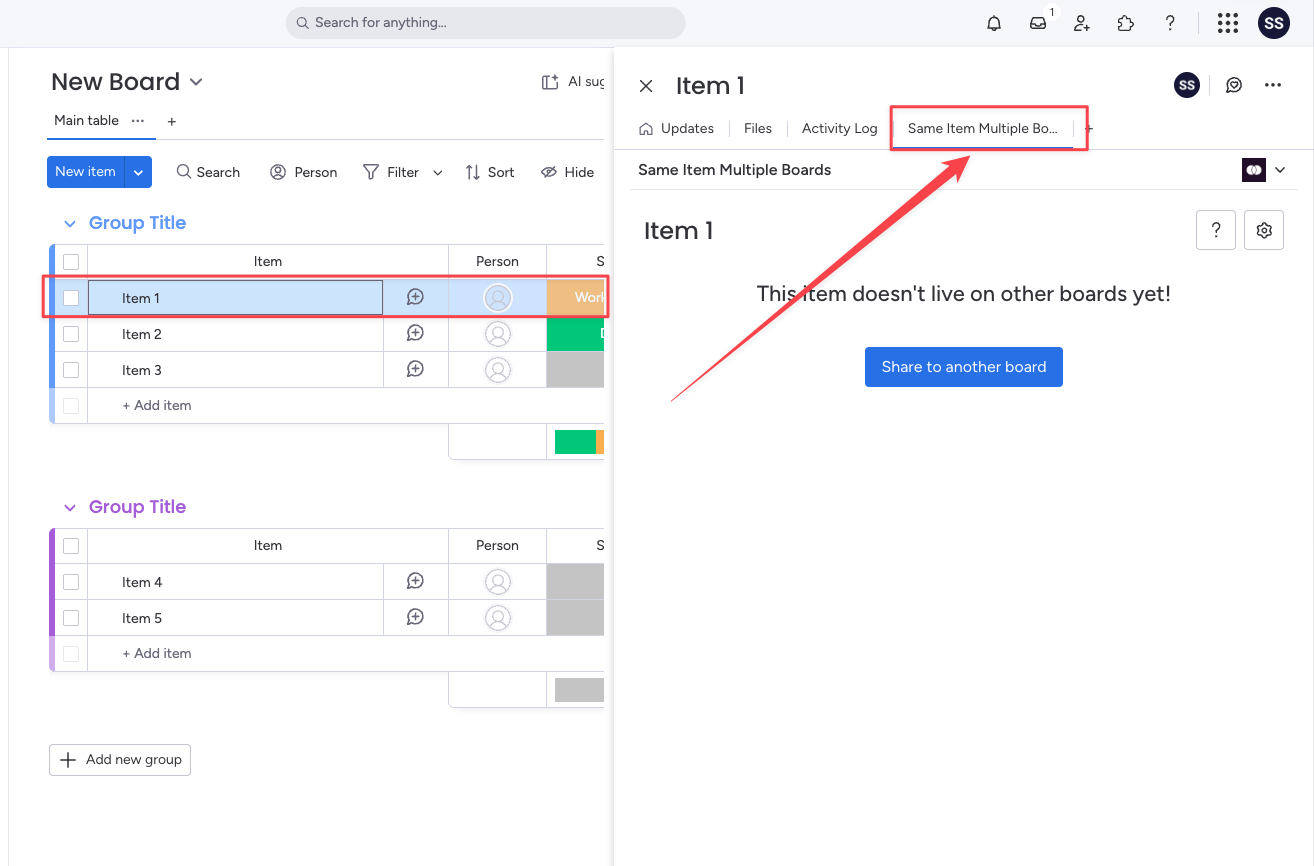
After an item is shared to at least one other board, a small SIMB icon appears directly next to the item's name in the board view. You can scan your board at a glance and instantly spot every shared item — no need to open each one individually.
You can also add the optional **Item Locations** column to your board. This column lists every board the item currently lives on, and each board name is clickable — it takes you straight to that item on the other board.
## Remove an Item From a Specific Board
You can remove a shared item from a single board right from the **Same Item Multiple Boards** item view. SIMB gives you two choices — **Unlink** (stop syncing but keep the item intact everywhere else) or **Delete** (permanently remove that board's copy).
Click the item you want to remove from a board.
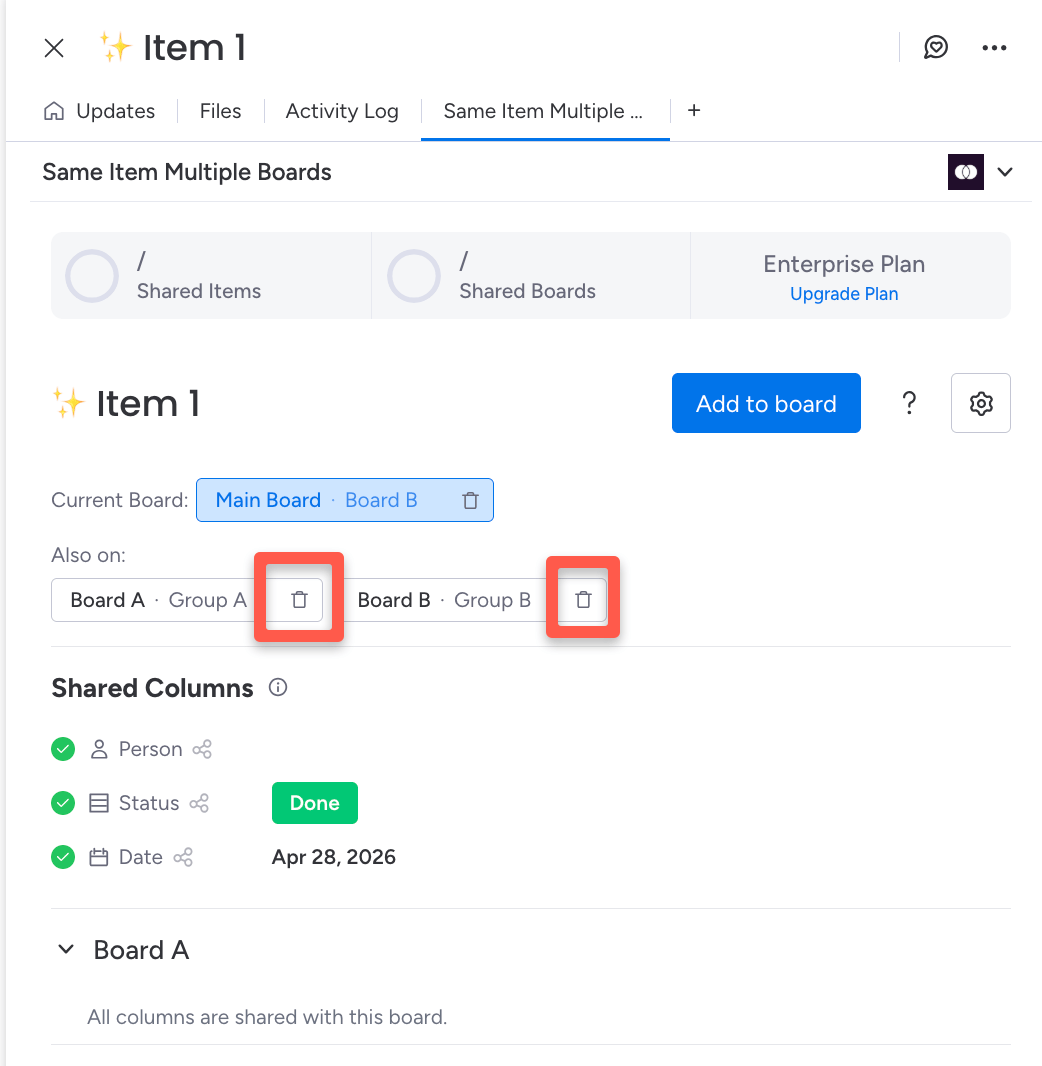
Go to the **Same Item Multiple Boards** tab inside the item — it lists every board the item currently lives on.
Find the board you want to remove the item from and click the trash-bin icon next to it.
 Pick the action you want:
* **Unlink** — removes the item from that board and stops syncing it there, but keeps it fully intact and synced on every other board. Nothing is lost.
* **Delete** — permanently removes the item from that one board.
Pick the action you want:
* **Unlink** — removes the item from that board and stops syncing it there, but keeps it fully intact and synced on every other board. Nothing is lost.
* **Delete** — permanently removes the item from that one board.
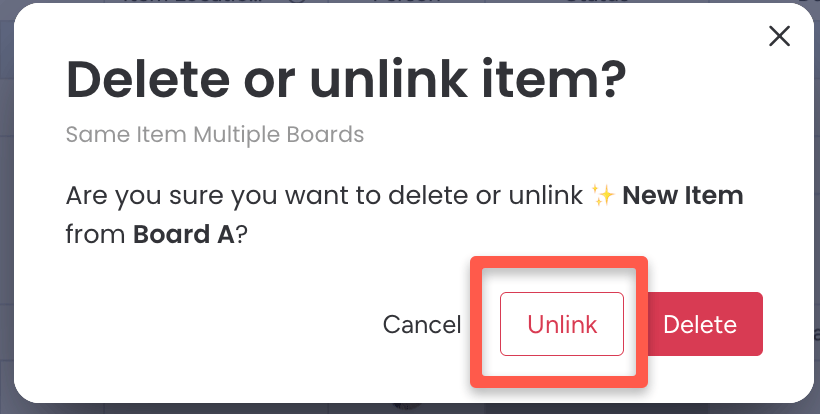 **Unlink** only affects the board you chose — the item stays live and synced on every other board it was shared to. Use **Delete** only when you want that board's copy gone for good.
## Column Requirements for Syncing
SIMB syncs column values between boards when both of the following are true:
* The columns have the **exact same name** (case-sensitive)
* The columns are the **same type** (for example, both are Status columns, both are Date columns, and so on)
If a column exists on one board but not the other, or if the types differ, that column's value simply won't sync — no error is raised. To resolve mismatches before sharing, use the Column Mapping preview that appears when you manually add an item.
The following column types are **not supported** for syncing: Formula, Mirror, Connected Boards, and certain other special column types. Values in these columns won't carry over even if the names match.
For a detailed guide on previewing and resolving column alignment issues before you share, see [Column Mapping](/features/column-mapping).
**Unlink** only affects the board you chose — the item stays live and synced on every other board it was shared to. Use **Delete** only when you want that board's copy gone for good.
## Column Requirements for Syncing
SIMB syncs column values between boards when both of the following are true:
* The columns have the **exact same name** (case-sensitive)
* The columns are the **same type** (for example, both are Status columns, both are Date columns, and so on)
If a column exists on one board but not the other, or if the types differ, that column's value simply won't sync — no error is raised. To resolve mismatches before sharing, use the Column Mapping preview that appears when you manually add an item.
The following column types are **not supported** for syncing: Formula, Mirror, Connected Boards, and certain other special column types. Values in these columns won't carry over even if the names match.
For a detailed guide on previewing and resolving column alignment issues before you share, see [Column Mapping](/features/column-mapping).