> ## Documentation Index
> Fetch the complete documentation index at: https://docs.sameitem.com/llms.txt
> Use this file to discover all available pages before exploring further.
# Sync Subitems Across Boards Automatically with SIMB
> SIMB automatically syncs subitems across every board where the parent item exists, including columns, statuses, and updates — no setup required.
When you share an item across multiple boards with SIMB, every subitem attached to that parent item follows along automatically. Subitems appear on all connected boards in real time — no configuration, no extra steps. Whether you update a status, post a comment, or change a date inside a subitem, that change propagates to every board where the parent item lives, keeping all your teams aligned without any manual effort.
Subitem syncing is included in every SIMB installation and enabled by default. There is nothing you need to turn on — subitems just work out of the box.
## What syncs
When a parent item exists on multiple boards through SIMB, all of the following sync automatically for each subitem:
* **Appearance** — subitems instantly appear on every connected board the moment you create them
* **Column values** — any supported column type stays in sync across all boards
* **Updates** — messages posted inside a subitem appear on the same subitem on every board
### Supported column types
The following column types sync for subitems:
* Status
* Text and Long Text
* People
* Date
* Dropdown
* Numbers
* Rating
* Email and Phone
* File
* Timeline
* Link
* Updates
Mirror, Formula, and Connected Boards columns are **not** supported in subitem syncing. Changes to those column types will not propagate across boards.
## Example workflow
Imagine you have two boards:
* **Board A** — "Product Roadmap"
* **Board B** — "Engineering Sprint"
You sync a feature request item to both boards using SIMB. Inside that item, you add three subitems:
1. UX design draft
2. API endpoint
3. QA checklist
Thanks to SIMB, all three subitems instantly appear on both boards. When an engineer marks "API endpoint" as **Done** in Board B, the status updates in Board A as well. A comment posted on "QA checklist" in either board shows up everywhere — no board-hopping required.
## Promote subitems to full items on another board
Sometimes a subitem grows in scope and needs to become a standalone item on a different team's board. SIMB lets you promote subitems to regular items on any board, with two-way sync maintained automatically.
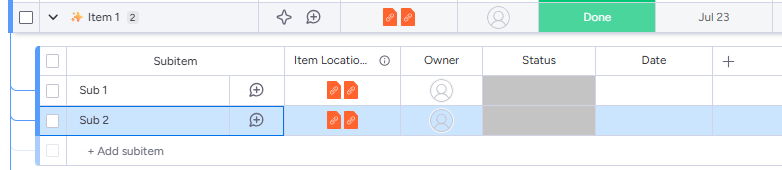
On your source board, check the boxes next to the subitems you want to send to another board.
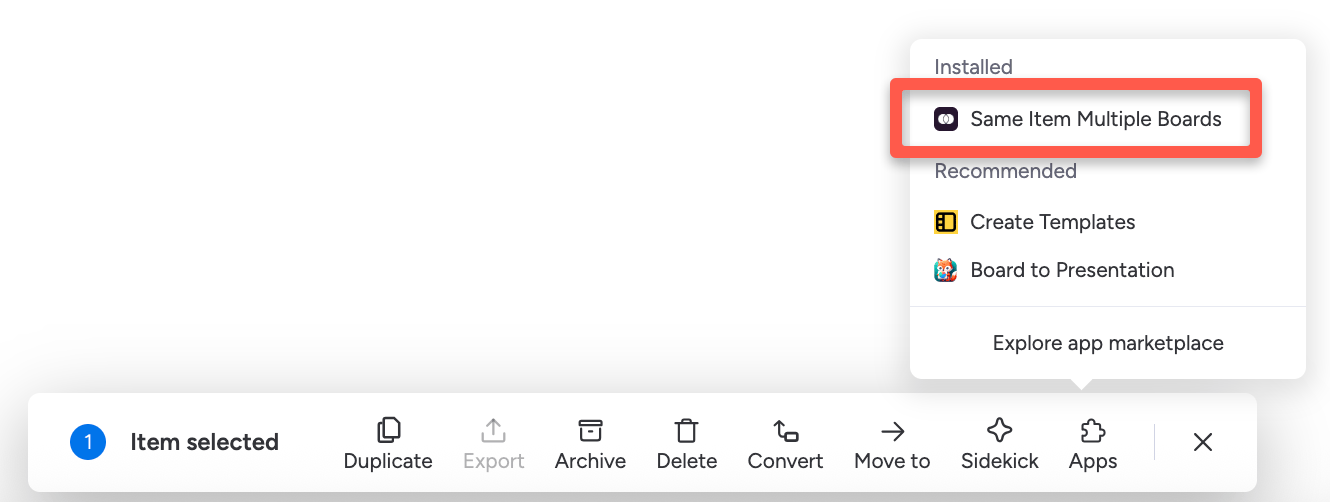
 At the bottom of the screen, click **Apps**.
 Select **Same Item Multiple Boards (SIMB)** from the list of available apps.
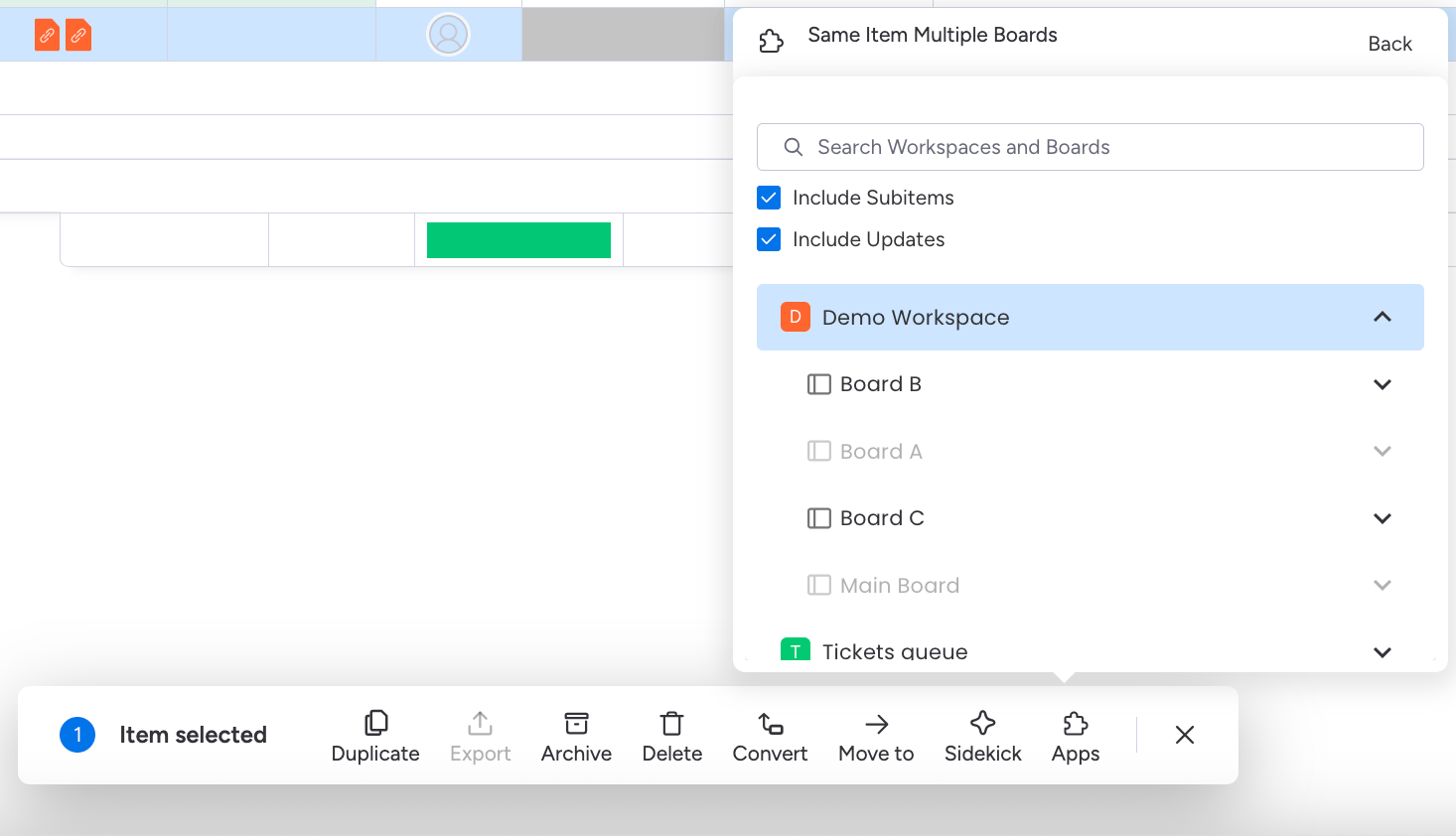
 Choose the board where the subitems should appear as regular items (for example, your "Dev Team" board). Optionally, select a specific group within that board.
 SIMB adds the selected subitems as new items on the target board. From this point forward, changes made on either board — status updates, comments, column values — sync automatically in both directions.
This promotion workflow is especially useful for cross-department handoffs. A project manager can track high-level subitems on a roadmap board while each department manages the same items on their own board — everyone always sees the latest state without switching contexts.
SIMB adds the selected subitems as new items on the target board. From this point forward, changes made on either board — status updates, comments, column values — sync automatically in both directions.
This promotion workflow is especially useful for cross-department handoffs. A project manager can track high-level subitems on a roadmap board while each department manages the same items on their own board — everyone always sees the latest state without switching contexts.