> ## Documentation Index
> Fetch the complete documentation index at: https://docs.sameitem.com/llms.txt
> Use this file to discover all available pages before exploring further.
# Sync Item Updates and Comments Across All Boards in SIMB
> SIMB automatically syncs comments and updates across every board where an item lives — each team member must individually authorize the app.
When an item lives on multiple boards, SIMB automatically syncs every comment and update posted on that item across all boards where it appears. A team member posting a status note on the Sprint Board will have that update reflected on the Main Board and the Client Board simultaneously — keeping every stakeholder in the loop without anyone having to repeat themselves. No configuration is required once the app is authorized; syncing starts immediately.
## Authorization Requirement
Updates sync on a per-user basis. Each person who posts updates must individually authorize SIMB to sync their comments. If a user's updates aren't appearing on other boards, it almost always means that user hasn't yet completed authorization.
Authorization is a one-time action per user. Once a team member authorizes SIMB, all of their future updates on shared items sync automatically across every connected board.
### How to Authorize
 Click any item that is already shared across two or more boards.
Inside the item view, click the **Same Item Multiple Boards** tab.
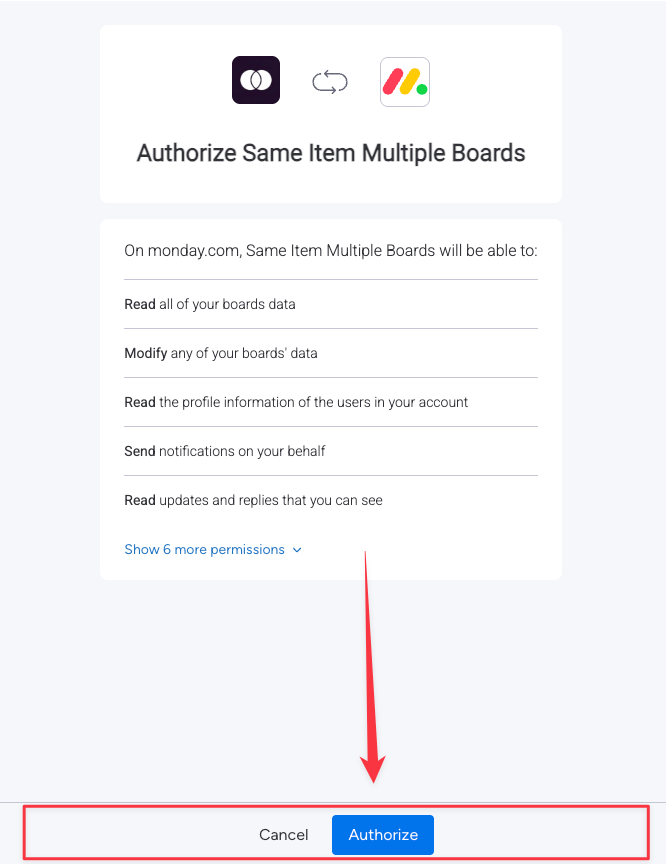
Click the **Authorize** button. A new browser tab opens with the monday.com OAuth consent screen.
In the new tab, click **Authorize** again to grant the app the permissions it needs. The tab will confirm success.
From this point on, updates posted by this user on any shared item will sync to all connected boards automatically.
### Check Authorization Status
To verify whether a specific user has authorized the app:
1. Open any shared item and go to the **Same Item Multiple Boards** tab.
2. Click the **Settings** icon (gear icon) in the top corner of the SIMB panel.
3. Go to **Account Settings → Authorization**. The current authorization status for that account is displayed here.
### Invite Team Members to Authorize
If you manage a team and need to prompt others to authorize, SIMB provides two options:
Inside the SIMB item view, click the **Send Invite** button (the mail icon). This sends an email to the selected team member with a direct link to the authorization screen.
Copy and share this link directly with anyone who needs to authorize: [Authorize SIMB](https://auth.monday.com/oauth2/authorize?client_id=9d9d91f40e511e3954b7d1df7184115e\&redirect_uri=https://simb-prod-api-qgobi.ondigitalocean.app/oauth/callback)
## Block Updates From Syncing
Sometimes you want certain updates to stay on one board only — keeping internal discussions off a client board, or limiting sensitive project notes to a specific team. You can configure this using SIMB automation recipes in the monday.com Integration Center.
Go to the board where you want to block updates and click the **Automate** button at the top.
Type **Same Item Multiple Boards** in the search bar to surface available SIMB recipes.
Select the recipe that matches your needs:
* **Block all updates:** "When update is posted, do not add it to other boards."
* **Block updates to a specific board:** "When update is posted, do not add it to \[specific board]."
Click any item that is already shared across two or more boards.
Inside the item view, click the **Same Item Multiple Boards** tab.
Click the **Authorize** button. A new browser tab opens with the monday.com OAuth consent screen.
In the new tab, click **Authorize** again to grant the app the permissions it needs. The tab will confirm success.
From this point on, updates posted by this user on any shared item will sync to all connected boards automatically.
### Check Authorization Status
To verify whether a specific user has authorized the app:
1. Open any shared item and go to the **Same Item Multiple Boards** tab.
2. Click the **Settings** icon (gear icon) in the top corner of the SIMB panel.
3. Go to **Account Settings → Authorization**. The current authorization status for that account is displayed here.
### Invite Team Members to Authorize
If you manage a team and need to prompt others to authorize, SIMB provides two options:
Inside the SIMB item view, click the **Send Invite** button (the mail icon). This sends an email to the selected team member with a direct link to the authorization screen.
Copy and share this link directly with anyone who needs to authorize: [Authorize SIMB](https://auth.monday.com/oauth2/authorize?client_id=9d9d91f40e511e3954b7d1df7184115e\&redirect_uri=https://simb-prod-api-qgobi.ondigitalocean.app/oauth/callback)
## Block Updates From Syncing
Sometimes you want certain updates to stay on one board only — keeping internal discussions off a client board, or limiting sensitive project notes to a specific team. You can configure this using SIMB automation recipes in the monday.com Integration Center.
Go to the board where you want to block updates and click the **Automate** button at the top.
Type **Same Item Multiple Boards** in the search bar to surface available SIMB recipes.
Select the recipe that matches your needs:
* **Block all updates:** "When update is posted, do not add it to other boards."
* **Block updates to a specific board:** "When update is posted, do not add it to \[specific board]."
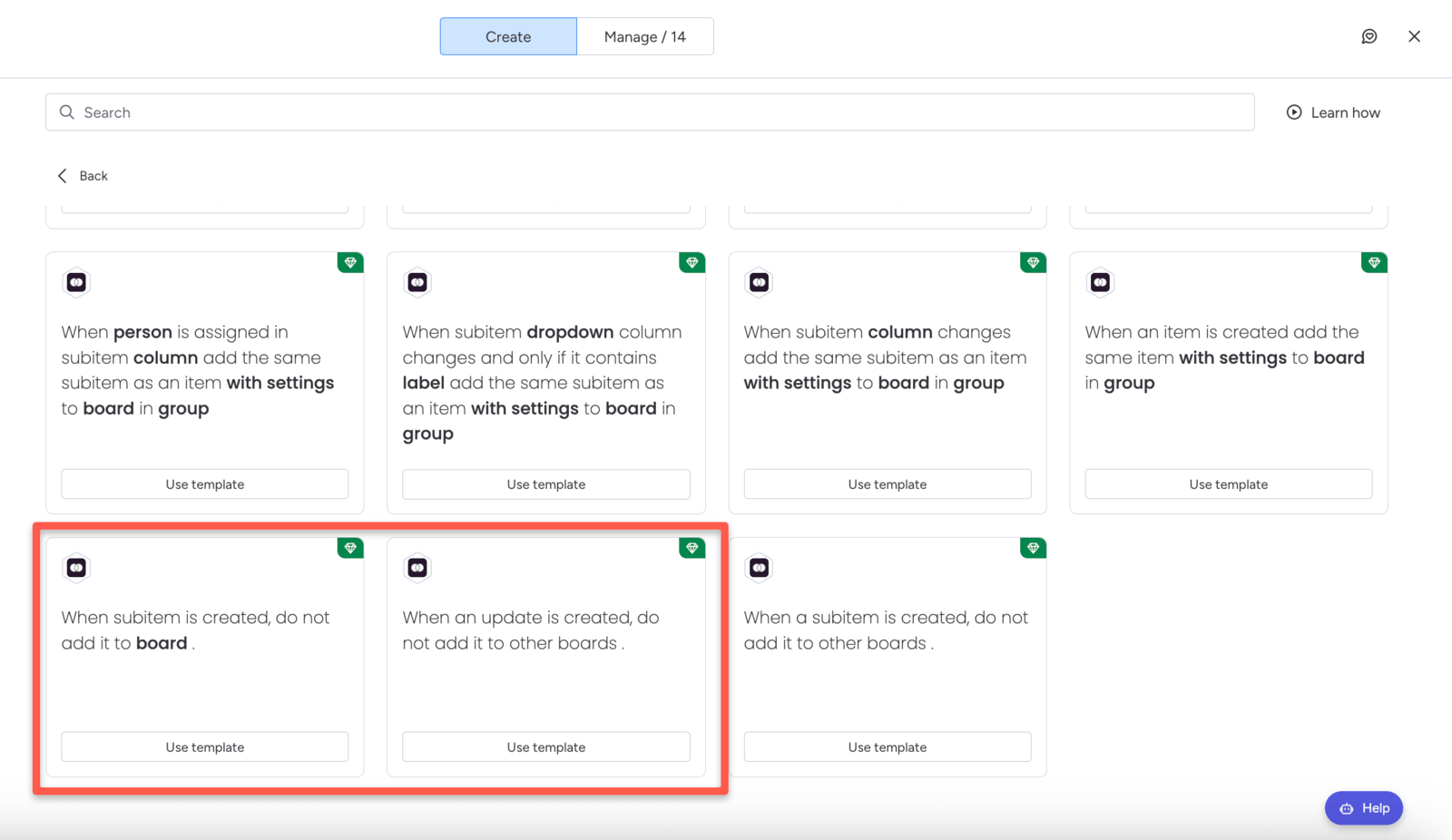 Set any required fields (such as the specific board to exclude) and save the recipe.
Toggling a blocking recipe on and off does **not** disable it — the recipe continues to run regardless of its toggle state. To stop blocking updates, you must **delete** the recipe entirely.
## Common Use Cases for Blocking Updates
Keep internal team discussions, notes, and decision logs private while still sharing item progress with clients on an external board.
Share only the updates relevant to a specific department. Prevent cross-departmental noise when the same item is tracked by multiple teams.
Protect sensitive project information — budget discussions, personnel decisions, or legal notes — from appearing on shared boards.
Ensure each team sees only the updates relevant to their stage of the workflow, keeping boards focused and noise-free.
## Troubleshooting
If updates aren't syncing as expected, start here:
* **Updates not appearing on other boards:** The user posting the update likely hasn't authorized SIMB. Follow the [authorization steps](#how-to-authorize) above or send them an invite link.
* **Updates blocked unexpectedly:** Check whether a blocking recipe is active on the board. Remember — the recipe still runs even if its toggle appears off. Delete the recipe to fully remove the block.
* **Partial sync (some users sync, others don't):** Authorization is per-user. Check each team member's authorization status individually via **Account Settings → Authorization** in the SIMB panel.
Set any required fields (such as the specific board to exclude) and save the recipe.
Toggling a blocking recipe on and off does **not** disable it — the recipe continues to run regardless of its toggle state. To stop blocking updates, you must **delete** the recipe entirely.
## Common Use Cases for Blocking Updates
Keep internal team discussions, notes, and decision logs private while still sharing item progress with clients on an external board.
Share only the updates relevant to a specific department. Prevent cross-departmental noise when the same item is tracked by multiple teams.
Protect sensitive project information — budget discussions, personnel decisions, or legal notes — from appearing on shared boards.
Ensure each team sees only the updates relevant to their stage of the workflow, keeping boards focused and noise-free.
## Troubleshooting
If updates aren't syncing as expected, start here:
* **Updates not appearing on other boards:** The user posting the update likely hasn't authorized SIMB. Follow the [authorization steps](#how-to-authorize) above or send them an invite link.
* **Updates blocked unexpectedly:** Check whether a blocking recipe is active on the board. Remember — the recipe still runs even if its toggle appears off. Delete the recipe to fully remove the block.
* **Partial sync (some users sync, others don't):** Authorization is per-user. Check each team member's authorization status individually via **Account Settings → Authorization** in the SIMB panel.