> ## Documentation Index
> Fetch the complete documentation index at: https://docs.sameitem.com/llms.txt
> Use this file to discover all available pages before exploring further.
# Stop Updates From Syncing to Other Boards
> Keep updates and comments on one board only — turn off updates syncing for a board, or exclude specific boards, from SIMB's Board Settings.
By default, when an item lives on multiple boards, every update or comment posted on it syncs to all connected boards. That's usually what you want — but not always. Common reasons to turn it off:
* **Internal vs. client boards** — keep internal team discussion off a board your clients can see.
* **Focused department boards** — share the item's columns, but not the cross-team chatter.
* **Confidential threads** — budget, personnel, or legal notes that should stay where they were written.
Updates syncing is controlled per board, from the app's **Board Settings**. No automation recipes are involved.
## How it works
Each board has its own **Updates** preference with three modes:
| Mode | What happens |
| ------------------------------------- | -------------------------------------------------------------------------------- |
| **Sync to all boards** (default) | Updates posted on shared items on this board are copied to every connected board |
| **Never add updates to other boards** | Updates posted on this board stay on this board |
| **Sync to all boards except…** | Updates sync everywhere except the boards you exclude |
Two things to understand before you change it:
* **The setting lives on the board where the update is written.** Blocking updates on Board A stops A's updates from reaching other boards. Updates written on other boards will still arrive on Board A — to stop that direction too, set the preference on those boards as well.
* **It applies board-wide.** The preference covers all shared items on that board, not individual items.
## Turn off updates syncing for a board
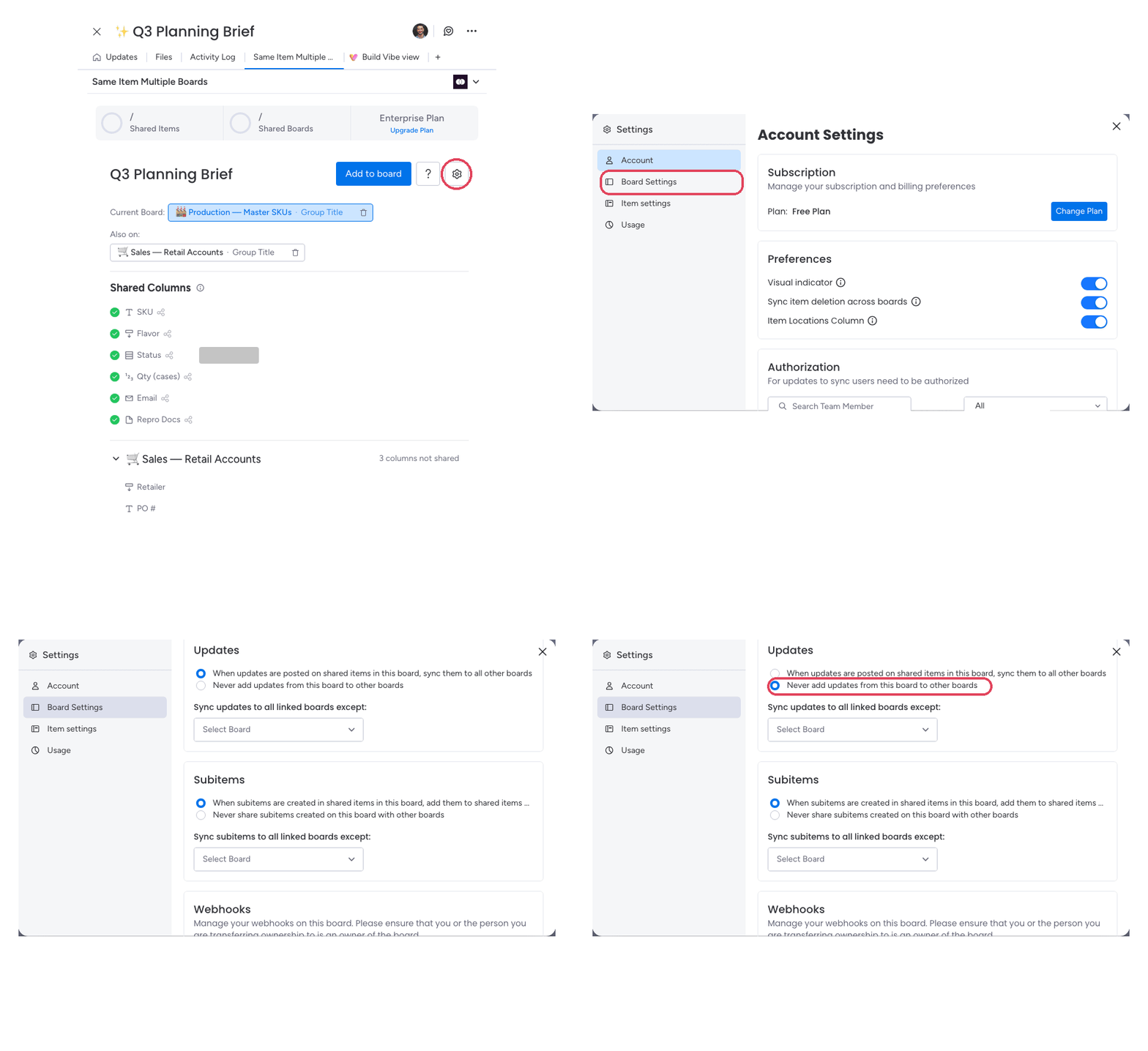
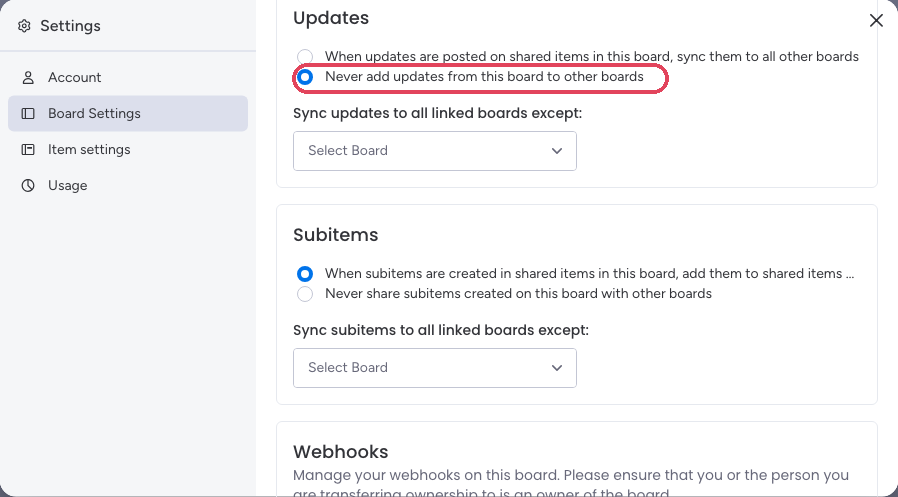
On the board whose updates you want to keep private, open any shared item and click the **Same Item Multiple Boards** tab.
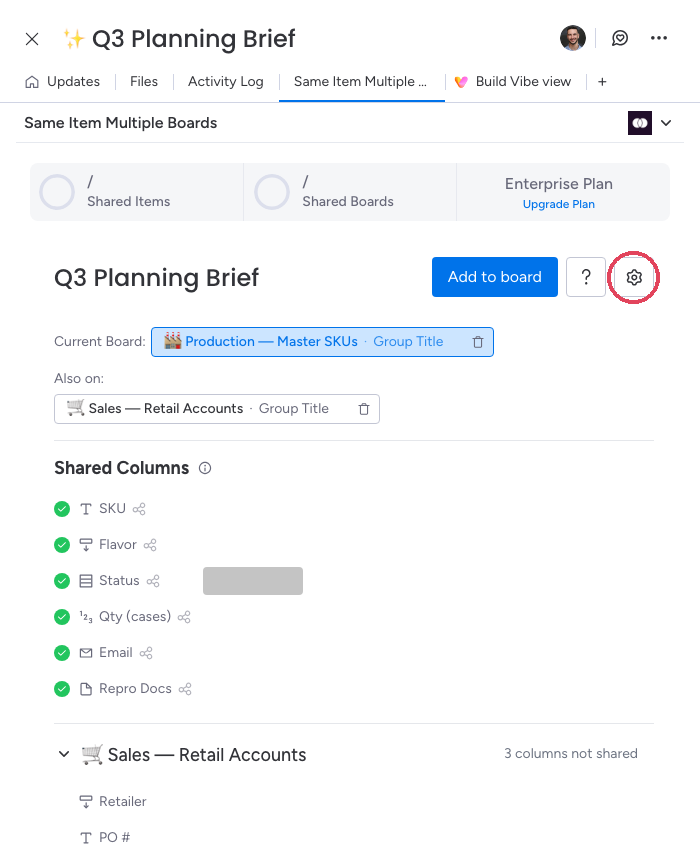
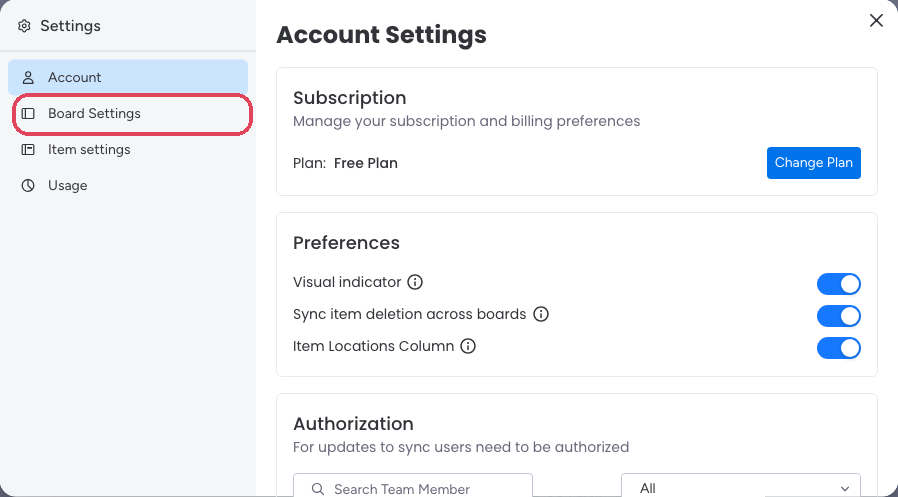
Click the **Settings** (gear) icon in the top-right of the SIMB view, then select **Board Settings** in the left-hand menu.
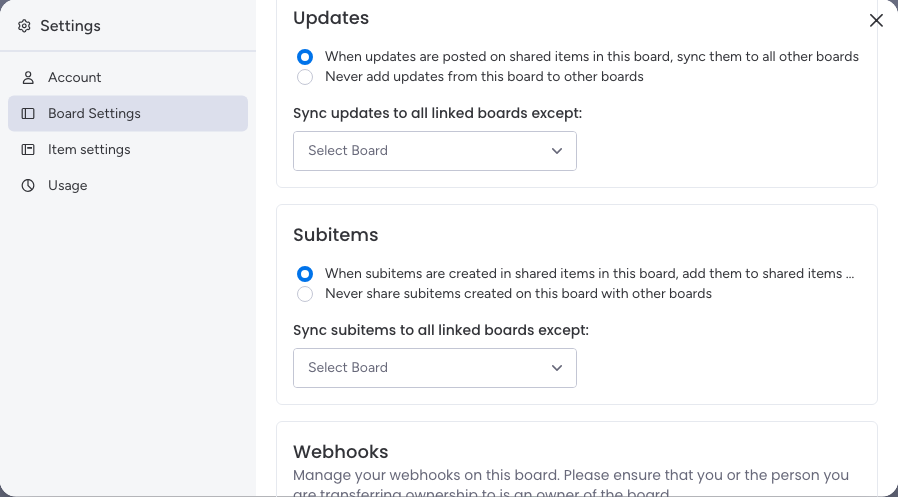
You'll see the current preference — by default, *"When updates are posted on shared items in this board, sync them to all other boards"*.
The change saves automatically. From now on, updates posted on this board stay on this board.
## Exclude only specific boards
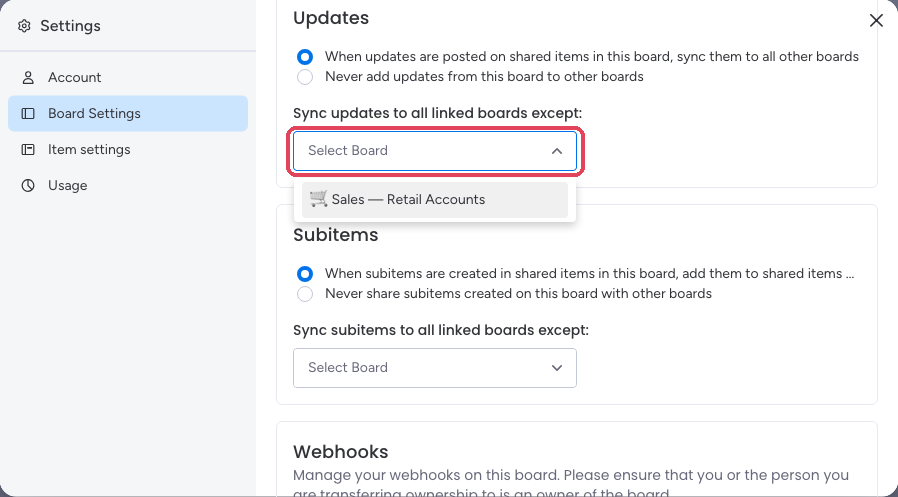
If you want updates to keep syncing in general but skip one or two boards (say, just the client-facing one), leave the default option selected and use **"Sync updates to all linked boards except:"** — pick the boards to exclude from the dropdown.
## Good to know
* **Existing updates stay.** Turning syncing off stops *future* updates from being copied. Updates that already synced remain on the other boards; unsyncing does not delete them.
* **Both directions need both boards.** The preference only governs updates *written on* the board where it's set. Set it on both sides of a connection to stop updates flowing either way.
* **Subitems have their own switch.** Right below Updates in Board Settings there's an identical **Subitems** section that controls whether new subitems are shared to other boards.
* **Columns keep syncing.** This setting only affects updates and comments — column values, names, and files sync as usual.
## Related
* [Updates Sync](/features/updates-sync) — how updates syncing and per-user authorization work
* [Updates Not Syncing](/troubleshooting/updates-not-syncing) — troubleshooting when updates *should* sync but don't (this setting is one of the causes to check)