> ## Documentation Index
> Fetch the complete documentation index at: https://docs.sameitem.com/llms.txt
> Use this file to discover all available pages before exploring further.
# How to Install Same Item Multiple Boards on monday.com
> Install Same Item Multiple Boards from the monday.com Marketplace in a few clicks and activate it across all your workspaces and boards.
Getting Same Item Multiple Boards (SIMB) running on your monday.com account takes just a few minutes. You install it once from the Marketplace, authorize it, and then add it to any additional boards where you want the item view available. This guide walks you through each step.
## Prerequisites
Before you begin, make sure you have:
* An active monday.com account
* Permission to install apps from the Marketplace (admin or app-install permissions)
* Access to at least one board where you want to start sharing items
## Install from the Marketplace
In your monday.com workspace, click the Marketplace icon in the left-hand sidebar to open the App Marketplace.
In the Marketplace search bar, type **Same Item Multiple Boards** and select the app from the results.
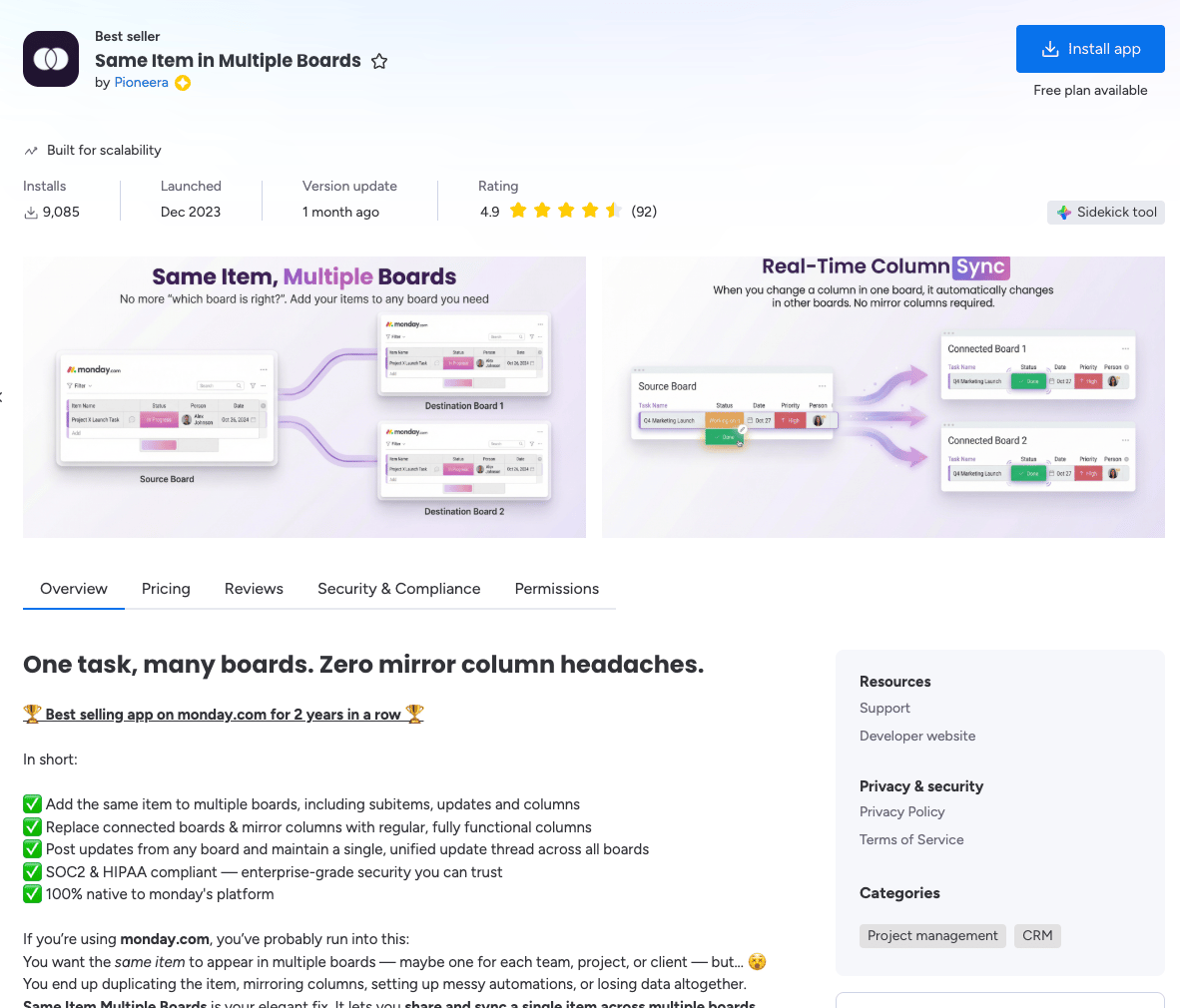 Click **Install App**. When prompted, choose to install it **across all workspaces**. This is important — installing across all workspaces ensures that items can be shared and synced between boards in different workspaces, not just the one you are currently in.
Choose the workspace and the first board where you want to set up the app, then click **Add app** to confirm.
Click **Install App**. When prompted, choose to install it **across all workspaces**. This is important — installing across all workspaces ensures that items can be shared and synced between boards in different workspaces, not just the one you are currently in.
Choose the workspace and the first board where you want to set up the app, then click **Add app** to confirm.
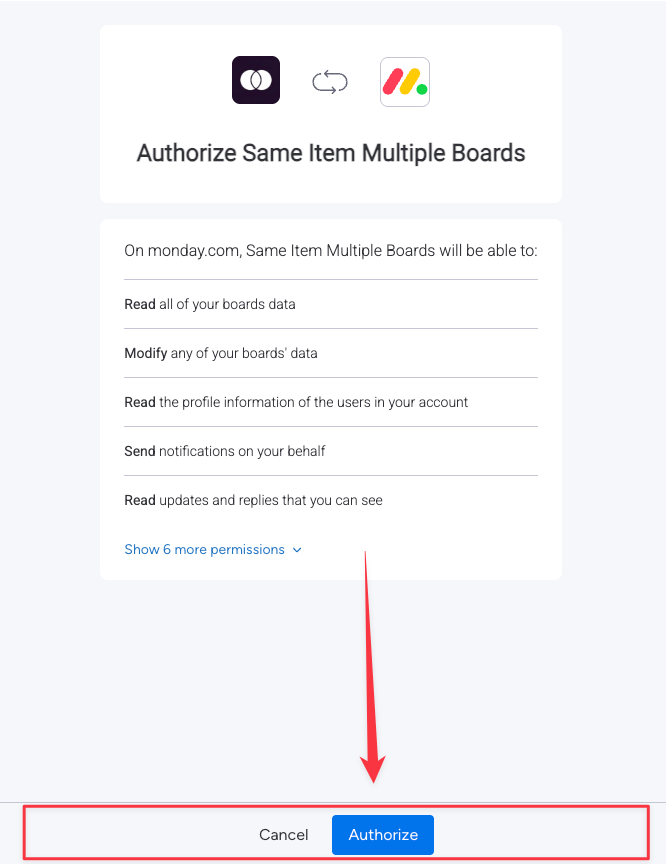 When the authorization prompt appears, click **Authorize monday.com**. This allows SIMB to access your workspace data so it can sync items across boards securely.
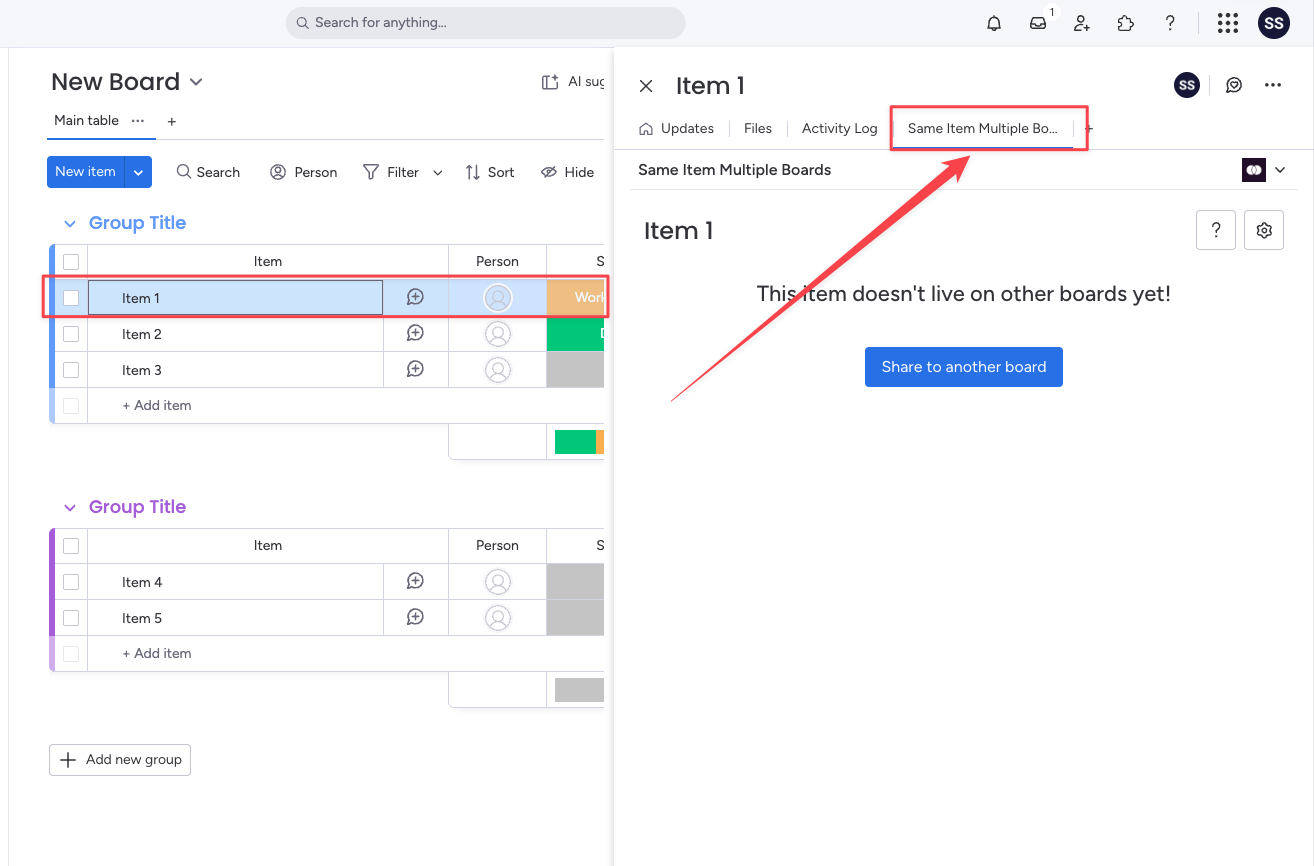
Once installed, open any item on your selected board. You should see a new **Same Item Multiple Boards** tab appear in the item view. The app is ready to use.
## Add the App View to Additional Boards
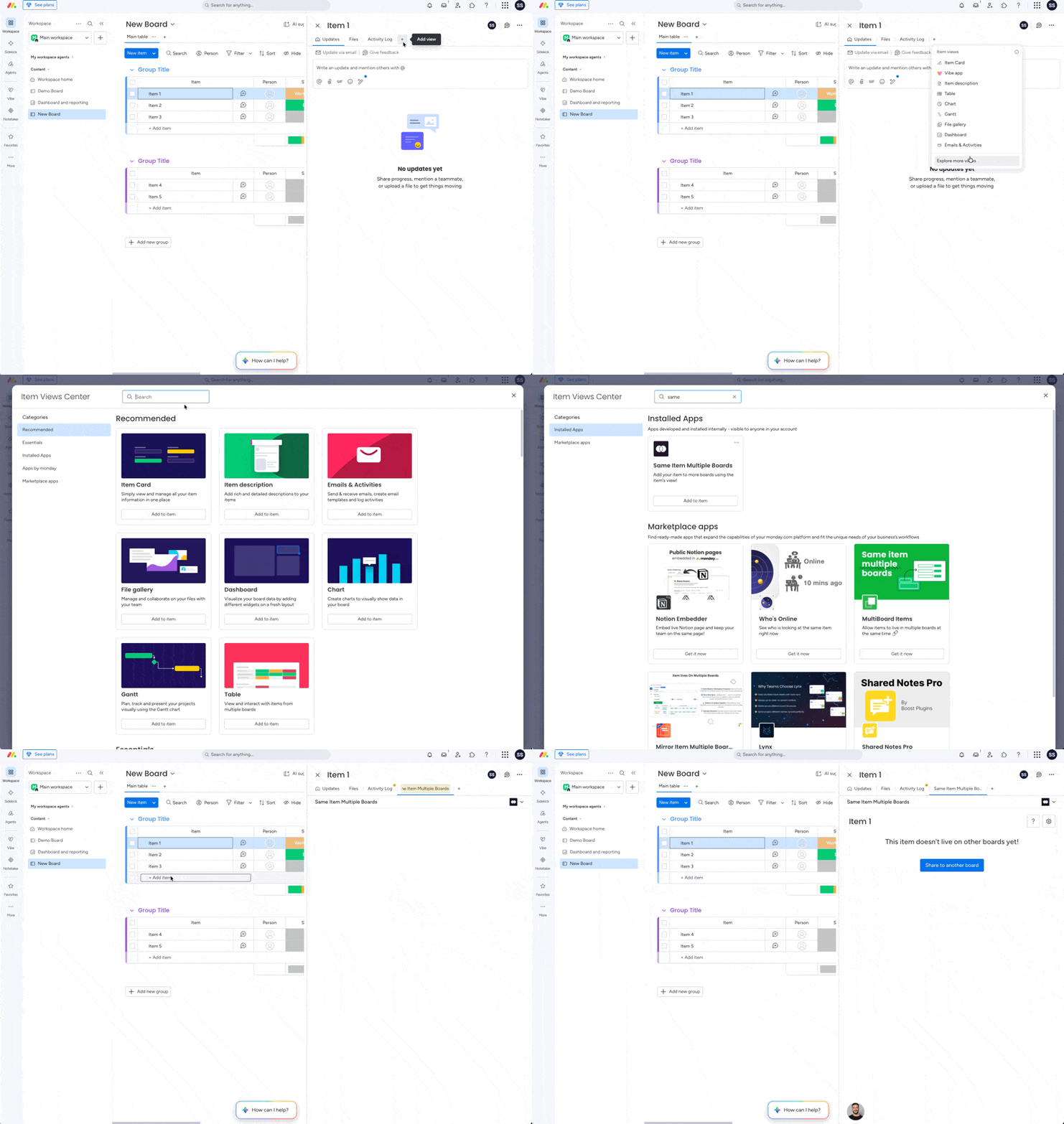
Installing SIMB from the Marketplace adds it to the board you selected during setup. To use the item view on other boards, you need to add it manually to each one.
Navigate to the board where you want to enable SIMB and click on any item to open its item view.
In the item view panel, click **Add View**.
Type **Same Item Multiple Boards** in the search field.
Click **Add** to add the SIMB view to that board. The tab will now appear in the item view for every item on that board.
Adding the app view is optional. You can still use SIMB through automations and workflows on any board even if you have not manually added the item view. The view is only required when you want to manually share or manage items directly from the item panel.
## Enable Across All Workspaces
If you manage boards in multiple monday.com workspaces, make sure you selected **all workspaces** during the installation step. This setting allows SIMB to surface boards from any workspace as a sharing destination. If you skipped that option, you can revisit app permissions from the Marketplace under the **App Management** tab.
For update syncing (comments and replies) to work across boards, each team member who posts updates needs to individually authorize the app. Users will see a prompt the first time they interact with SIMB asking them to authorize their account. This is a one-time step per user.
## Next Steps
With SIMB installed, you are ready to start sharing items. Head to the Quick Start guide to share your first item across multiple boards in just a few steps.
When the authorization prompt appears, click **Authorize monday.com**. This allows SIMB to access your workspace data so it can sync items across boards securely.
Once installed, open any item on your selected board. You should see a new **Same Item Multiple Boards** tab appear in the item view. The app is ready to use.
## Add the App View to Additional Boards

Installing SIMB from the Marketplace adds it to the board you selected during setup. To use the item view on other boards, you need to add it manually to each one.
Navigate to the board where you want to enable SIMB and click on any item to open its item view.
In the item view panel, click **Add View**.
Type **Same Item Multiple Boards** in the search field.
Click **Add** to add the SIMB view to that board. The tab will now appear in the item view for every item on that board.
Adding the app view is optional. You can still use SIMB through automations and workflows on any board even if you have not manually added the item view. The view is only required when you want to manually share or manage items directly from the item panel.
## Enable Across All Workspaces
If you manage boards in multiple monday.com workspaces, make sure you selected **all workspaces** during the installation step. This setting allows SIMB to surface boards from any workspace as a sharing destination. If you skipped that option, you can revisit app permissions from the Marketplace under the **App Management** tab.
For update syncing (comments and replies) to work across boards, each team member who posts updates needs to individually authorize the app. Users will see a prompt the first time they interact with SIMB asking them to authorize their account. This is a one-time step per user.

## Next Steps
With SIMB installed, you are ready to start sharing items. Head to the Quick Start guide to share your first item across multiple boards in just a few steps.