> ## Documentation Index
> Fetch the complete documentation index at: https://docs.sameitem.com/llms.txt
> Use this file to discover all available pages before exploring further.
# Quick Start Guide: Share Items Across monday.com Boards
> Share your first monday.com item across multiple boards in minutes using SIMB's manual sharing view or trigger-based automation recipes.
Once Same Item Multiple Boards (SIMB) is installed, you can start sharing items right away. There are two paths to choose from: manually select which items go where, or set up automations that handle sharing for you based on rules. Both approaches take just a few minutes to configure and can be used together in the same workspace.
## Choose Your Path
Manual sharing gives you direct control over which items appear on which boards. Use this approach when you want to make one-off decisions rather than automating a recurring pattern.
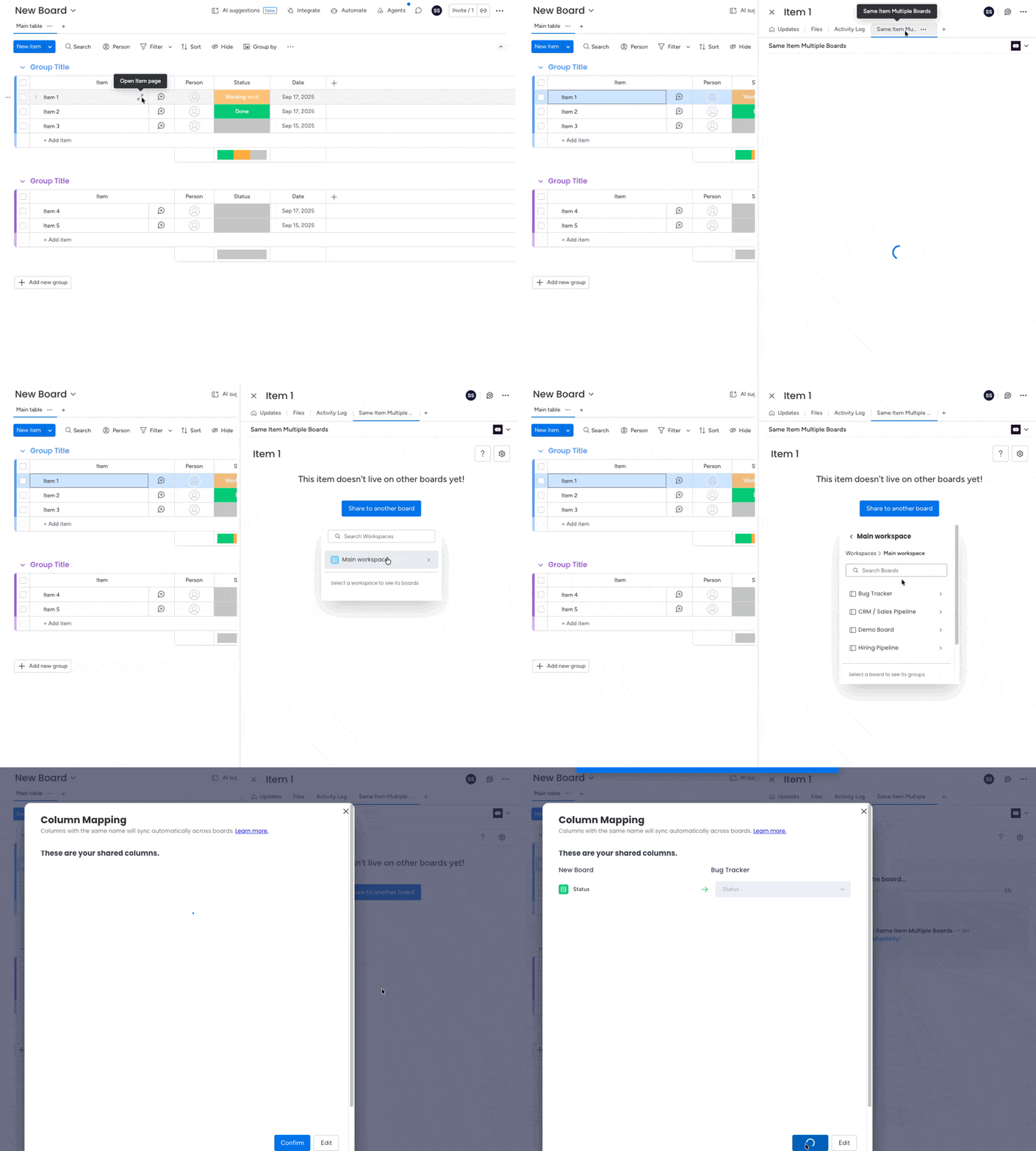
On your source board, click the item you want to share to open its item view panel.
In the item view, click the **Same Item Multiple Boards** tab. If you do not see this tab, follow the steps in the [Installation guide](/installation) to add the view to your board.
A list of available boards appears. Check the boards where you want this item to appear. You can select multiple boards at once.
Use the **Column Mapping** view before confirming to check which columns will sync between your boards. This helps you catch name or type mismatches before sharing.
Click **Add** to confirm. The item now appears on all selected boards simultaneously. Any changes made to the item on any board will sync across all of them in real time.
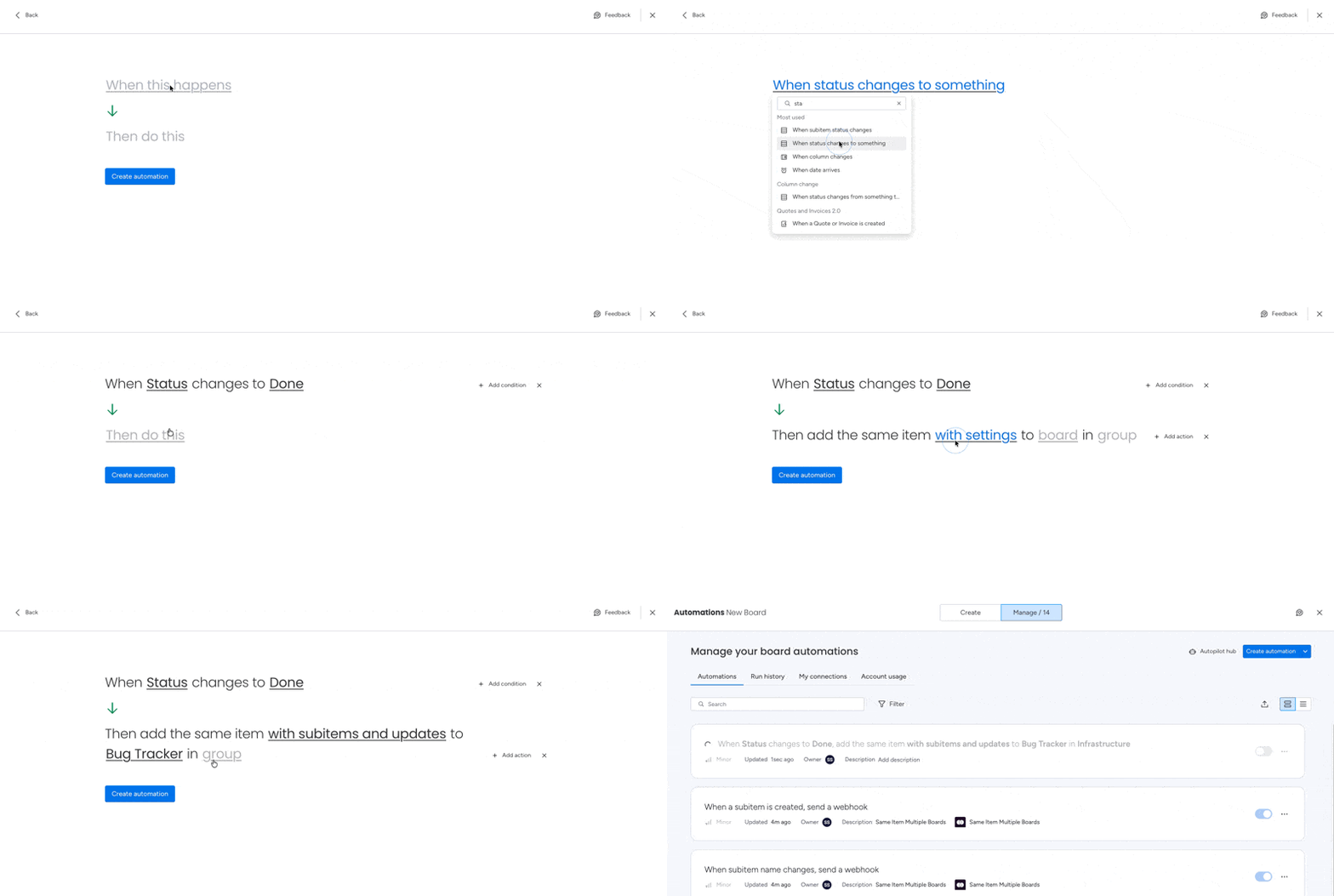
Automations let SIMB share items for you whenever a trigger condition is met on your board. Use this approach when you have a repeatable workflow, such as sending items to a team board when someone is assigned, or to a sprint board when a status changes.
Open the board where you want to create the automation and click the **Integrate** tab at the top of the board.
In the integrations search bar, type **Same Item Multiple Boards** and click the app when it appears in the results.
Browse the available automation recipes and select the one that matches your workflow. Popular examples include:
* **When a person is assigned** → add the item to a team board
* **When status changes to In Progress** → add the item to the sprint board
* **When a new item is created** → show it on a second board automatically
Click into the recipe to configure the trigger conditions and select the destination board. Save the automation when you are done.
From this point on, any item that meets your trigger conditions will be automatically shared to the destination board — no manual steps needed.
 ## Column Sync Requirements
SIMB syncs column values between boards automatically, but only when two conditions are met:
* The column has the **same name** on both boards
* The column is the **same type** on both boards (for example, both are Status columns, or both are Date columns)
If a column exists on the source board but not on the destination board, or if the names or types differ, that column will not sync. You can use the **Column Mapping** feature (available in the manual sharing view) to review matches before sharing and create any missing columns directly from the mapping screen.
Formula, Mirror, and Connected Boards columns are not supported for syncing. Values in these column types will not transfer between boards.
## Visual Indicators
Once an item is shared across multiple boards, SIMB adds a small icon next to the item's name on every board where it appears. This icon is your at-a-glance signal that the item is synced — you can scan a board and instantly spot which items are shared without opening them.
## Item Locations Column (Optional)
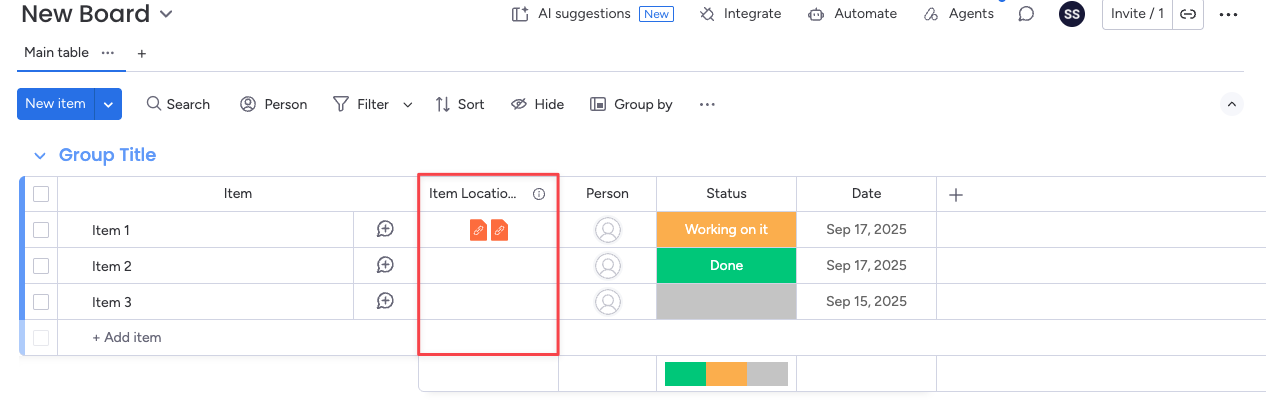
The **Item Locations Column** is an optional column you can add to any board to see a live list of every board where each item currently lives. Each board name is clickable, taking you directly to that item on the destination board without any extra navigation.
To add the Item Locations Column, open the SIMB view in any item and look for the option to enable it. Once added, the column populates automatically for all shared items on that board.
## Remove an Item from a Board
If an item no longer belongs on a particular board but should remain on all others, you can remove it from that board without deleting it anywhere:
Click the item to open its item view panel, then click the **Same Item Multiple Boards** tab.
In the list of boards where the item currently exists, uncheck the board you want to remove it from.
The item disappears from that board immediately but remains fully synced on every other board it belongs to. No data is lost.
## Next Steps
You've shared your first item — here's where to go from here:
Learn how to review and fix column matches before sharing items to avoid sync gaps.
Explore all available automation recipes and advanced trigger configurations.
Find out how subitems behave when their parent item is shared across boards.
Share multiple items to another board at once using the batch actions toolbar.
## Column Sync Requirements
SIMB syncs column values between boards automatically, but only when two conditions are met:
* The column has the **same name** on both boards
* The column is the **same type** on both boards (for example, both are Status columns, or both are Date columns)
If a column exists on the source board but not on the destination board, or if the names or types differ, that column will not sync. You can use the **Column Mapping** feature (available in the manual sharing view) to review matches before sharing and create any missing columns directly from the mapping screen.
Formula, Mirror, and Connected Boards columns are not supported for syncing. Values in these column types will not transfer between boards.
## Visual Indicators
Once an item is shared across multiple boards, SIMB adds a small icon next to the item's name on every board where it appears. This icon is your at-a-glance signal that the item is synced — you can scan a board and instantly spot which items are shared without opening them.
## Item Locations Column (Optional)

The **Item Locations Column** is an optional column you can add to any board to see a live list of every board where each item currently lives. Each board name is clickable, taking you directly to that item on the destination board without any extra navigation.
To add the Item Locations Column, open the SIMB view in any item and look for the option to enable it. Once added, the column populates automatically for all shared items on that board.
## Remove an Item from a Board
If an item no longer belongs on a particular board but should remain on all others, you can remove it from that board without deleting it anywhere:
Click the item to open its item view panel, then click the **Same Item Multiple Boards** tab.
In the list of boards where the item currently exists, uncheck the board you want to remove it from.
The item disappears from that board immediately but remains fully synced on every other board it belongs to. No data is lost.
## Next Steps
You've shared your first item — here's where to go from here:
Learn how to review and fix column matches before sharing items to avoid sync gaps.
Explore all available automation recipes and advanced trigger configurations.
Find out how subitems behave when their parent item is shared across boards.
Share multiple items to another board at once using the batch actions toolbar.