> ## Documentation Index
> Fetch the complete documentation index at: https://docs.sameitem.com/llms.txt
> Use this file to discover all available pages before exploring further.
# Fix Column Mismatches When Sharing Items Across Boards
> Resolve sync failures caused by differing column names or types between boards — and use the Discrepancy Report to fix remaining out-of-sync values.
Column mismatches are one of the most frequent causes of sync failures in Same Item Multiple Boards. For SIMB to sync a column value between two boards, the column must have the **exact same name** and the **exact same column type** on both boards. If either differs, SIMB doesn't recognise the columns as the same field and skips syncing that value — with no error message to tell you why.
**Example:** Board A has a column called "Status" and Board B has a column called "Status 1." Because the names don't match, the status value never syncs between them, even though everything else looks correct.
There are two ways to fix this, depending on where you are in your setup.
***
## Option 1: Match Column Names and Types
This is the most common fix and the right place to start if syncing has never worked correctly between your boards.
Use split view or open each board in a separate browser tab so you can compare them directly.
Go through every column you want to sync — Status, Date, Text, People, and so on — and confirm:
* The **name is identical** on both boards (including capitalisation and spacing)
* The **column type is the same** on both boards
Update column names on one or both boards until they match exactly. If the column types differ, you'll need to recreate the column with the correct type and migrate your data.
Once both boards are aligned, go back to your source board and share the items again using Same Item Multiple Boards.
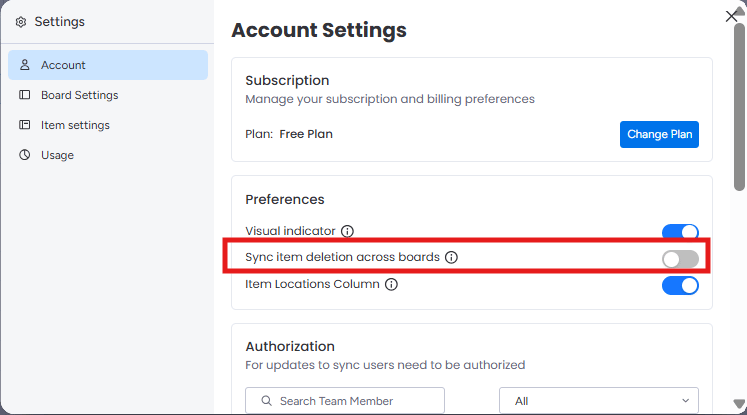
If you had already shared items before fixing the column names, delete those shared items first before re-sharing. To avoid accidentally deleting items on both boards:
1. Go to **Settings** in the SIMB app.
2. Toggle off **"Sync item deletion across boards."**
3. Delete the mismatched items from the destination board.
4. Re-share the items once the columns match.
 ***
## Option 2: Review Discrepancies in the SIMB View
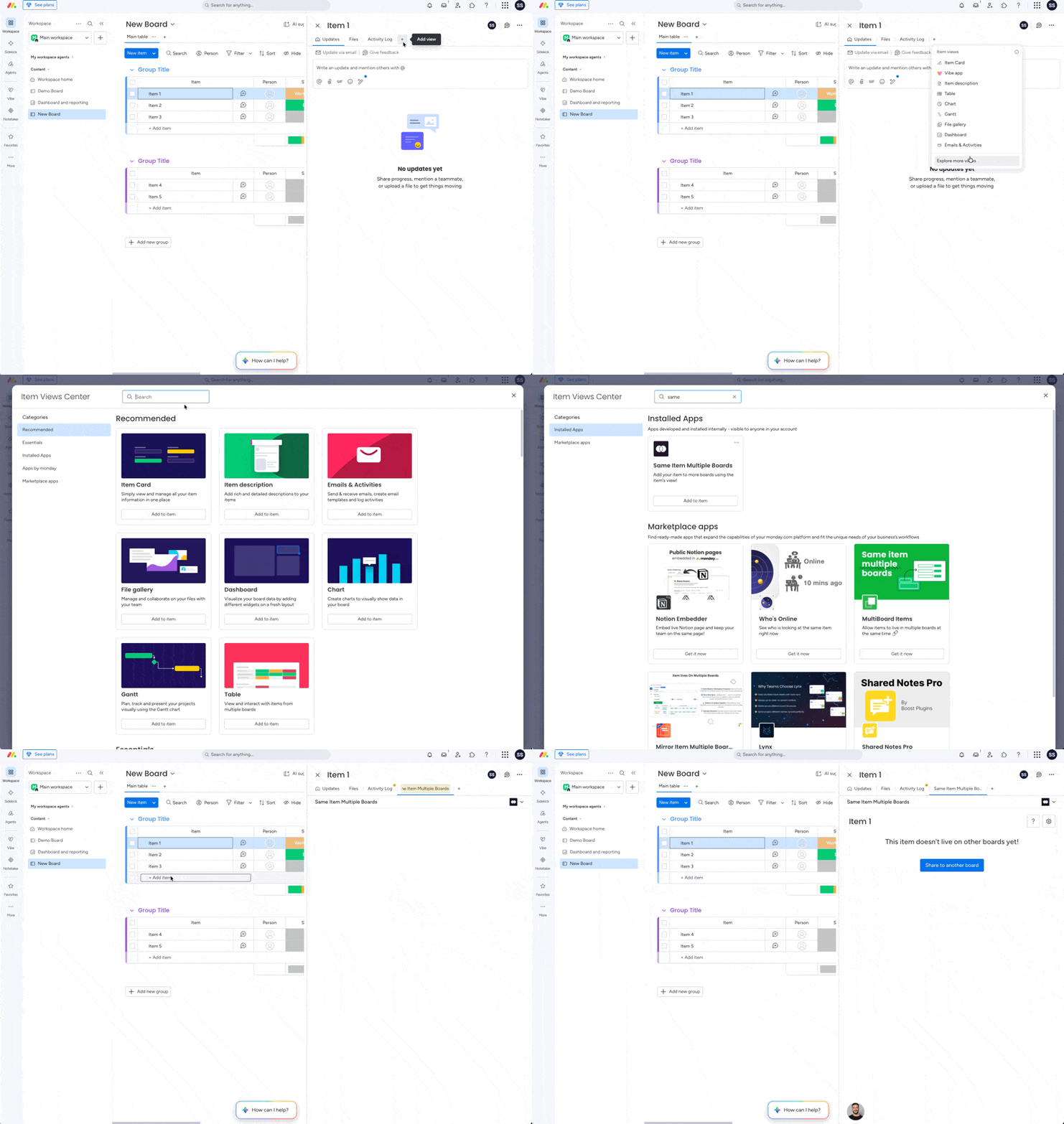
This method is ideal if your boards are already set up correctly but some data values are out of sync — for example, after fixing column names after-the-fact or after bulk importing data.
Navigate to the source board.
Click **Add View → Apps → Explore more apps**, then search for **Same Item Multiple Boards** and add it as a view.
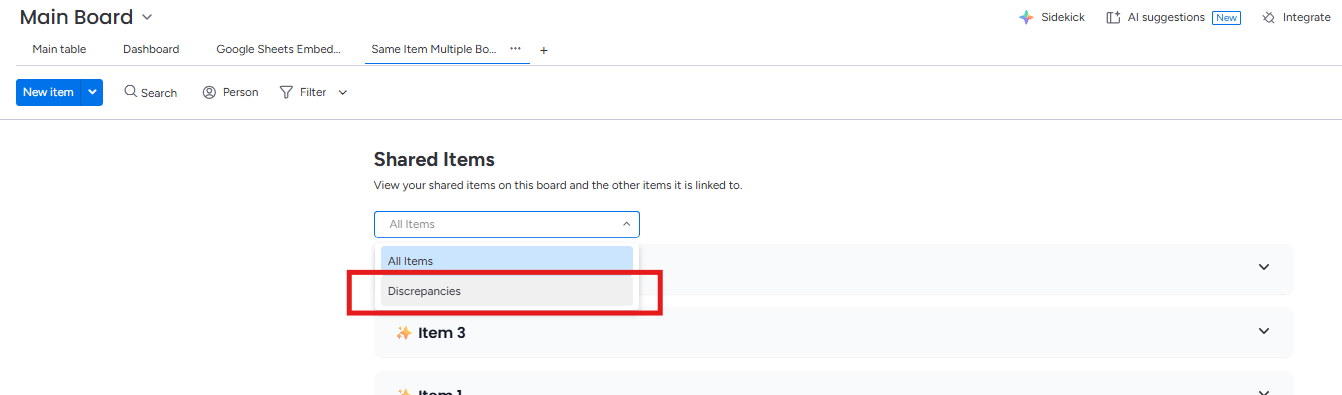
In the SIMB view, open the **dropdown menu** and select **Discrepancies**.
***
## Option 2: Review Discrepancies in the SIMB View

This method is ideal if your boards are already set up correctly but some data values are out of sync — for example, after fixing column names after-the-fact or after bulk importing data.
Navigate to the source board.
Click **Add View → Apps → Explore more apps**, then search for **Same Item Multiple Boards** and add it as a view.
In the SIMB view, open the **dropdown menu** and select **Discrepancies**.
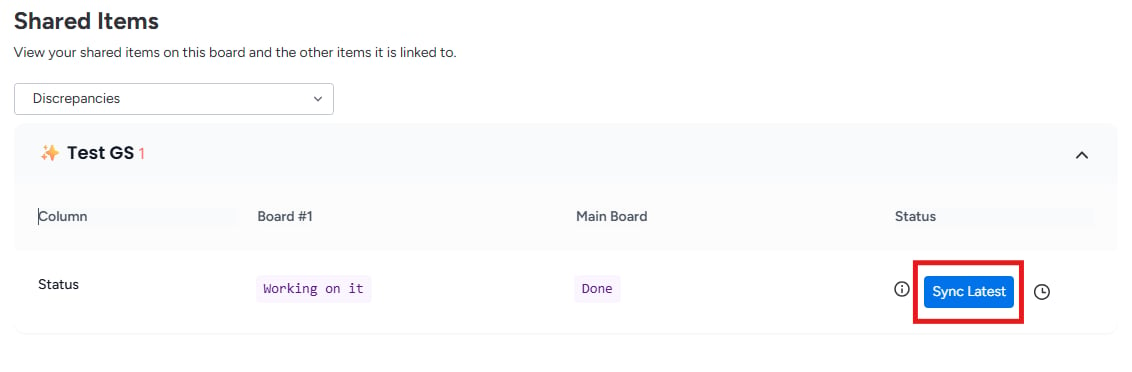
 Click into any item listed to see exactly which column values differ between boards.
Click **"Sync to latest value"** to align the out-of-sync values. Repeat for each item that shows discrepancies.
Click into any item listed to see exactly which column values differ between boards.
Click **"Sync to latest value"** to align the out-of-sync values. Repeat for each item that shows discrepancies.
 The Discrepancy Report works best as a fine-tuning tool after your board structure is properly aligned. If column names and types are still mismatched, fix those first (Option 1) before running the report.
***
## Quick Reminder
Always confirm your boards use **identical column names and types** before sharing items. Once your structure is aligned, the **Discrepancy Report** becomes your ongoing tool for catching any values that drift out of sync over time.
For more on supported column types, see [Supported Columns](/columns/supported-columns). For help mapping columns when adding items to a new board, see [How to Use Column Mapping](/features/column-mapping).
## Still Having Issues?
If column values still won't sync after following both options, contact [support@pioneera.io](mailto:support@pioneera.io) with a link to both boards and a description of which columns aren't syncing. The team will review your setup and help you resolve it.
The Discrepancy Report works best as a fine-tuning tool after your board structure is properly aligned. If column names and types are still mismatched, fix those first (Option 1) before running the report.
***
## Quick Reminder
Always confirm your boards use **identical column names and types** before sharing items. Once your structure is aligned, the **Discrepancy Report** becomes your ongoing tool for catching any values that drift out of sync over time.
For more on supported column types, see [Supported Columns](/columns/supported-columns). For help mapping columns when adding items to a new board, see [How to Use Column Mapping](/features/column-mapping).
## Still Having Issues?
If column values still won't sync after following both options, contact [support@pioneera.io](mailto:support@pioneera.io) with a link to both boards and a description of which columns aren't syncing. The team will review your setup and help you resolve it.