> ## Documentation Index
> Fetch the complete documentation index at: https://docs.sameitem.com/llms.txt
> Use this file to discover all available pages before exploring further.
# Destination Board Not Showing in SIMB — Fix Guide
> If a destination board is missing from the SIMB board list, the app is likely installed for one workspace only. Learn how to enable it for all workspaces.
If you're trying to link an item to another board and that board doesn't appear in SIMB's board list, the most common cause is that the app was installed for only one workspace. When SIMB doesn't have access to all workspaces, every board outside the original workspace becomes invisible to it — no matter how many boards you have.
## Symptoms
You may be experiencing this issue if any of the following apply:
* A destination board is not showing in the SIMB board picker
* You can't find a board from another workspace
* Only some boards appear in the SIMB list
* An automation using SIMB can't locate your board
## Why This Happens
When you first install SIMB, monday.com asks you to choose between installing it for **one workspace** or **all workspaces**. If you selected a single workspace, boards in every other workspace are invisible to SIMB — they won't appear as destinations when sharing items or configuring automations.
Switching the installation scope to **All Workspaces** is all it takes to make them visible again.
## How to Fix It
In monday.com, open **Apps → Marketplace**.
 Type **Same Item Multiple Boards** in the search bar and open the app listing.
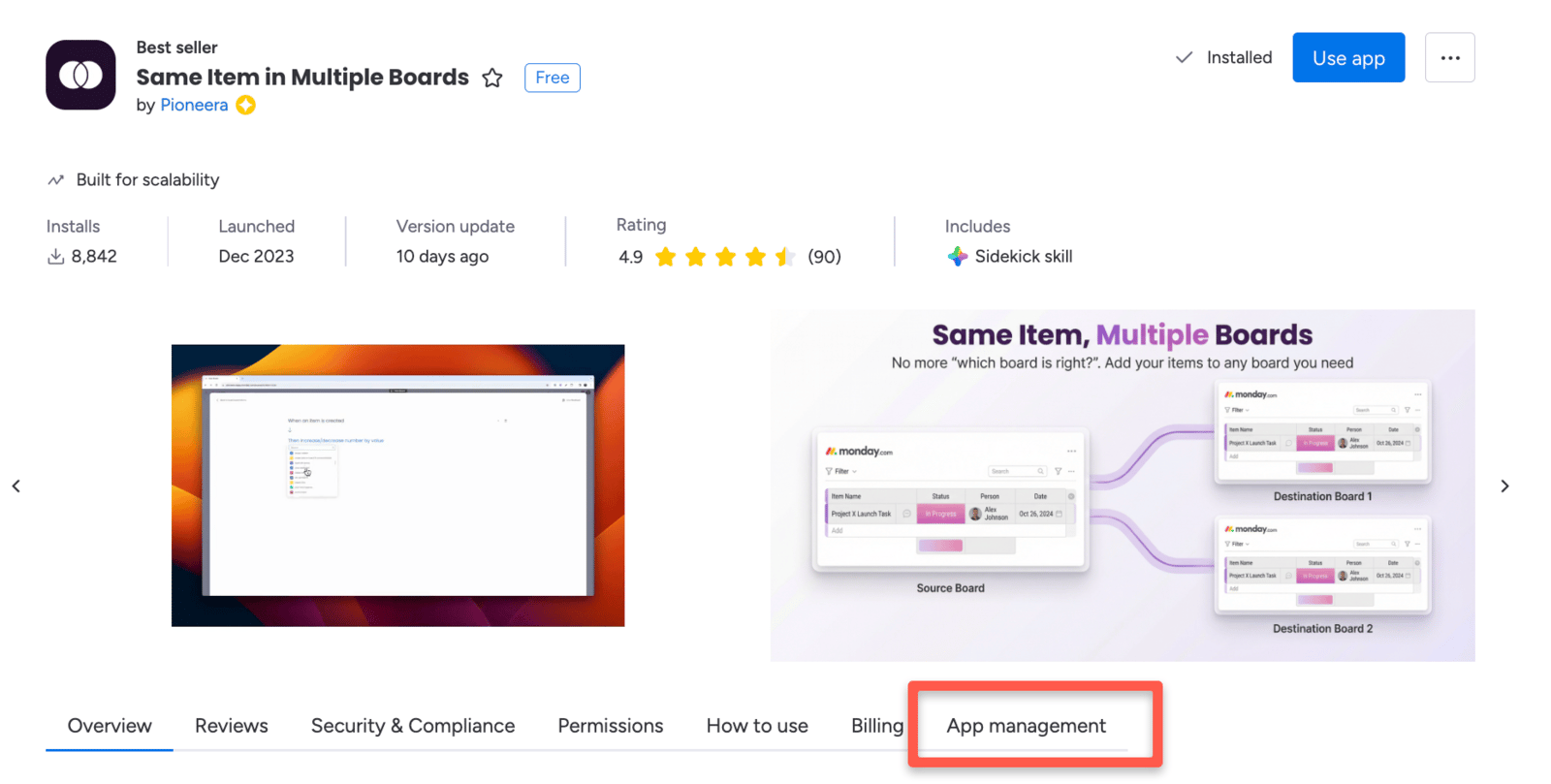 Inside the SIMB app page, click the **App Management** tab.
Look at the current scope setting. You'll see either:
* **All Workspaces** — the app has full access (this is what you want)
* **One specific workspace** — boards in other workspaces are hidden from SIMB
If it shows a single workspace, that's the cause of the missing board.
Inside the SIMB app page, click the **App Management** tab.
Look at the current scope setting. You'll see either:
* **All Workspaces** — the app has full access (this is what you want)
* **One specific workspace** — boards in other workspaces are hidden from SIMB
If it shows a single workspace, that's the cause of the missing board.
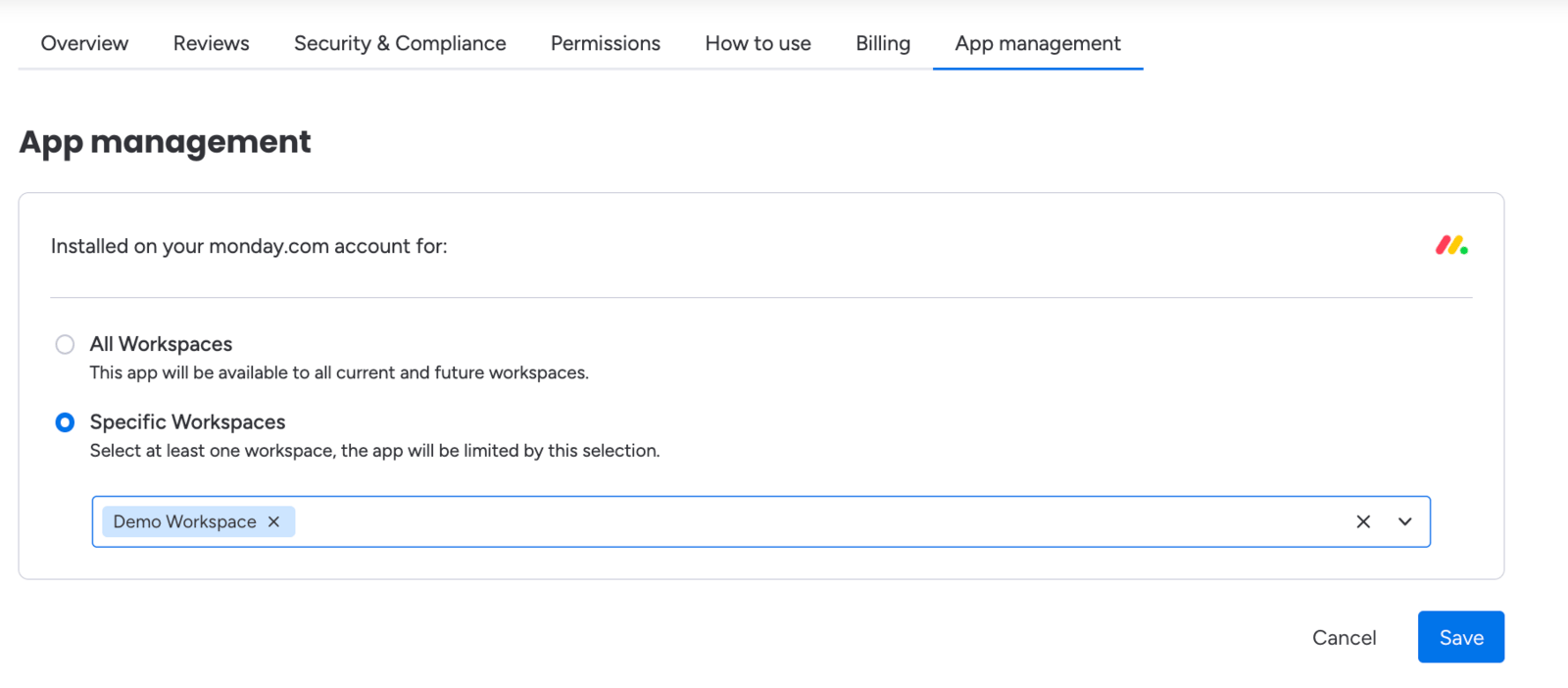 Select **All Workspaces** and save the change. This grants SIMB permission to access every board in your account, regardless of which workspace it belongs to.
Go back to your item, automation setup, or SIMB view and search for the board again. It should now appear in the list.
## Still Not Showing?
If the board still doesn't appear after switching to All Workspaces, check the following:
* **You have access to the board** — if the board is private and you're not a member, it won't appear even with the correct installation scope.
* **You're in the correct workspace** — confirm you haven't accidentally navigated to a different workspace in your account.
* **You're logged in to the right account** — if you have multiple monday.com accounts, make sure you're using the one that has access to the board.
If everything looks correct but the board still doesn't show up, contact [support@pioneera.io](mailto:support@pioneera.io) with a link to the board and the team will take a closer look.
Select **All Workspaces** and save the change. This grants SIMB permission to access every board in your account, regardless of which workspace it belongs to.
Go back to your item, automation setup, or SIMB view and search for the board again. It should now appear in the list.
## Still Not Showing?
If the board still doesn't appear after switching to All Workspaces, check the following:
* **You have access to the board** — if the board is private and you're not a member, it won't appear even with the correct installation scope.
* **You're in the correct workspace** — confirm you haven't accidentally navigated to a different workspace in your account.
* **You're logged in to the right account** — if you have multiple monday.com accounts, make sure you're using the one that has access to the board.
If everything looks correct but the board still doesn't show up, contact [support@pioneera.io](mailto:support@pioneera.io) with a link to the board and the team will take a closer look.