> ## Documentation Index
> Fetch the complete documentation index at: https://docs.sameitem.com/llms.txt
> Use this file to discover all available pages before exploring further.
# Fix Updates and Comments That Aren't Syncing in SIMB
> Troubleshoot why comments and updates don't sync across boards in SIMB — covering authorization, item linking, board access, and blocked automations.
When everything is configured correctly in Same Item Multiple Boards, any update or comment posted on a shared item — from any connected board, by any authorized user — syncs automatically across all boards where that item lives. If that's not happening for you, the cause is almost always one of the five issues below.
## Quick Checklist
Before diving into each cause, run through this checklist:
* The item is shared across boards (look for the star icon next to the item name)
* The user who posted the update has authorized the SIMB app
* The user has access to all connected boards
* No "do not share updates" automation is active on the board
* You've refreshed the board after posting the update
If any of these aren't confirmed, start with the matching section below.
***
## 1. The User Hasn't Authorized the App
This is the single most common reason updates don't sync. Because of monday.com's security model:
* Each user must authorize SIMB **individually**
* Admins **cannot** authorize on behalf of other users
* Updates sync under the account of the person who posts them
This is a platform-level requirement and cannot be bypassed.
### How to check authorization status
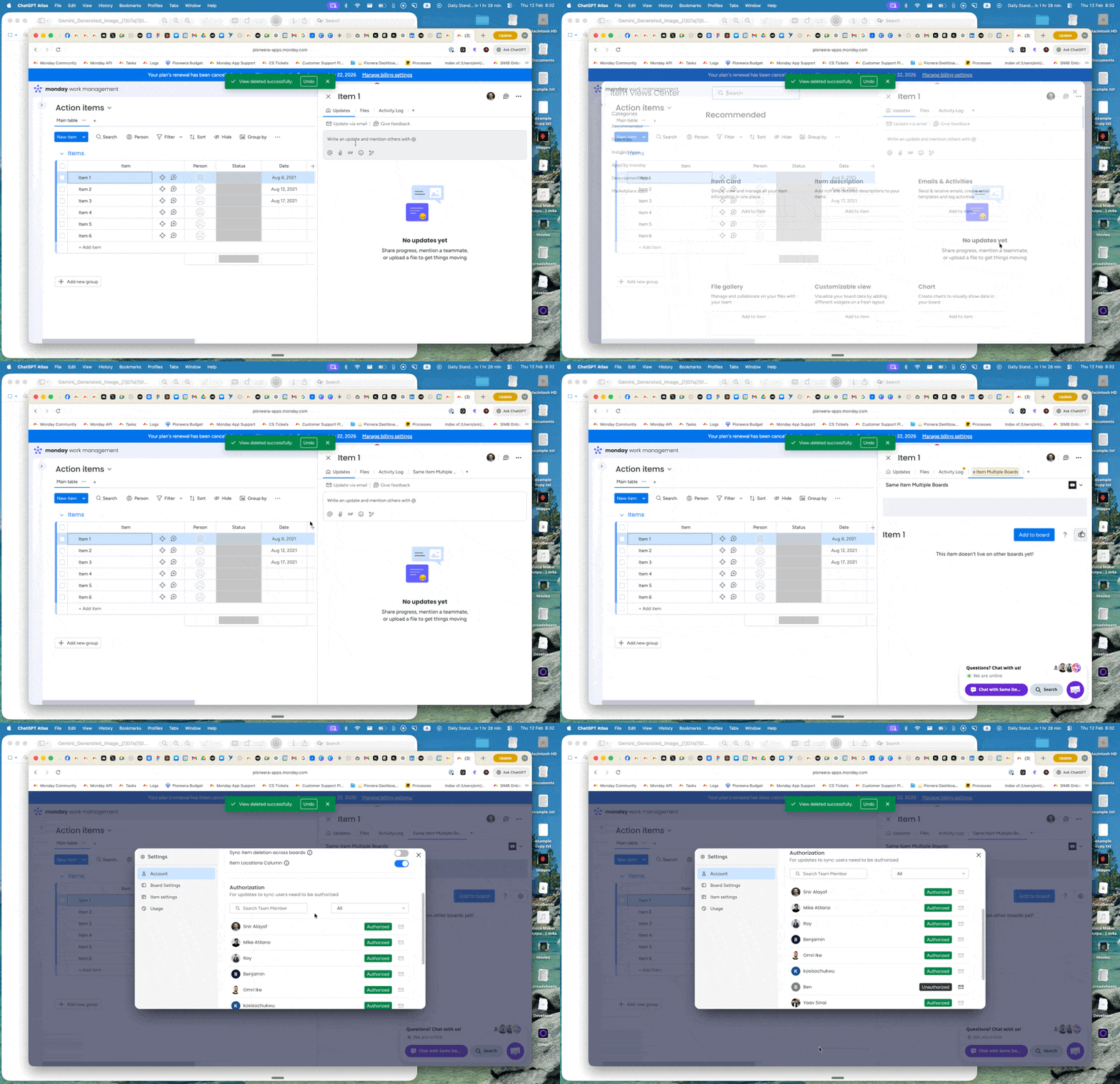
1. Open any shared item.
2. Click the **Same Item Multiple Boards** tab.
3. Click the **Settings** (gear) icon.
4. Go to **Account Settings**.
5. Scroll down to **Authorization**.
You'll see a list of users with their authorization status clearly marked.
 ### How to authorize users quickly
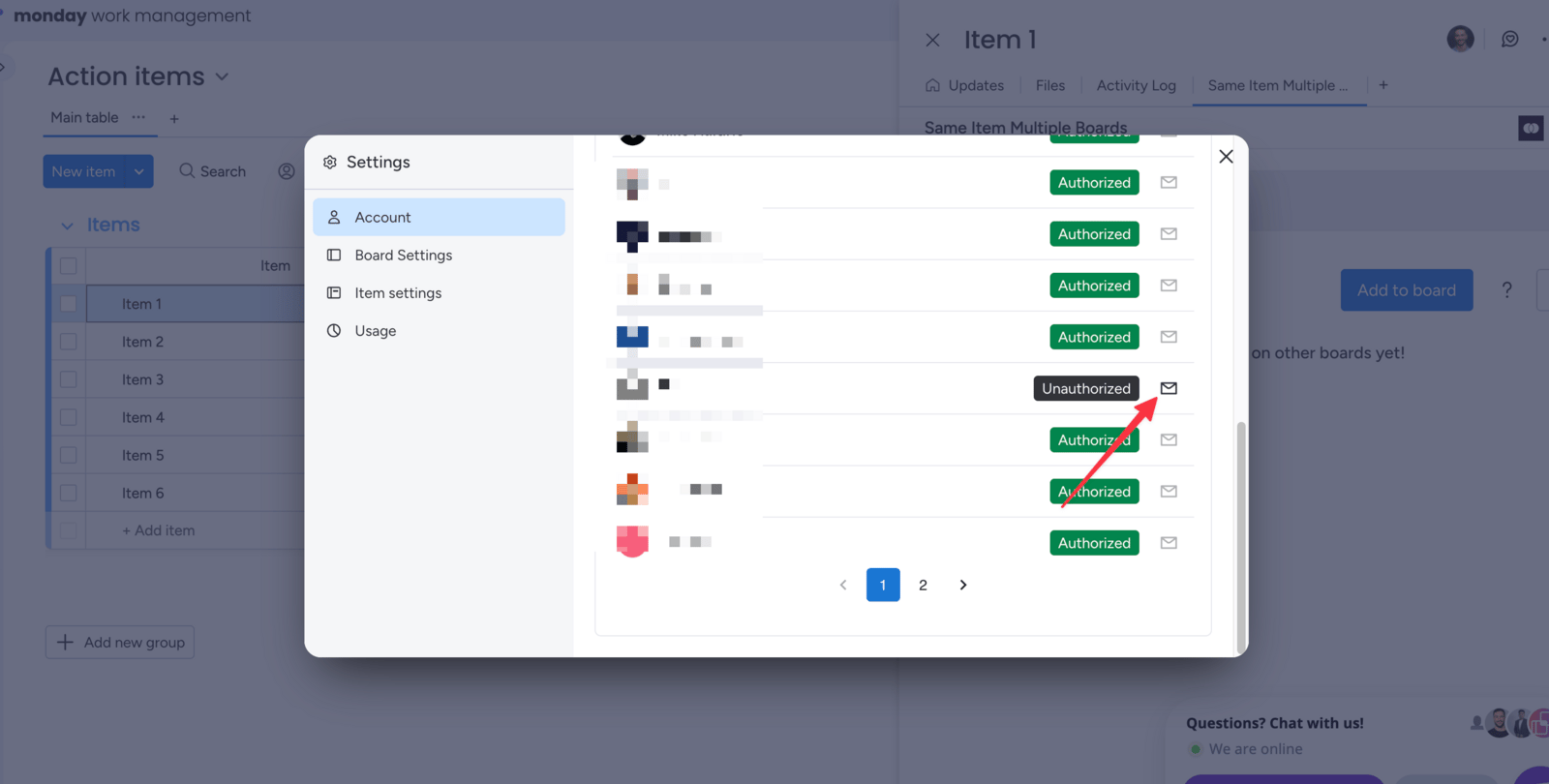
From the Authorization section, click the **mail icon** (Send Invite) next to any unauthorized user.
This sends a personalized one-click authorization email. You can send invites in batches to authorize multiple users at once.
### How to authorize users quickly
From the Authorization section, click the **mail icon** (Send Invite) next to any unauthorized user.
This sends a personalized one-click authorization email. You can send invites in batches to authorize multiple users at once.
 Share this direct authorization URL with the user. Make sure they are logged in to their monday.com account before clicking:
```text theme={null}
https://auth.monday.com/oauth2/authorize?client_id=9d9d91f40e511e3954b7d1df7184115e&redirect_uri=https%3A%2F%2Fsimb-prod-api-qgobi.ondigitalocean.app%2Foauth%2Fcallback
```
### Important notes about authorization
* Authorization is a **one-time action** — it does not expire.
* Only **future** updates will sync after a user authorizes. Past updates do **not** sync retroactively.
* If a user posts an update while unauthorized, they'll receive a notification prompting them to authorize. That update will not sync, even after they authorize.
***
## 2. The Item Isn't Actually Shared
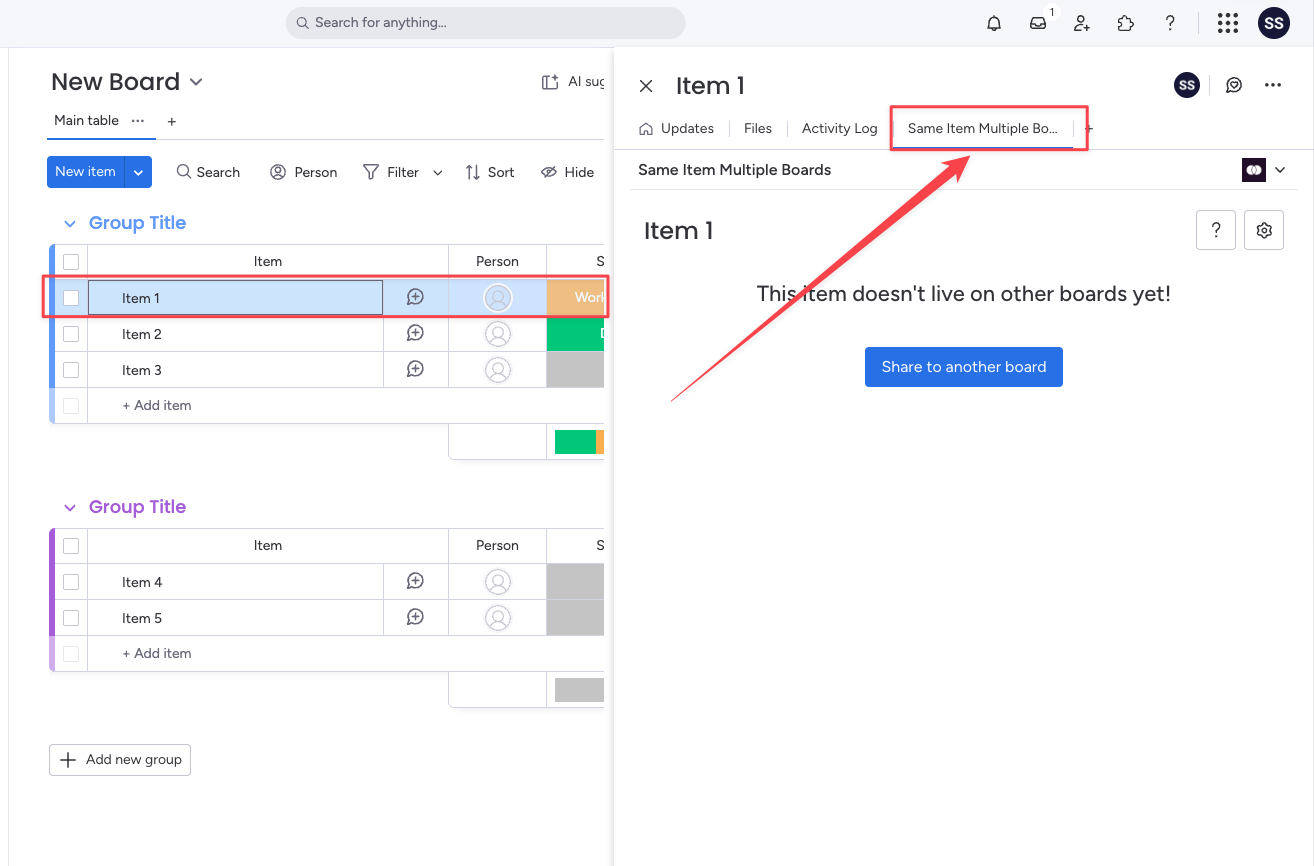
Sometimes an item is assumed to be shared when it isn't. Verify before troubleshooting further.
**How to check:**
* Look for the **star icon** next to the item name in the board view.
* Or open the item and click the **Same Item Multiple Boards** tab.
If you see *"Your item doesn't live on other boards yet,"* the item is not shared. Share it first, then updates will begin syncing going forward.
***
## 3. The User Doesn't Have Access to the Other Board
If the connected board is private and the user isn't a member, their updates cannot reach that board — even if everything else is set up correctly.
**How to fix it:**
Add the user to every board where the shared item exists. Once they have access, their updates will sync to all connected boards as expected.
***
## 4. An Automation Is Blocking Update Sync
Check your board automations for this recipe:
> **"When update is posted, do not share it with other boards."**
Share this direct authorization URL with the user. Make sure they are logged in to their monday.com account before clicking:
```text theme={null}
https://auth.monday.com/oauth2/authorize?client_id=9d9d91f40e511e3954b7d1df7184115e&redirect_uri=https%3A%2F%2Fsimb-prod-api-qgobi.ondigitalocean.app%2Foauth%2Fcallback
```
### Important notes about authorization
* Authorization is a **one-time action** — it does not expire.
* Only **future** updates will sync after a user authorizes. Past updates do **not** sync retroactively.
* If a user posts an update while unauthorized, they'll receive a notification prompting them to authorize. That update will not sync, even after they authorize.
***
## 2. The Item Isn't Actually Shared

Sometimes an item is assumed to be shared when it isn't. Verify before troubleshooting further.
**How to check:**
* Look for the **star icon** next to the item name in the board view.
* Or open the item and click the **Same Item Multiple Boards** tab.
If you see *"Your item doesn't live on other boards yet,"* the item is not shared. Share it first, then updates will begin syncing going forward.
***
## 3. The User Doesn't Have Access to the Other Board
If the connected board is private and the user isn't a member, their updates cannot reach that board — even if everything else is set up correctly.
**How to fix it:**
Add the user to every board where the shared item exists. Once they have access, their updates will sync to all connected boards as expected.
***
## 4. An Automation Is Blocking Update Sync
Check your board automations for this recipe:
> **"When update is posted, do not share it with other boards."**
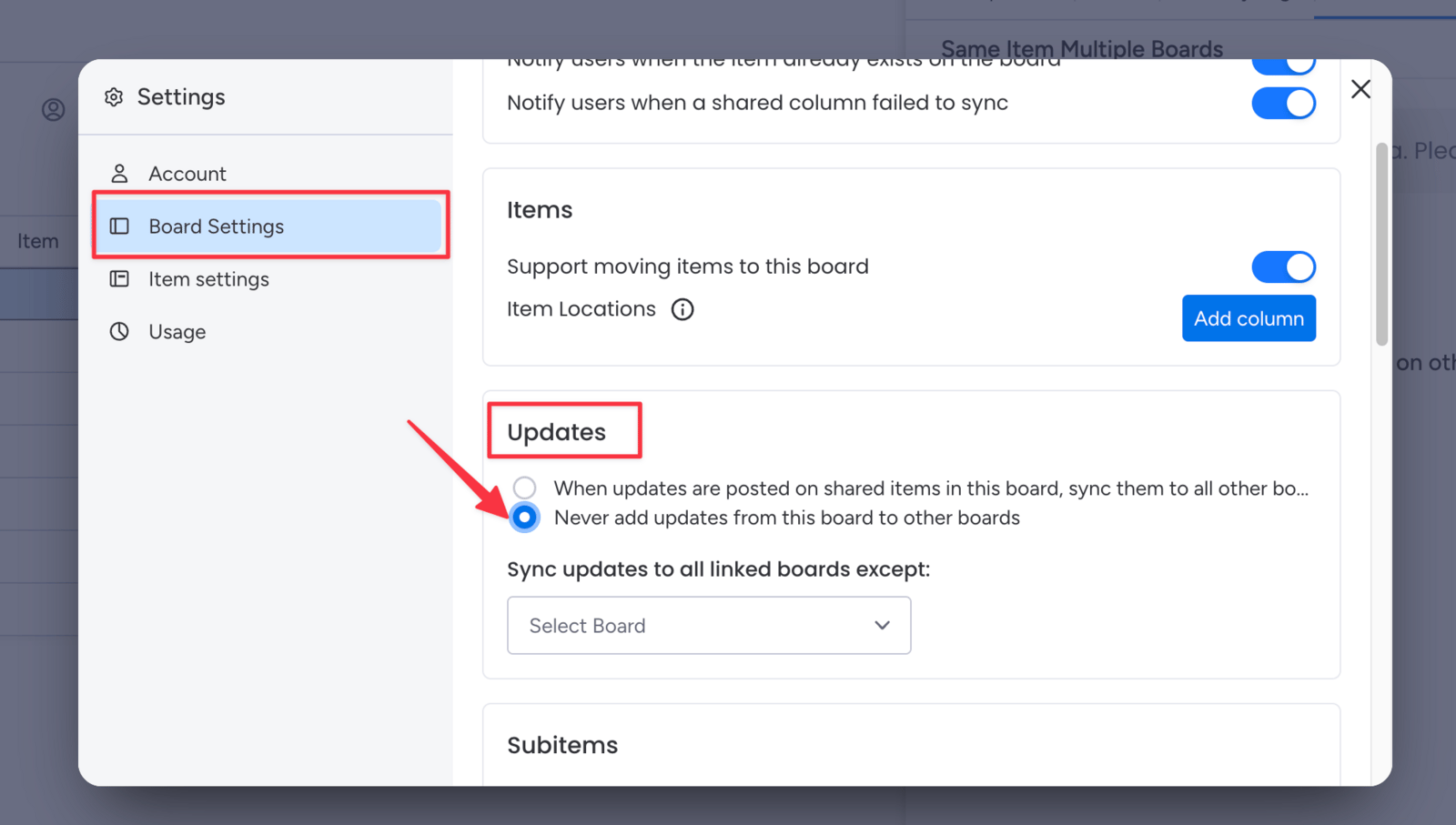 If this recipe is active, updates won't sync — by design. Disable or delete the recipe to restore syncing.
Deleting this recipe is permanent. If you intentionally set it up to block certain updates, remove only the instances you no longer need.
***
## 5. There's a Short Delay
Updates may take a few seconds to appear on connected boards. If you just posted a comment and it hasn't shown up yet, wait a moment and then refresh your board. In most cases the update appears within seconds.
***
## Syncing Historical Updates After Authorization
If updates were posted **before** users authorized the app, those updates won't sync automatically. To bring them across, follow these steps after all relevant users have authorized:
1. Unshare the item from the connected board.
2. Re-share it using SIMB.
The full update history will sync across all connected boards after re-sharing.
***
## Still Need Help?
If you've checked everything above and updates still don't sync, contact the support team at [support@pioneera.io](mailto:support@pioneera.io). Include:
* A link to the affected item
* The name of the user who posted the update
* A short screen recording if possible
The team will review the logs and help you resolve it quickly.
If this recipe is active, updates won't sync — by design. Disable or delete the recipe to restore syncing.
Deleting this recipe is permanent. If you intentionally set it up to block certain updates, remove only the instances you no longer need.
***
## 5. There's a Short Delay
Updates may take a few seconds to appear on connected boards. If you just posted a comment and it hasn't shown up yet, wait a moment and then refresh your board. In most cases the update appears within seconds.
***
## Syncing Historical Updates After Authorization
If updates were posted **before** users authorized the app, those updates won't sync automatically. To bring them across, follow these steps after all relevant users have authorized:
1. Unshare the item from the connected board.
2. Re-share it using SIMB.
The full update history will sync across all connected boards after re-sharing.
***
## Still Need Help?
If you've checked everything above and updates still don't sync, contact the support team at [support@pioneera.io](mailto:support@pioneera.io). Include:
* A link to the affected item
* The name of the user who posted the update
* A short screen recording if possible
The team will review the logs and help you resolve it quickly.