> ## Documentation Index
> Fetch the complete documentation index at: https://docs.sameitem.com/llms.txt
> Use this file to discover all available pages before exploring further.
# Why SIMB Adds Webhooks and How to Restore Broken Ones
> Learn why SIMB adds webhooks to your boards and how to reinstall or reassign webhook ownership when column syncing stops working in monday.com.
Webhooks are the mechanism that allows Same Item Multiple Boards to keep your shared items connected and in sync across all boards in real time. When a column value changes on one board, the webhook fires instantly, SIMB receives the signal, and the connected boards update — all without any manual action from you. Understanding how webhooks work in SIMB will help you keep your setup healthy and know exactly what to do if syncing stops.
## Why SIMB Adds Webhooks to Your Boards
SIMB installs webhooks for two purposes:
**Real-time column sync** — whenever something changes on a shared item (a status, a date, a text field, an assignment), the webhook fires and SIMB immediately pushes that change to all connected boards.
**Move-item tracking** — SIMB also adds "move item to group" webhooks to boards. monday.com only notifies apps when an item *arrives* at a board — it does not send a notification when an item *leaves*. These extra webhooks ensure shared items continue syncing correctly even if they're moved around unexpectedly, preventing broken syncs or lost updates.
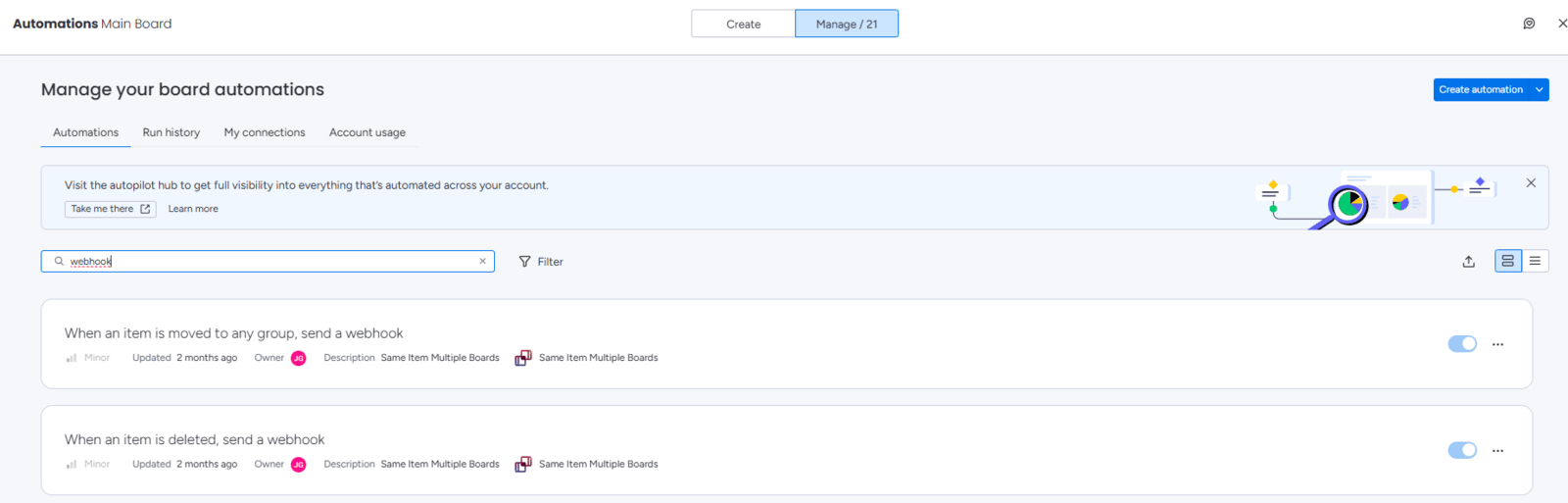 You may notice webhooks on boards where you don't actively use SIMB. This is expected — those webhooks exist to catch item movements that monday.com wouldn't otherwise report.
## What Happens When Webhooks Are Deactivated
If a webhook is disabled, deleted, or broken — whether manually or due to a system glitch — item synchronisation across boards will stop. Column changes won't propagate, and updates will silently fail.
The fix is straightforward: reinstall the webhook. You have two methods available.
## Method 1: Refresh All Webhooks (Recommended)
This method reinstalls all webhooks on the affected board under your user account, fully restoring the sync.
You may notice webhooks on boards where you don't actively use SIMB. This is expected — those webhooks exist to catch item movements that monday.com wouldn't otherwise report.
## What Happens When Webhooks Are Deactivated
If a webhook is disabled, deleted, or broken — whether manually or due to a system glitch — item synchronisation across boards will stop. Column changes won't propagate, and updates will silently fail.
The fix is straightforward: reinstall the webhook. You have two methods available.
## Method 1: Refresh All Webhooks (Recommended)
This method reinstalls all webhooks on the affected board under your user account, fully restoring the sync.
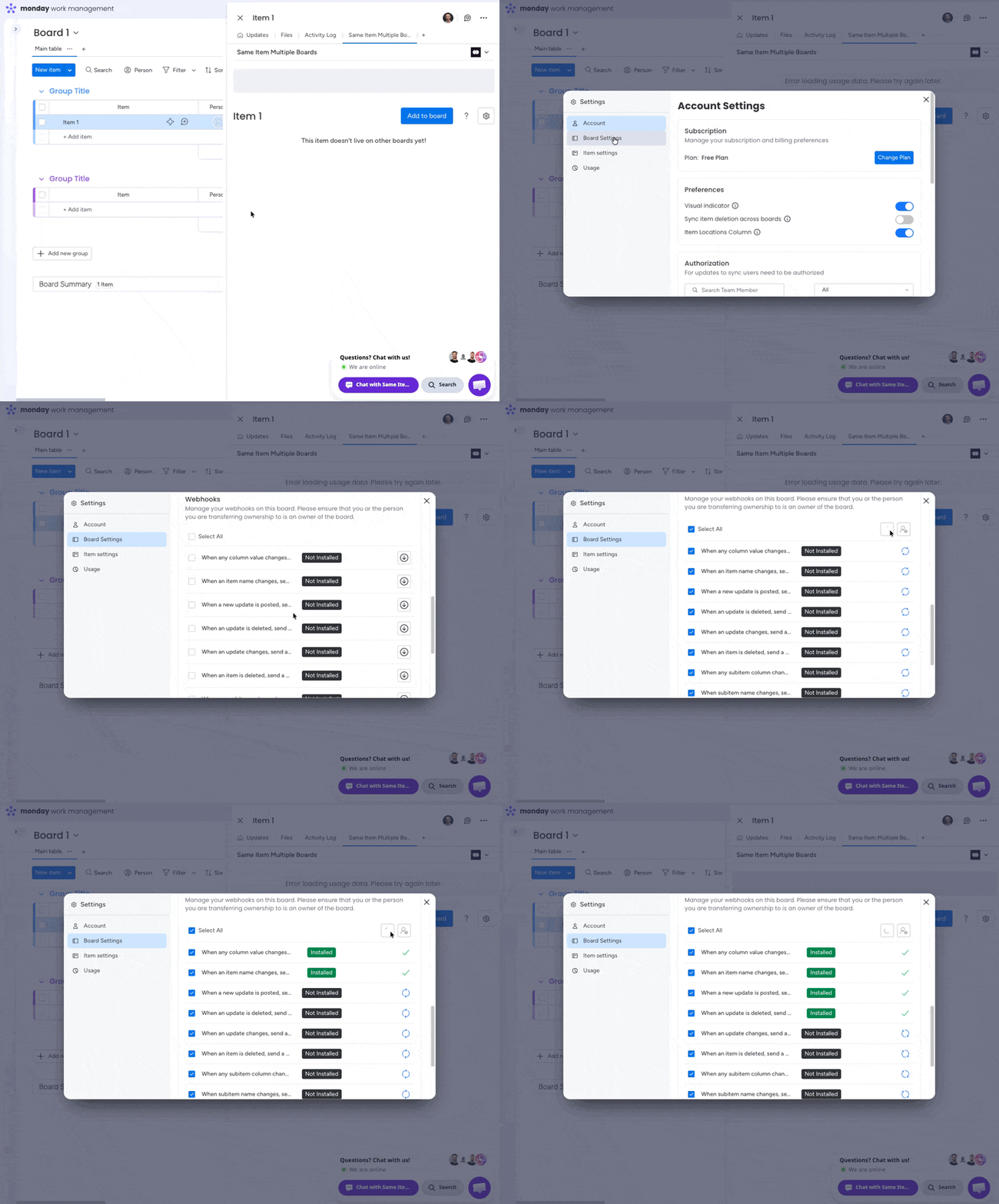 You can use any item — it doesn't need to be a shared item.
Open the **Same Item Multiple Boards** tab in the item view.
Click the **Settings** (gear) icon in the top-right corner of the view.
Select **Board Settings** from the settings menu.
In the webhooks list, select all the webhooks shown.
Click the **Refresh** button. All webhooks will be reinstalled under your user account and column syncing will resume.
Allow a few moments after refreshing for the sync to fully restore before testing it.
## Method 2: Set a Webhook Owner Manually
Use this method if you want to assign a specific person as the webhook owner — for example, when the original owner has left the account or lost their permissions.
You can use any item on the board.
Open the **Same Item Multiple Boards** tab in the item view.
Click the **Person** icon in the top-right corner of the view.
Choose the user you want to assign as the webhook owner. They will take over ownership of all webhooks on this board.
The webhook owner must have previously **authorized the SIMB app** for syncing to work properly. If they haven't authorized yet, direct them to the authorization flow first — see [Fix Updates Not Syncing](/troubleshooting/updates-not-syncing) for instructions.
## Good to Know
* **Existing items and board connections are not affected** by refreshing or replacing a webhook owner. Your shared items remain shared; only the webhook ownership changes.
* **Webhooks are required** for SIMB to function. They cannot be removed without stopping sync for shared items on that board.
* If webhooks keep getting deactivated repeatedly, reach out to [support@pioneera.io](mailto:support@pioneera.io) and the support team will refresh them for you and investigate the root cause.
## Still Having Issues?
If syncing hasn't resumed after following the steps above, contact [support@pioneera.io](mailto:support@pioneera.io) with the name of the affected board and a description of the issue. The team can inspect the webhook state directly and resolve it quickly.
You can use any item — it doesn't need to be a shared item.
Open the **Same Item Multiple Boards** tab in the item view.
Click the **Settings** (gear) icon in the top-right corner of the view.
Select **Board Settings** from the settings menu.
In the webhooks list, select all the webhooks shown.
Click the **Refresh** button. All webhooks will be reinstalled under your user account and column syncing will resume.
Allow a few moments after refreshing for the sync to fully restore before testing it.
## Method 2: Set a Webhook Owner Manually
Use this method if you want to assign a specific person as the webhook owner — for example, when the original owner has left the account or lost their permissions.
You can use any item on the board.
Open the **Same Item Multiple Boards** tab in the item view.
Click the **Person** icon in the top-right corner of the view.
Choose the user you want to assign as the webhook owner. They will take over ownership of all webhooks on this board.
The webhook owner must have previously **authorized the SIMB app** for syncing to work properly. If they haven't authorized yet, direct them to the authorization flow first — see [Fix Updates Not Syncing](/troubleshooting/updates-not-syncing) for instructions.
## Good to Know
* **Existing items and board connections are not affected** by refreshing or replacing a webhook owner. Your shared items remain shared; only the webhook ownership changes.
* **Webhooks are required** for SIMB to function. They cannot be removed without stopping sync for shared items on that board.
* If webhooks keep getting deactivated repeatedly, reach out to [support@pioneera.io](mailto:support@pioneera.io) and the support team will refresh them for you and investigate the root cause.
## Still Having Issues?
If syncing hasn't resumed after following the steps above, contact [support@pioneera.io](mailto:support@pioneera.io) with the name of the affected board and a description of the issue. The team can inspect the webhook state directly and resolve it quickly.