How to View Your Usage
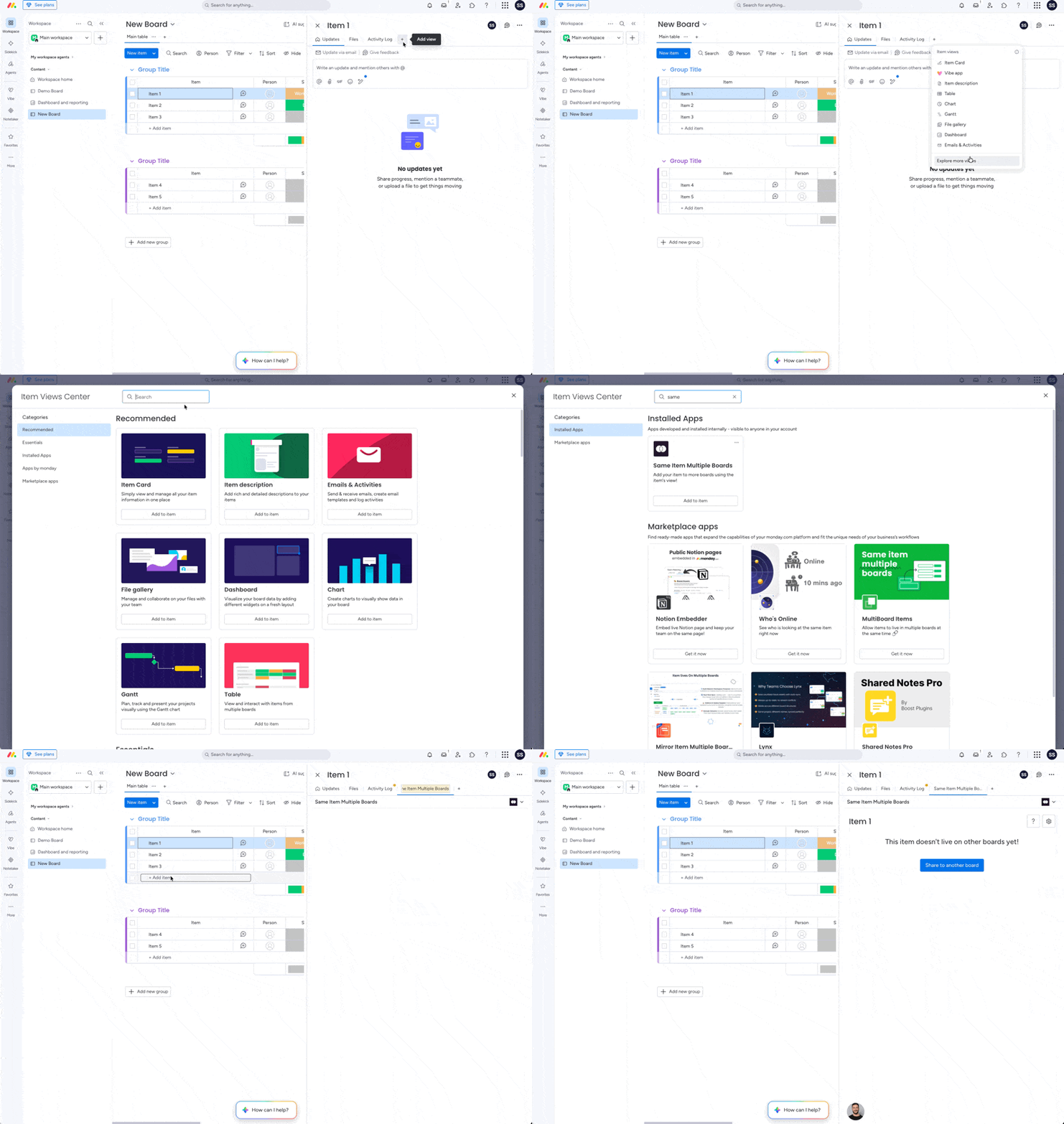
1
Open the Same Item Multiple Boards view
On any board, click Add View → Apps → Explore more apps, then search for Same Item in Multiple Boards. Once the view is added, open it.
2
Open Settings
Click the ⚙️ gear icon in the top-right corner of the view to open the app settings panel.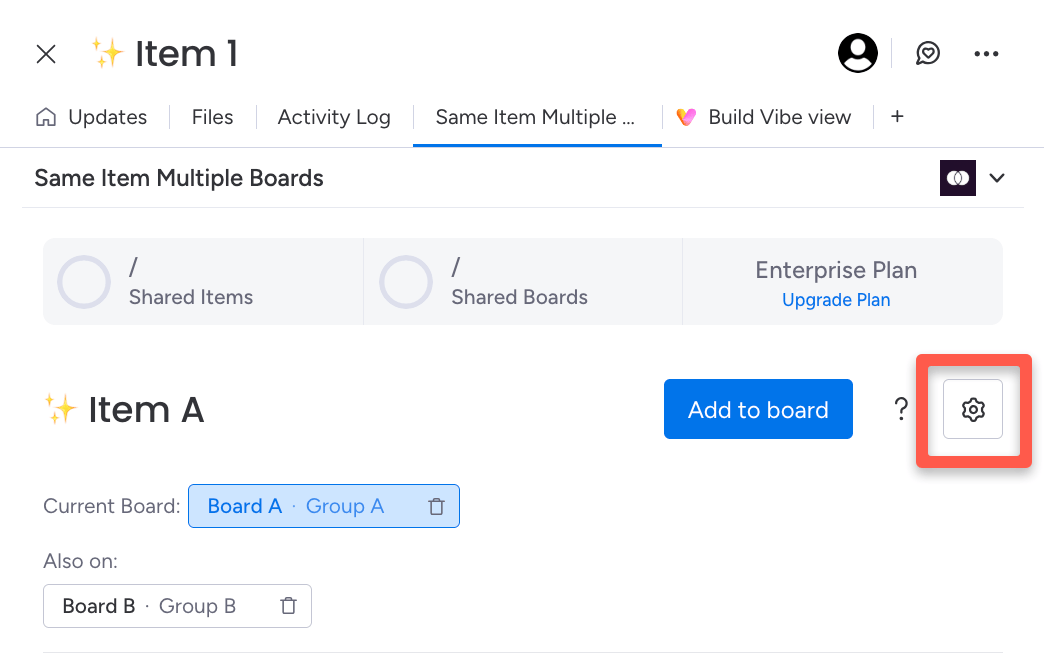
3
Go to the Usage Tab
In the left-side menu, click Usage. You’ll see a summary of your current usage, including how many shared items you have and which boards they live on.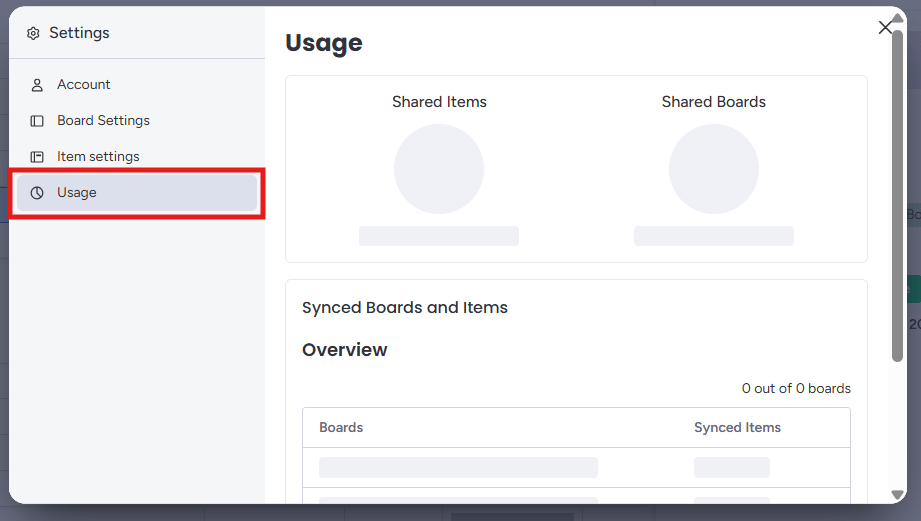
4
Review your usage summary
Read the summary to understand how much of your plan’s item and board allowance you’ve consumed. Use this information to decide whether to clean up unused connections or upgrade to a higher plan.
What Counts Toward Your Limits
Your plan tracks two separate quotas:- Shared items — each unique item that you’ve shared using SIMB counts once toward your item limit. Because SIMB keeps a single item synced in real time (rather than creating copies), the count reflects your actual shared item connections.
- Connected boards — each board that participates in at least one shared item connection counts toward your board limit.
Over-Limit Alerts
If you see an alert saying you’ve exceeded your plan limits, there are two possible causes:- You’ve reached the maximum number of unique boards allowed on your plan.
- You’ve reached the maximum number of unique items allowed on your plan.