Option 1: Match Column Names and Types
This is the most common fix and the right place to start if syncing has never worked correctly between your boards.1
Open both boards side by side
Use split view or open each board in a separate browser tab so you can compare them directly.
2
Check each column for exact name and type matches
Go through every column you want to sync — Status, Date, Text, People, and so on — and confirm:
- The name is identical on both boards (including capitalisation and spacing)
- The column type is the same on both boards
3
Rename or adjust any mismatched columns
Update column names on one or both boards until they match exactly. If the column types differ, you’ll need to recreate the column with the correct type and migrate your data.
4
Re-share the items through SIMB
Once both boards are aligned, go back to your source board and share the items again using Same Item Multiple Boards.
If you had already shared items before fixing the column names, delete those shared items first before re-sharing. To avoid accidentally deleting items on both boards: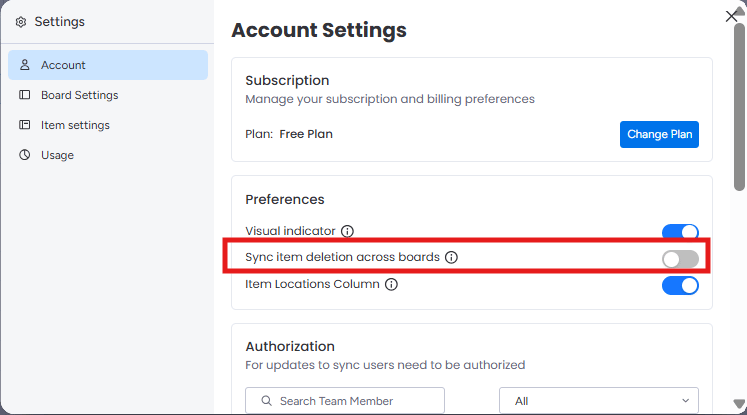
- Go to Settings in the SIMB app.
- Toggle off “Sync item deletion across boards.”
- Delete the mismatched items from the destination board.
- Re-share the items once the columns match.
Option 2: Review Discrepancies in the SIMB View
1
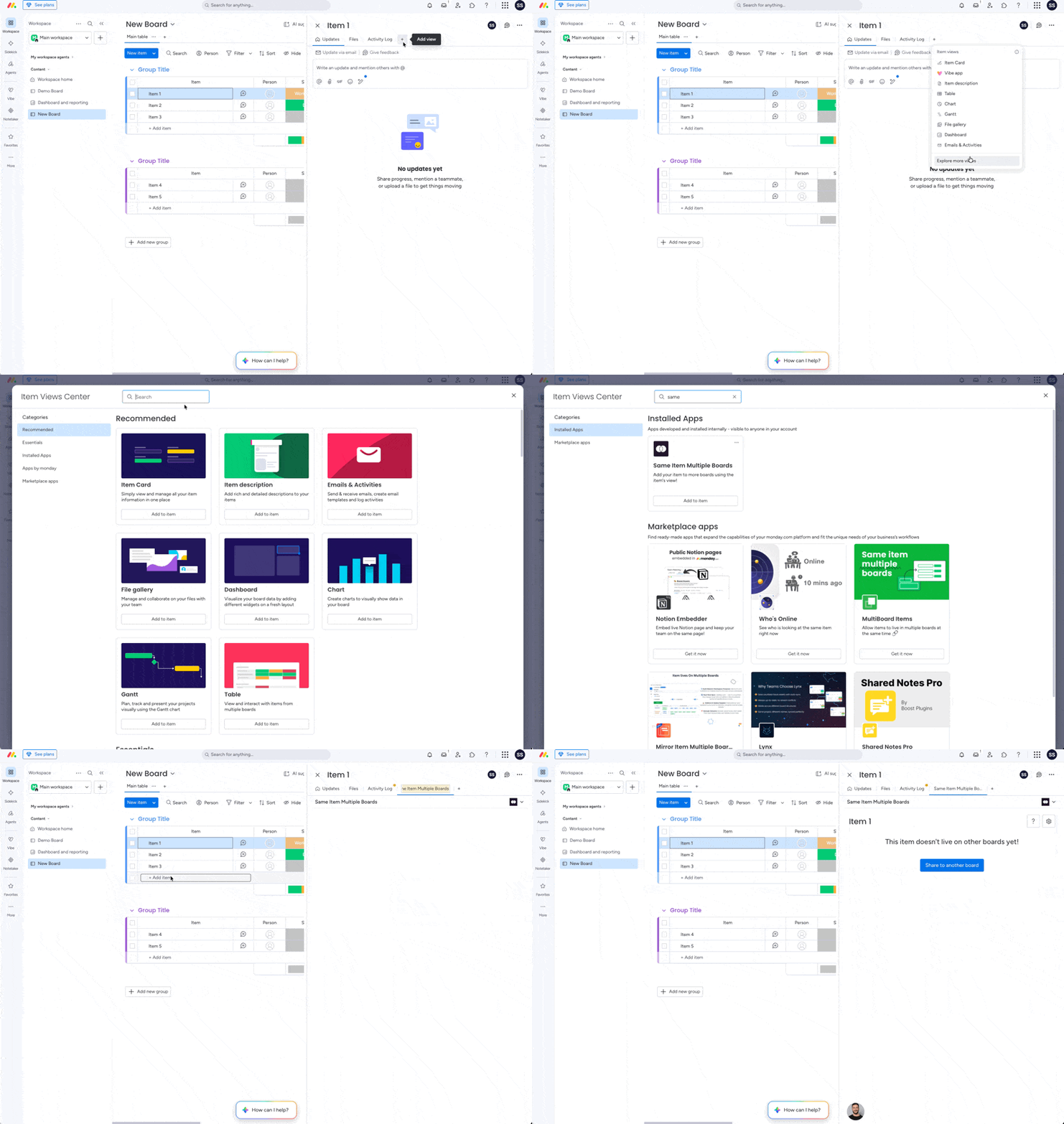
Open the board where the item was originally created
Navigate to the source board.
2
Add the SIMB board view
Click Add View → Apps → Explore more apps, then search for Same Item Multiple Boards and add it as a view.
3
Open the Discrepancies filter
In the SIMB view, open the dropdown menu and select Discrepancies.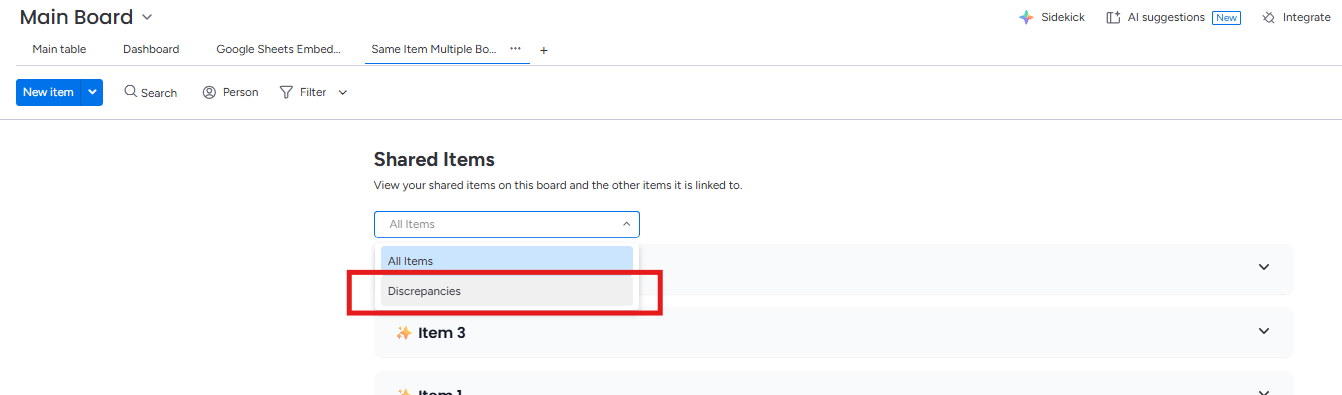
4
Expand an item to see mismatched values
Click into any item listed to see exactly which column values differ between boards.
5
Sync to the latest value
Click “Sync to latest value” to align the out-of-sync values. Repeat for each item that shows discrepancies.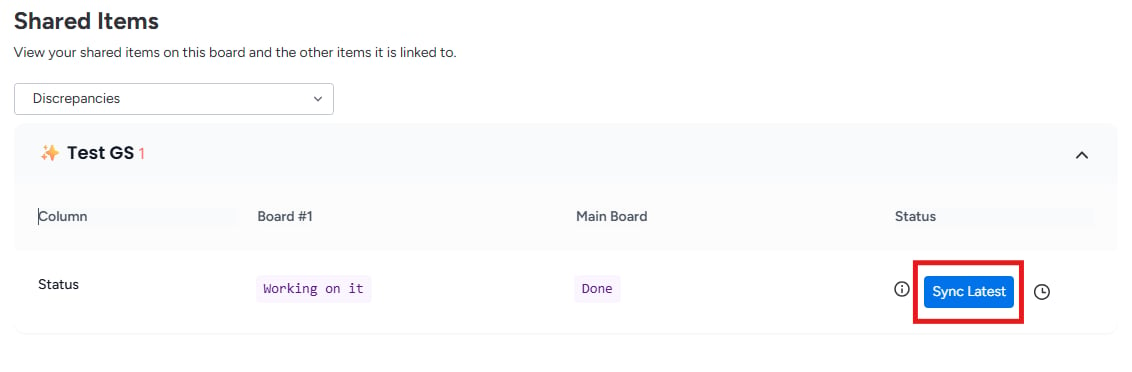
The Discrepancy Report works best as a fine-tuning tool after your board structure is properly aligned. If column names and types are still mismatched, fix those first (Option 1) before running the report.