Authorization Requirement
Updates sync on a per-user basis. Each person who posts updates must individually authorize SIMB to sync their comments. If a user’s updates aren’t appearing on other boards, it almost always means that user hasn’t yet completed authorization.Authorization is a one-time action per user. Once a team member authorizes SIMB, all of their future updates on shared items sync automatically across every connected board.
How to Authorize
1
Open a shared item
Click any item that is already shared across two or more boards.
2
Navigate to the SIMB tab
Inside the item view, click the Same Item Multiple Boards tab.
3
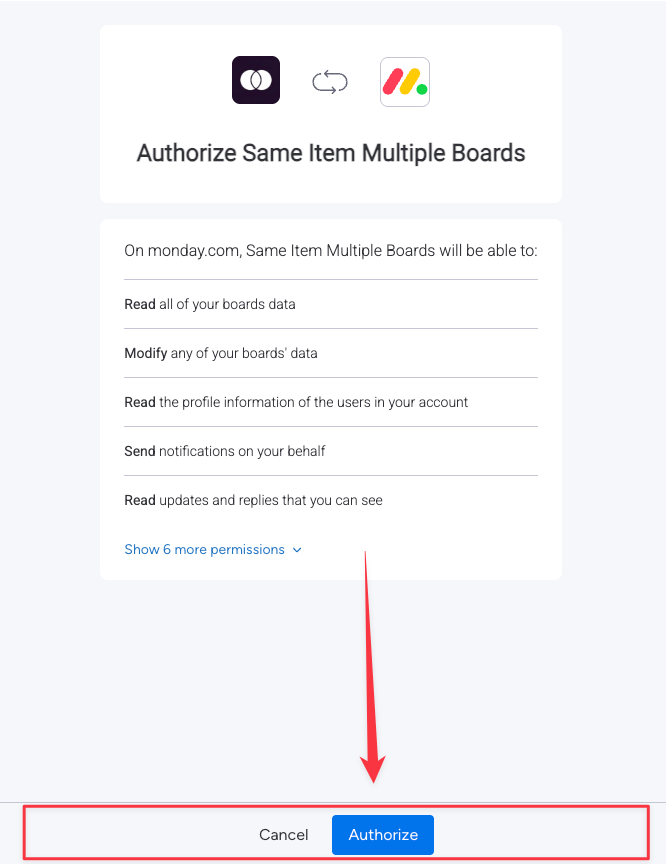
Click Authorize
Click the Authorize button. A new browser tab opens with the monday.com OAuth consent screen.
4
Confirm authorization
In the new tab, click Authorize again to grant the app the permissions it needs. The tab will confirm success.
Check Authorization Status
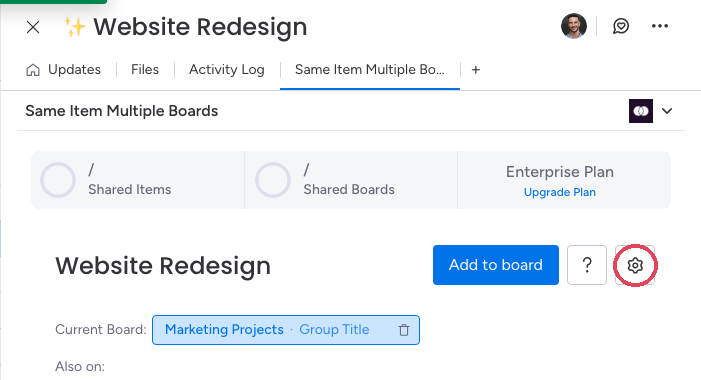
To verify whether a specific user has authorized the app:- Open any shared item and go to the Same Item Multiple Boards tab.
-
Click the Settings icon (gear icon) in the top corner of the SIMB panel.
-
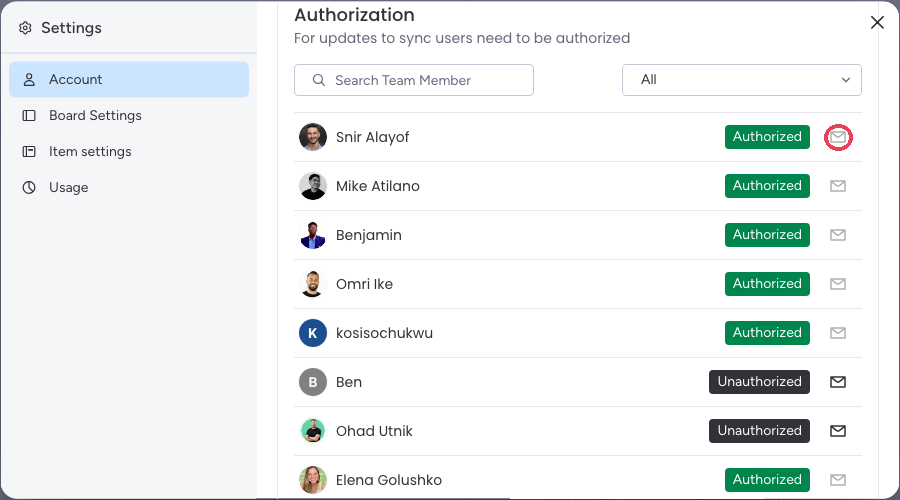
Go to Account Settings → Authorization. Every team member is listed with an Authorized or Unauthorized badge — the mail icon next to an unauthorized user sends them a one-click authorization invite.
Invite Team Members to Authorize
If you manage a team and need to prompt others to authorize, SIMB provides two options:Send Invite via Email
Inside the SIMB item view, click the Send Invite button (the mail icon). This sends an email to the selected team member with a direct link to the authorization screen.
Share the OAuth Link Directly
Copy and share this link directly with anyone who needs to authorize: Authorize SIMB
Block Updates From Syncing
Sometimes you want certain updates to stay on one board only — keeping internal discussions off a client board, or limiting sensitive project notes to a specific team. This is controlled per board from the app’s Board Settings:1
Open the SIMB view
On the board whose updates you want to keep private, open any shared item and click the Same Item Multiple Boards tab.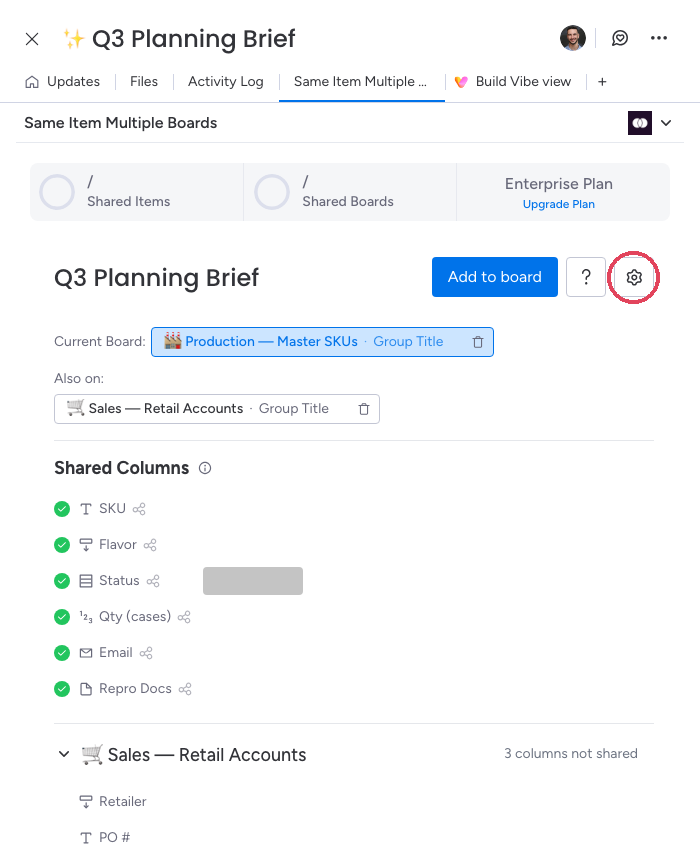
2
Open Settings → Board Settings
Click the Settings (gear) icon in the top-right of the SIMB view, then select Board Settings in the left-hand menu.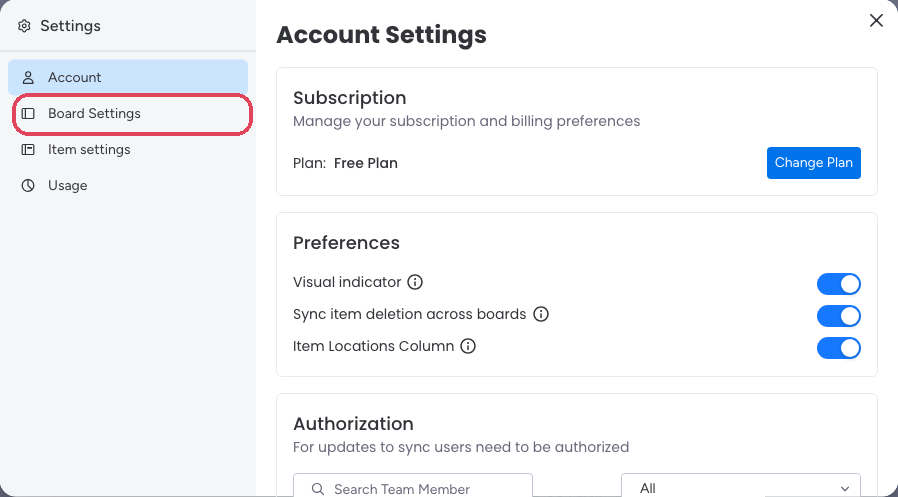
3
Set the Updates preference
Scroll to the Updates section and select “Never add updates from this board to other boards” — or keep syncing on and exclude specific boards with “Sync updates to all linked boards except:”. The change saves automatically.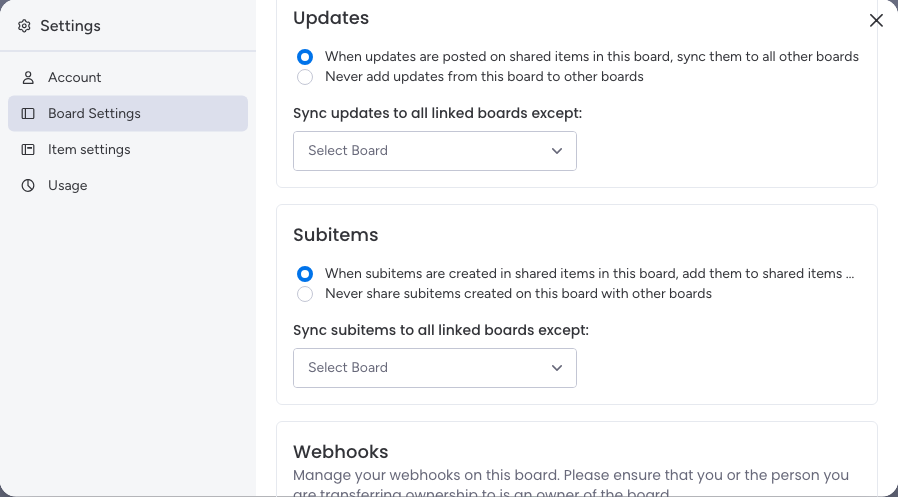
The preference applies to the board where updates are written, and only to new updates. To stop updates flowing in both directions between two boards, set it on both boards. See the full walkthrough with screenshots in Block Updates Sync.
Common Use Cases for Blocking Updates
Internal vs. Client Boards
Keep internal team discussions, notes, and decision logs private while still sharing item progress with clients on an external board.
Departmental Boards
Share only the updates relevant to a specific department. Prevent cross-departmental noise when the same item is tracked by multiple teams.
Confidential Projects
Protect sensitive project information — budget discussions, personnel decisions, or legal notes — from appearing on shared boards.
Multi-Team Collaboration
Ensure each team sees only the updates relevant to their stage of the workflow, keeping boards focused and noise-free.
Troubleshooting
If updates aren’t syncing as expected, start here:- Updates not appearing on other boards: The user posting the update likely hasn’t authorized SIMB. Follow the authorization steps above or send them an invite link.
- Updates blocked unexpectedly: Check the board’s Updates preference under Settings → Board Settings in the SIMB view — if it’s set to “Never add updates from this board to other boards” (or the board is excluded), updates won’t sync by design. See Block Updates Sync.
- Partial sync (some users sync, others don’t): Authorization is per-user. Check each team member’s authorization status individually via Account Settings → Authorization in the SIMB panel.