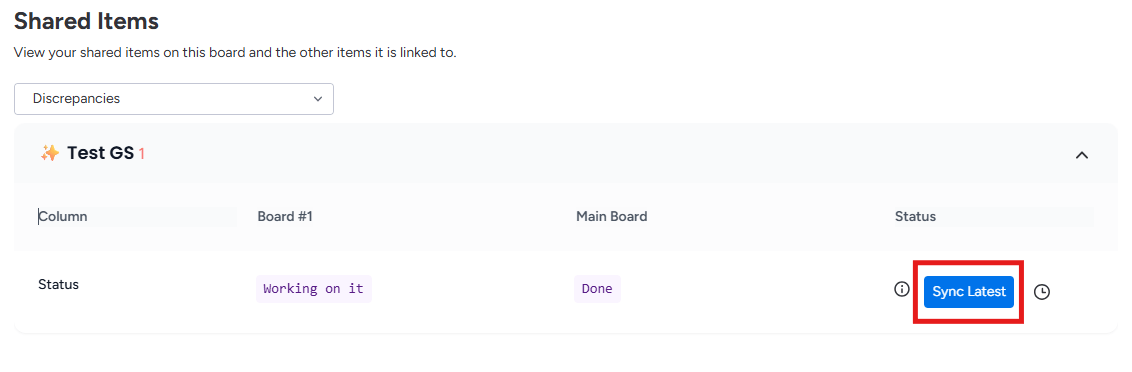
What is a discrepancy?
A discrepancy occurs when the same item carries different values on different boards. This typically happens when column names or types didn’t match at the time an update was made, so SIMB couldn’t propagate the change. Once you fix the column names and types so they match, future updates sync correctly — but any values that diverged in the past are not retroactively corrected. That’s what the Discrepancy Report is for. Example: A task is marked “Done” on your Project Roadmap board, but it still shows “Stuck” on your Engineering Sprint board because the Status column was named differently when the update was made. After you align the column names, the Discrepancy Report lets you push the correct value — “Done” — across all boards.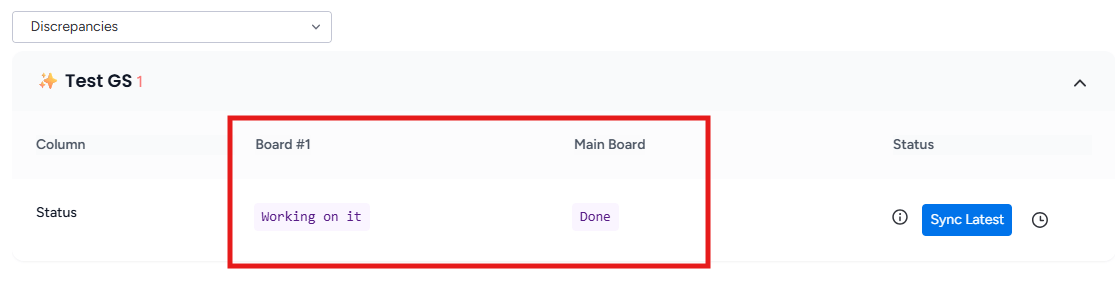
Access the Discrepancy Report
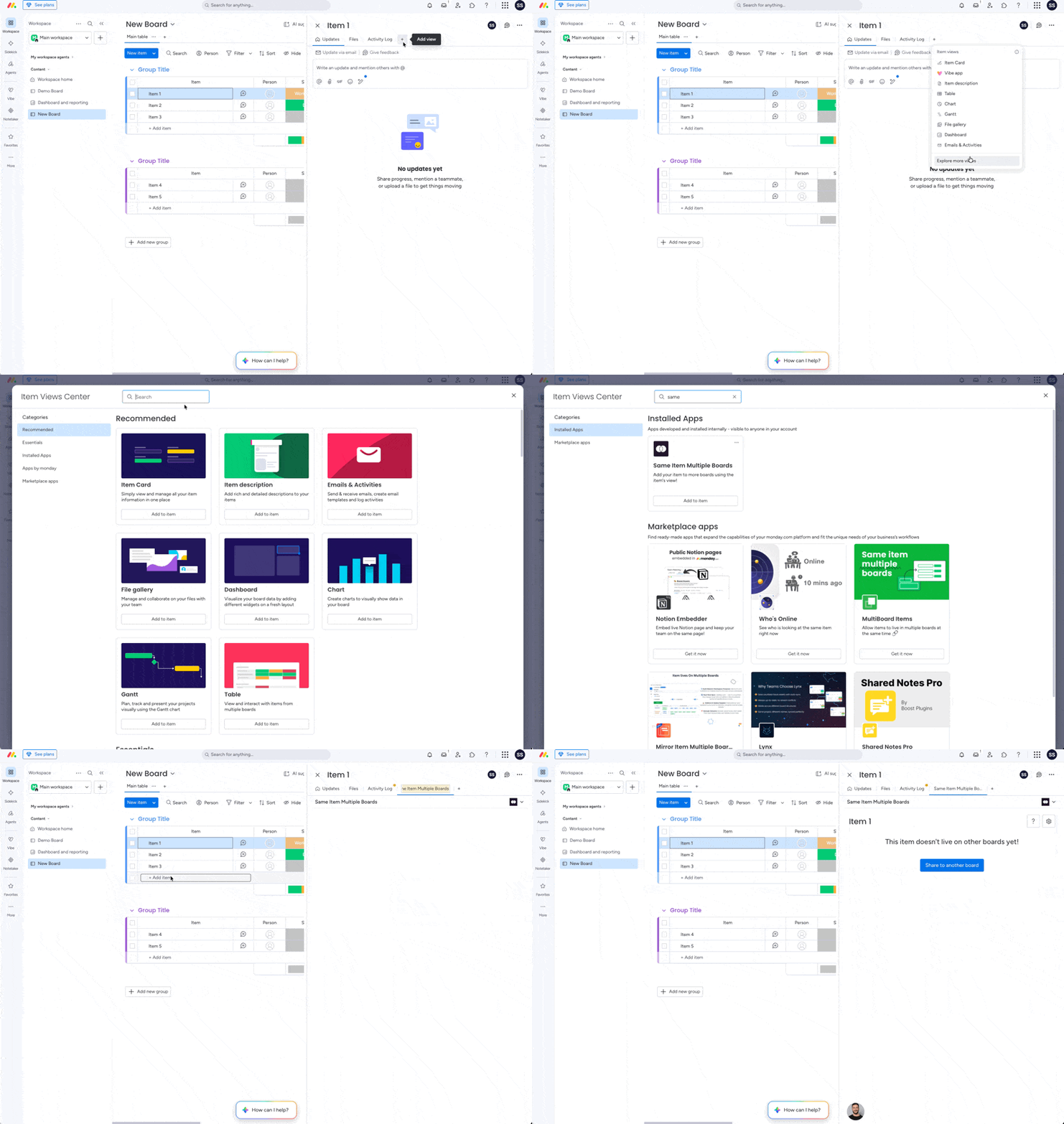
- Click Add View in your board’s view bar.
- Select Apps, then Explore more apps.
- Search for Same Item Multiple Boards and open the view.
Review and fix discrepancies
1
Open the Same Item Multiple Boards view
Navigate to the board where the shared items originate and open the Same Item Multiple Boards view you added above.
2
Filter to Discrepancies
At the top of the SIMB view, click the dropdown that shows All items and select Discrepancies. The view will filter to show only items that have sync mismatches across boards.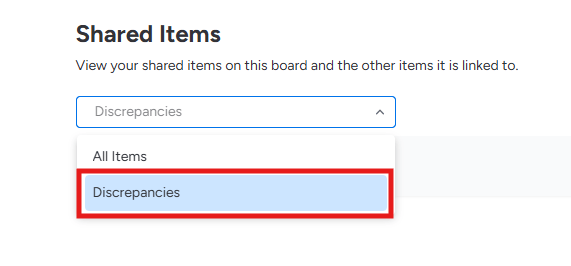
3
Expand an item to review its change history
Click the arrow (▶) next to an item’s name to expand it. You’ll see a history of what changed, when it changed, and who made the change — giving you full context before deciding which value to apply.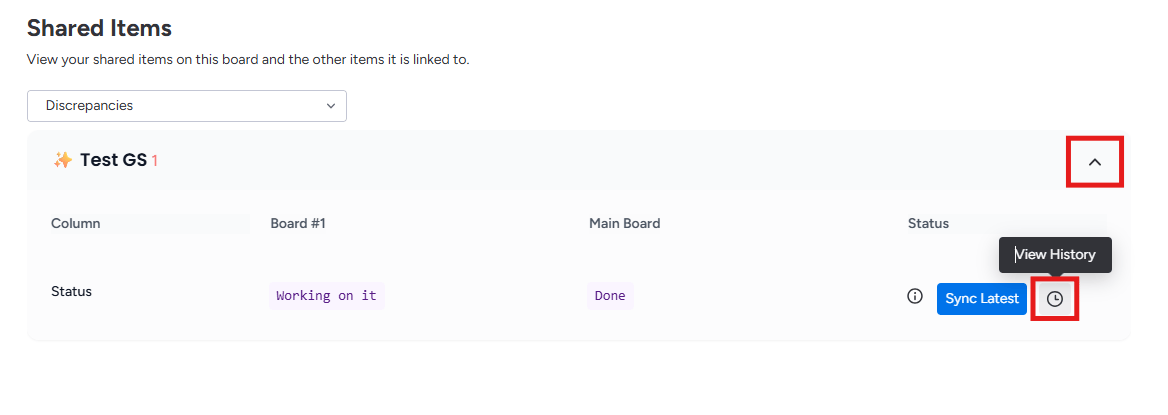
4
Click Sync Latest to apply the most recent value
Next to the mismatched field, click Sync Latest. SIMB applies the most recent value across all connected boards, resolving the discrepancy immediately.