Upgrading your Same Item Multiple Boards plan lets you scale your operations as your team grows. Higher-tier plans unlock increased item and board limits, priority syncing performance, and access to advanced automations and app views — all without adding any per-seat costs.
You need admin or billing permissions in monday.com to upgrade a plan. If you don’t have these permissions, ask your monday.com admin to complete the upgrade on your behalf.

Steps to Upgrade Your Subscription
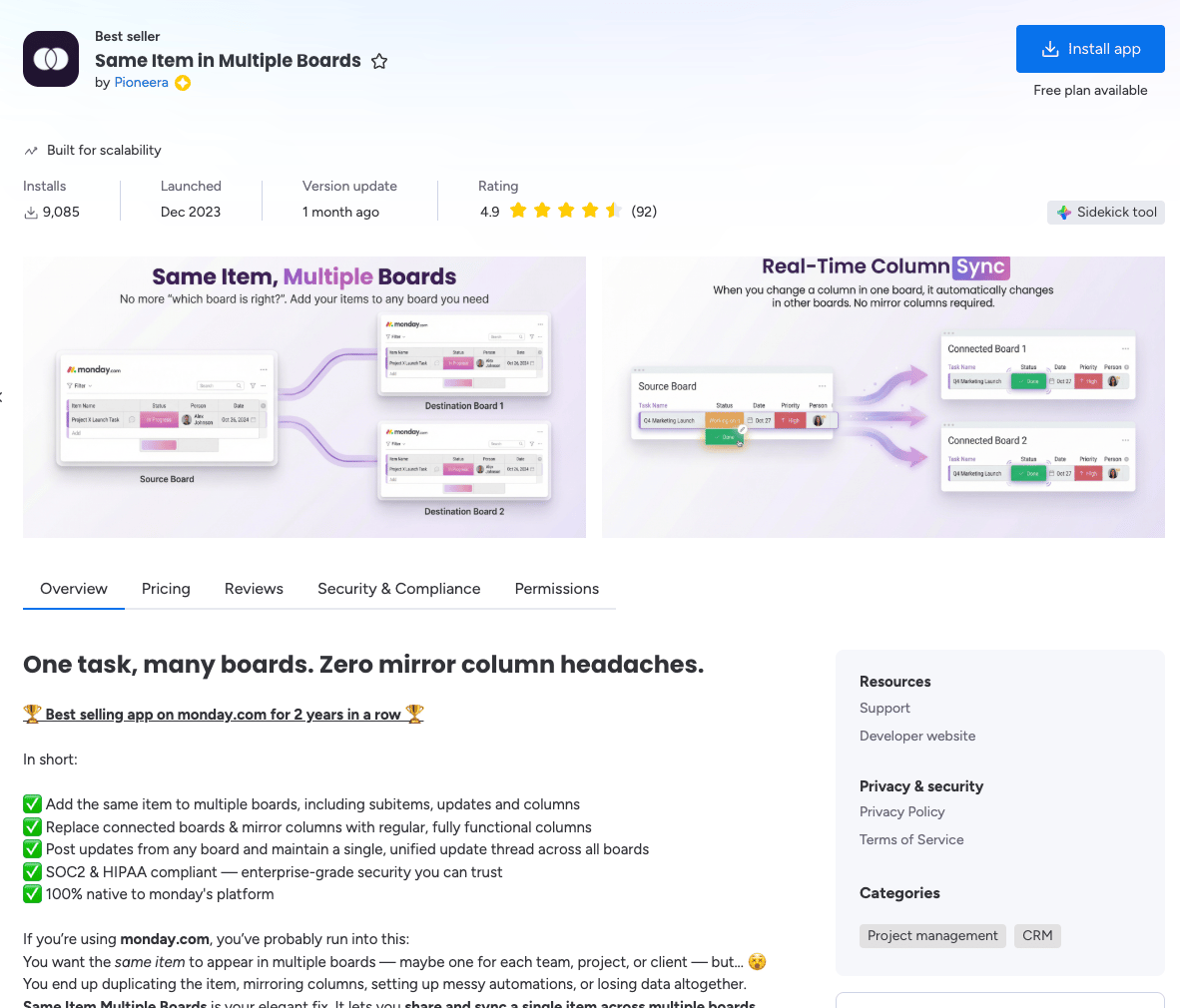
Install Marketplace Listing
1

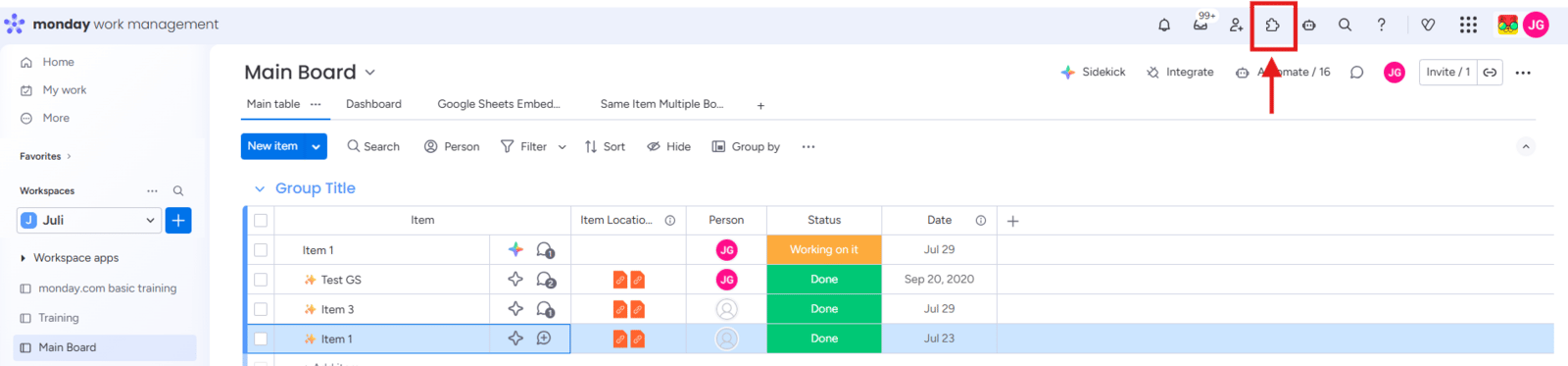
Open the Apps Marketplace

Click the App Marketplace icon in the left panel of your monday.com workspace. This is where you can explore and manage all monday.com apps.
2

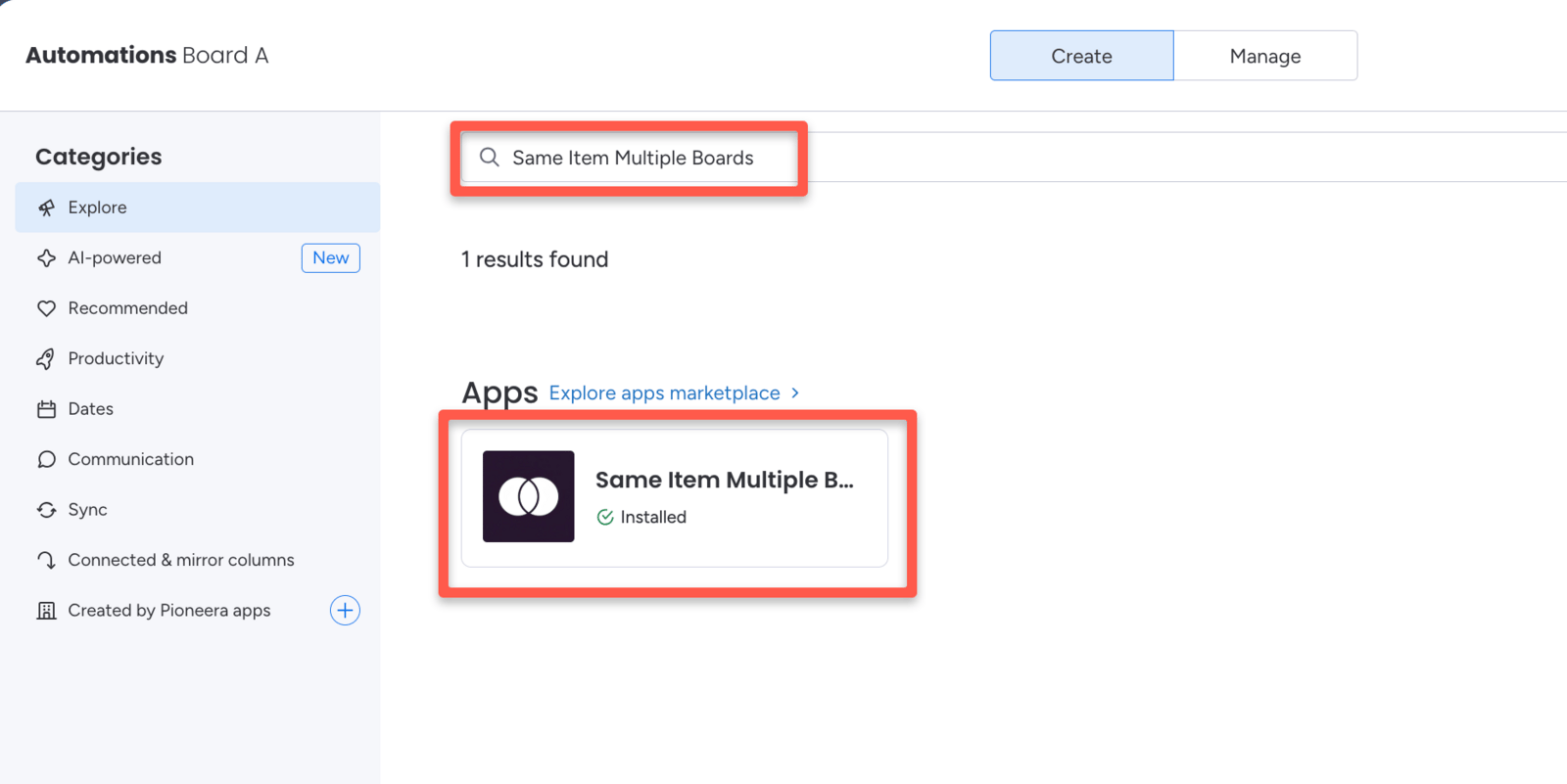
Search for Same Item Multiple Boards

Type Same Item Multiple Boards in the search bar. When the app appears in the results, click on it to open the app page.
3

Open Billing and click Upgrade Plan

On the app page, click Billing, then click Upgrade Plan.
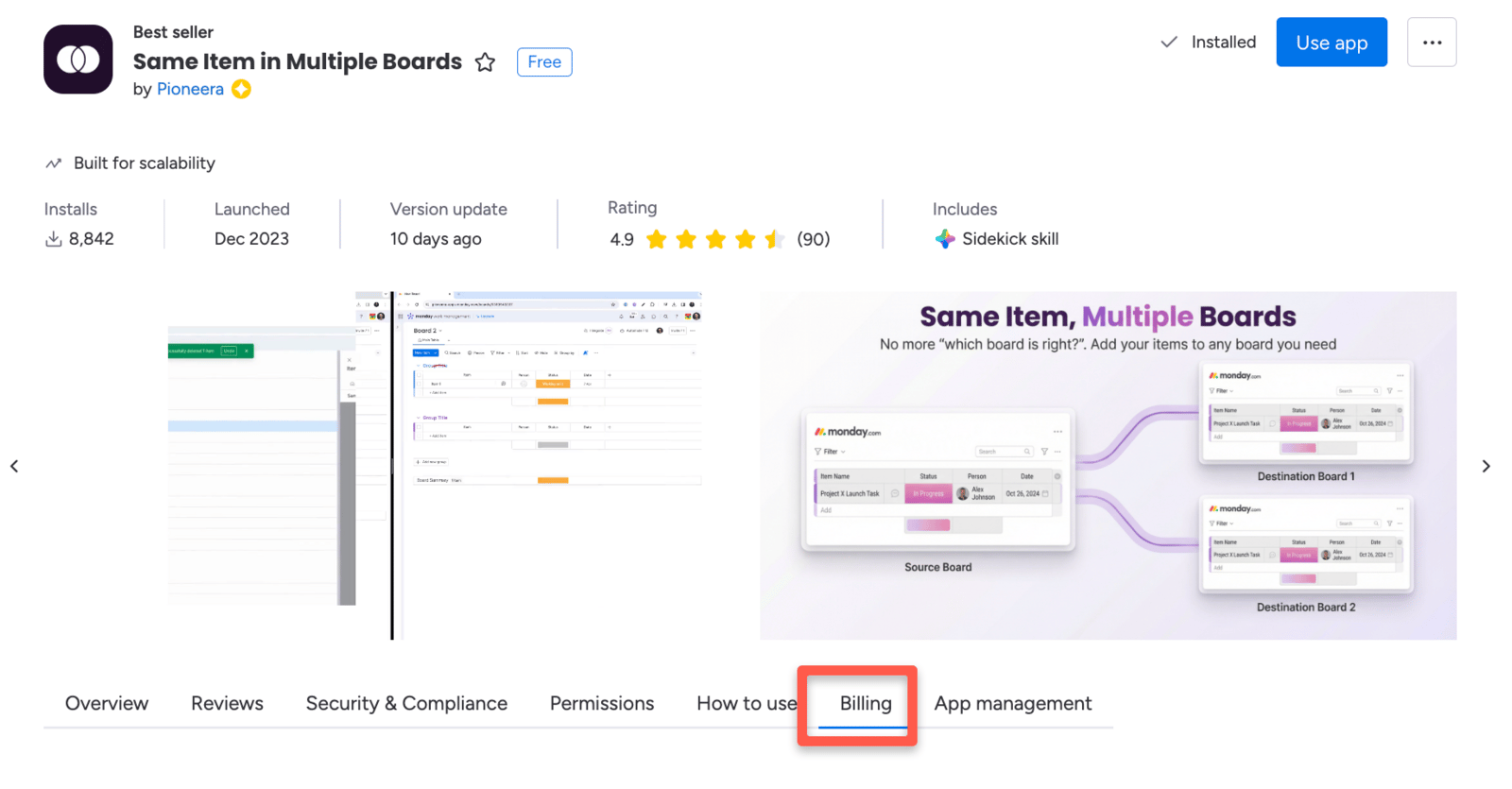
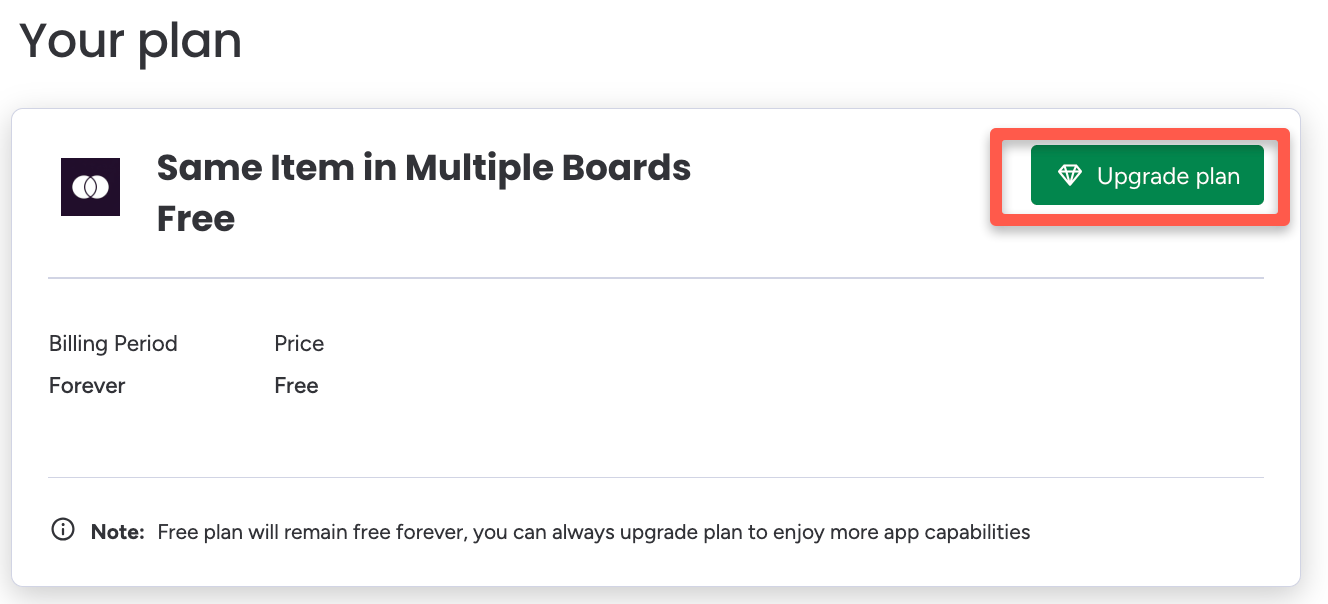
If you don’t see the Billing button, you likely don’t have admin or billing permissions in your monday.com account. Contact your monday.com admin to complete this step.
4

Choose your plan and billing period

Review the available plans and select the one that fits your needs. Then choose your preferred billing period — monthly or yearly.
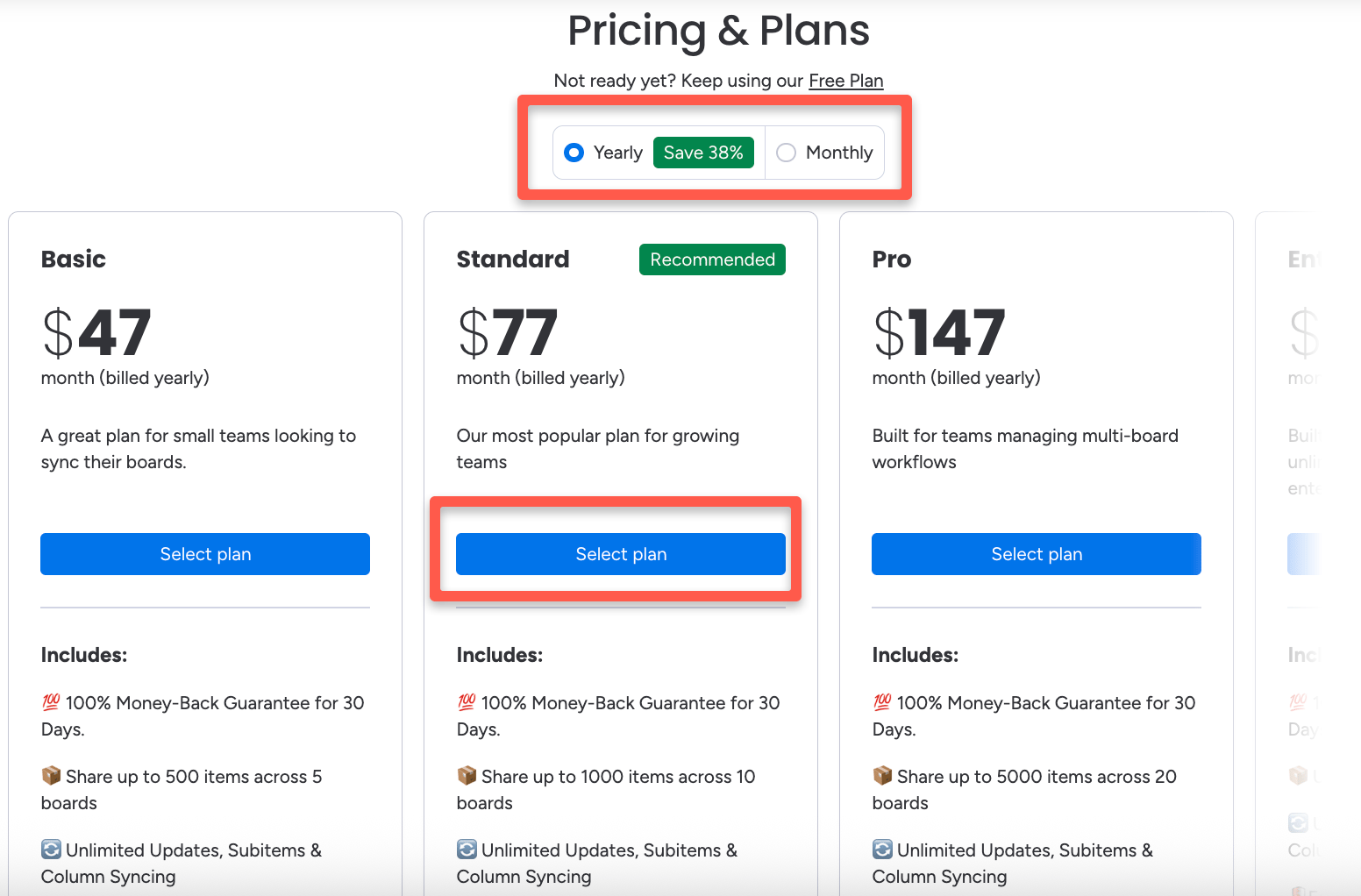
Yearly billing saves approximately 30–40% compared to monthly billing. For example, the Basic plan costs 47/monthonyearlybillingversus47/month on yearly billing versus 97/month on monthly billing.
5

Select Plan and complete checkout

Click Select Plan to proceed to checkout and complete the upgrade.

After Your Upgrade

Once checkout is complete, your subscription upgrades immediately. You’ll have full access to all premium features included in your new plan right away — no restart or reinstallation needed. Need help choosing the right plan? See the Pricing Plans page for a full feature and price comparison across all tiers.