At a Glance
Detailed Fixes
1. SIMB Is Installed for One Workspace Only
1. SIMB Is Installed for One Workspace Only
If SIMB was installed for a single workspace, boards outside that workspace won’t be visible to the app — and syncing between them won’t work. Switching to All Workspaces fixes this immediately.How to fix it:
- Open Apps → Marketplace in monday.com.
- Search for Same Item Multiple Boards and open the app listing.
- Click the App Management tab.
- Check the installation scope:
- All Workspaces — fully enabled ✓
- Specific workspace only — restricted ✗
- Select All Workspaces and save.
2. Unsupported Column Type
2. Unsupported Column Type
Some column types are not supported by SIMB. If a column type isn’t on the supported list, it won’t sync — even if everything else is configured correctly.How to fix it:Check the supported column types and confirm your columns are compatible. If you’re using an unsupported type, consider switching to a supported alternative that covers the same need.
3. Column Names or Types Don't Match
3. Column Names or Types Don't Match
For a column to sync, it must exist on all connected boards with: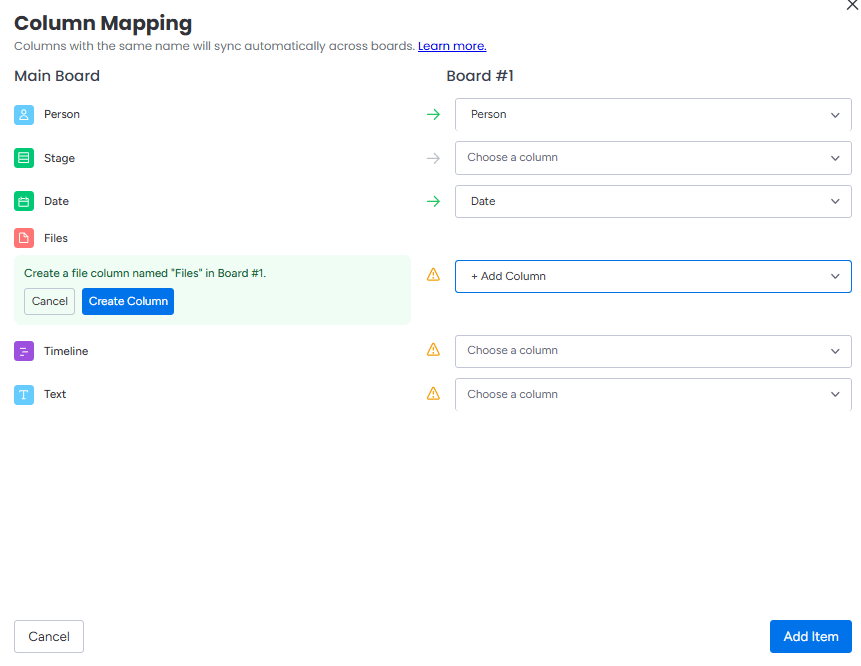
- The same column name (exact match, case-sensitive)
- The same column type
- The same structure and settings
4. Managed Column Restrictions
4. Managed Column Restrictions
If a column has column-level permissions enabled (a “managed column”), SIMB can still sync it — but only if the value being synced is allowed on both boards.Example: Board A has a managed Status column that permits only “Done” and “Stuck.” If someone sets the status on Board B to “Working on it,” the sync fails because that label isn’t permitted on Board A.How to fix it:
- Open both boards side by side.
- Compare the allowed values on each managed column.
- Ensure every value that could be synced exists on both boards.
- Confirm label names match exactly — including spelling and capitalisation.
5. No Edit Permission on the Destination Board
5. No Edit Permission on the Destination Board
If you don’t have edit access to the destination board, or the board has restricted permissions, sync updates fail silently — nothing appears to happen and no error is shown.How to fix it:Ask your admin or board owner to confirm you have:
- Edit permissions on the destination board
- Access to all connected boards
- The correct role to update items
6. Webhooks Are Disabled or Broken
6. Webhooks Are Disabled or Broken
SIMB relies on webhooks to detect column changes and push them to connected boards. If a webhook is disabled, deleted, or broken, syncing stops.How to fix it:Reinstall or re-enable the SIMB webhook on the affected board. You can do this from Board Settings → Webhooks, or use the Refresh option inside the SIMB Item View (see the Webhooks guide for step-by-step instructions).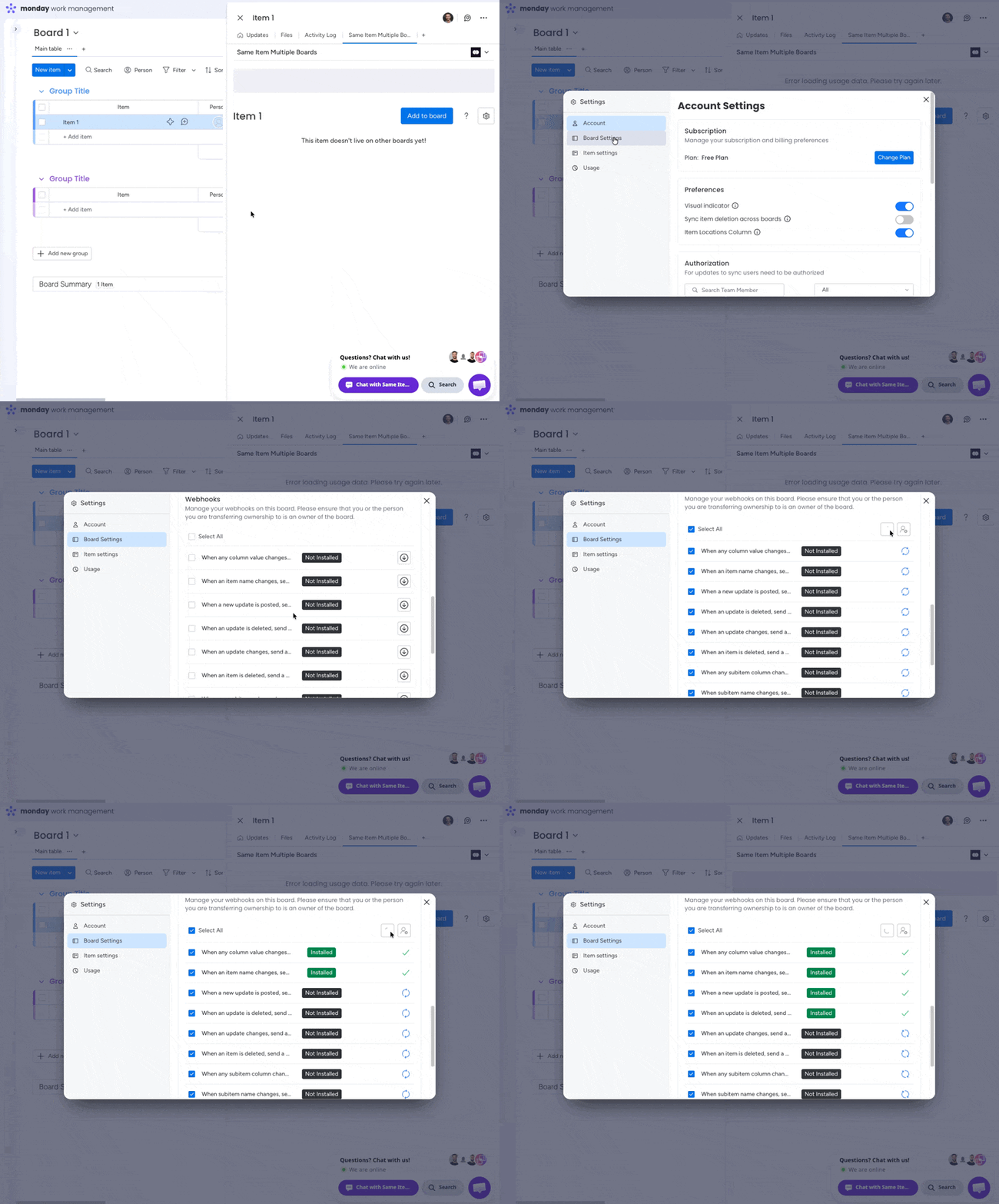
If webhooks keep getting deactivated, contact support@pioneera.io and the support team will refresh them for you.
7. Large Batch Operations
7. Large Batch Operations
Syncing a very large number of items at once — for example, duplicating many items in bulk — can trigger rate limits or cause partial syncing where some items update and others don’t.How to fix it:Break the operation into smaller batches instead of syncing everything at once. If the issue persists after batching, contact support@pioneera.io and the team will investigate further.
8. Conflicting Automations
8. Conflicting Automations
Heavy automation activity on the same items can interfere with SIMB updates, especially when multiple automations fire simultaneously on the same item.How to fix it:
- Pause related automations temporarily.
- Test whether columns sync without them active.
- If syncing resumes, adjust your automation logic to eliminate loops or overlapping triggers before re-enabling.
9. Board Performance Issues
9. Board Performance Issues
Very large boards, cluttered structures, or too many active automations can slow down or interrupt sync performance across the board.How to fix it:
- Archive items you no longer need
- Remove unused columns
- Reduce overlapping automations
- Split very large boards into smaller, focused ones where possible
10. Unknown Cause — Use the Discrepancy Report
10. Unknown Cause — Use the Discrepancy Report
If none of the above applies, or if items partially synced and stopped mid-way, the Discrepancy Report is your best diagnostic tool. It quickly highlights:
- Items that didn’t sync
- Missing updates
- Mismatched column values
- Boards with missing data