Before you start: authorize the automation owner
The person who creates and owns the automation must authorize SIMB using their own monday.com account. Installing SIMB for the account, or having another teammate authorize it, does not authorize the automation owner. Open the Same Item Multiple Boards app while signed in as the automation owner and complete the authorization prompt. You can also use the Authorize SIMB link. See how to check a user’s authorization status.Available Trigger Types
Choose the trigger that matches the event in your workflow:Set Up a SIMB Automation
The whole flow, start to finish:1
Open the Automations Center
On the board where you want the automation to trigger, click the Automate button at the top of the board. This opens the Automations Center.
2
Search for Same Item Multiple Boards
In the Create tab’s search bar, type Same Item Multiple Boards and click the app when it appears under Apps (it shows an “Installed” badge).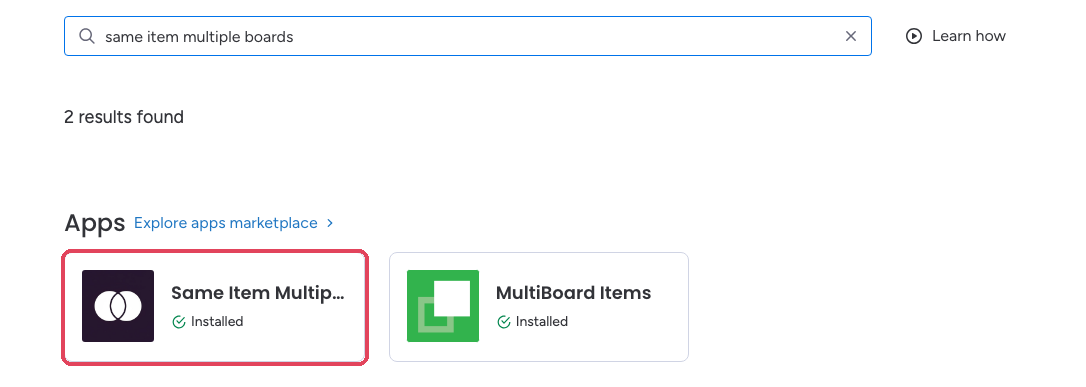
3
Pick the recipe that matches your trigger
SIMB’s recipe gallery opens. Click Use template on the recipe whose trigger matches your workflow — item created, status changes, item moved to group, date arrives, and more.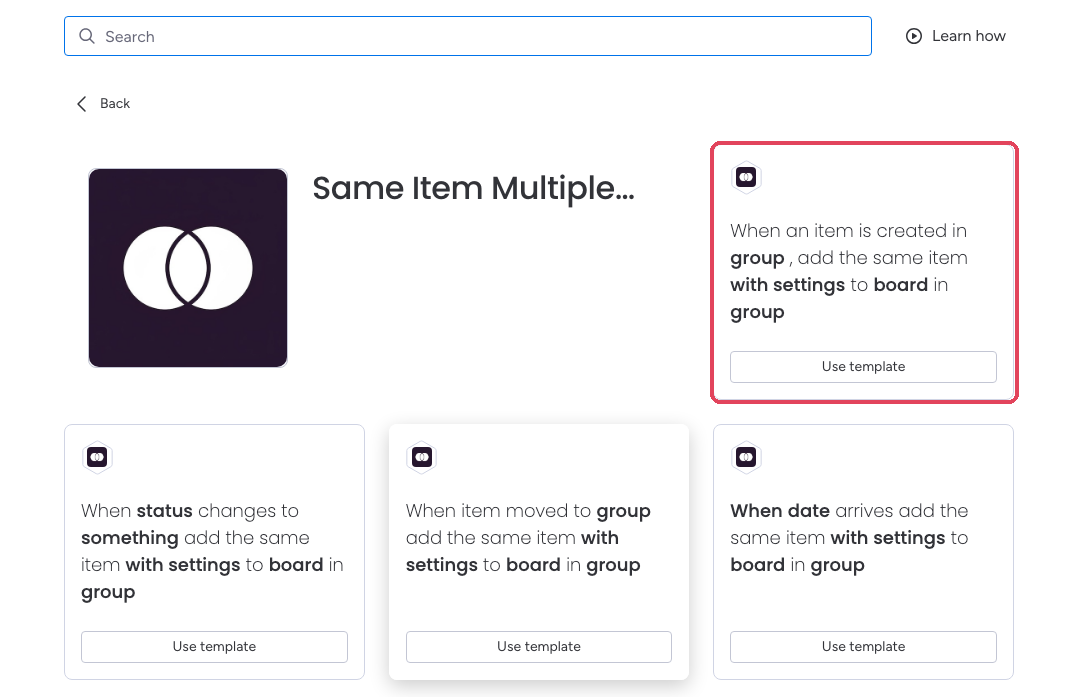
4
Fill in the recipe sentence
The recipe opens as a sentence with underlined blanks. Click each one to fill it in — the trigger details, with settings for column options, and board / group for the destination.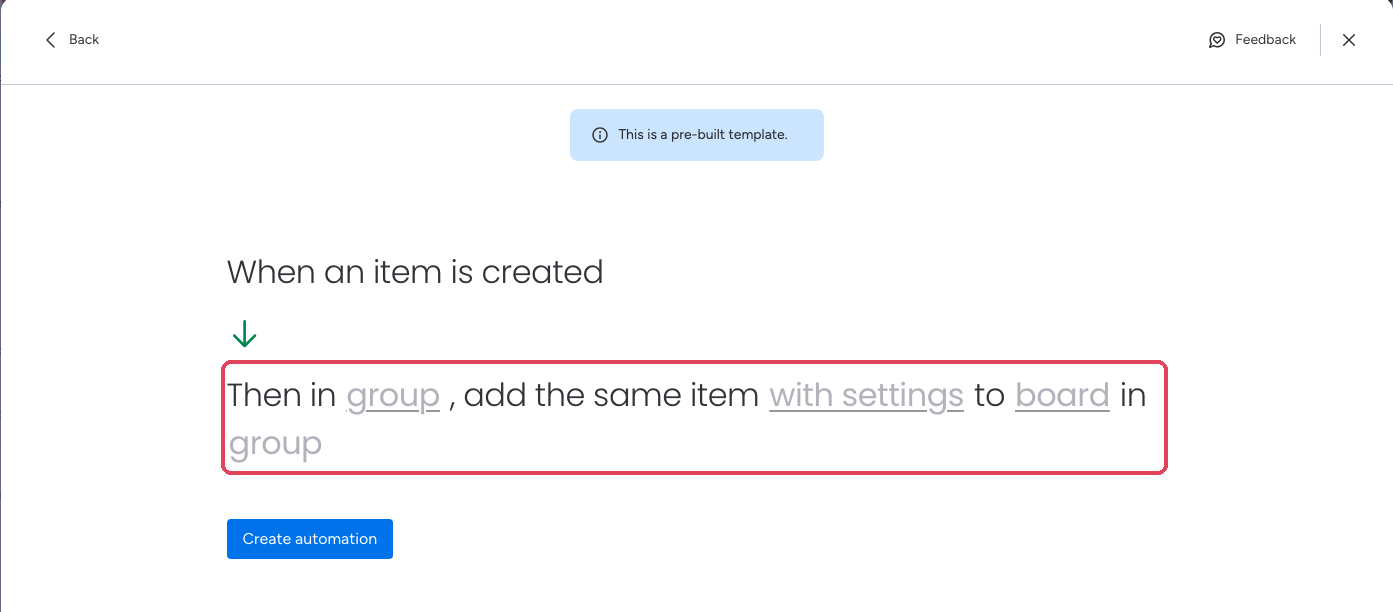
5
Choose the destination board and group
Click board and select the board where the item should appear when the automation fires, then pick the group within that board — if you don’t, items land in the destination board’s first group.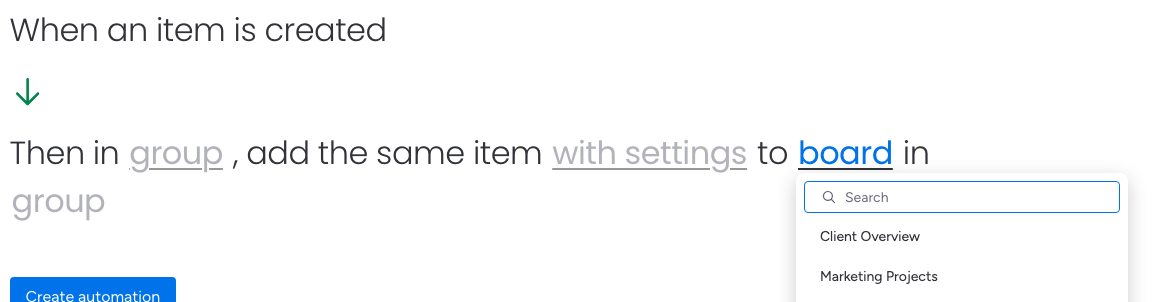
This list only shows boards of the same type (regular or multi-level) as the board you’re building the automation on. A regular board won’t appear in the list when you’re on a multi-level board, and vice versa — SIMB doesn’t yet support connecting across the two. See a board is missing from the destination board list.
6
Save the automation
Click Create Automation. The automation is now active — every time the trigger condition is met, SIMB automatically adds the item to your chosen destination board.
Unlink or Remove Items with Automations
Automations don’t only share items — they can also unlink or remove them automatically when a condition is met, for example pulling an item off a board when its status changes to Done. You build these exactly like a sharing automation: a trigger paired with a SIMB removal action.1
Open the Automations Center
On the source board, click Automate in the top-right corner.
2
Create a custom automation from scratch
Click Create, then Create from scratch to open the automation builder.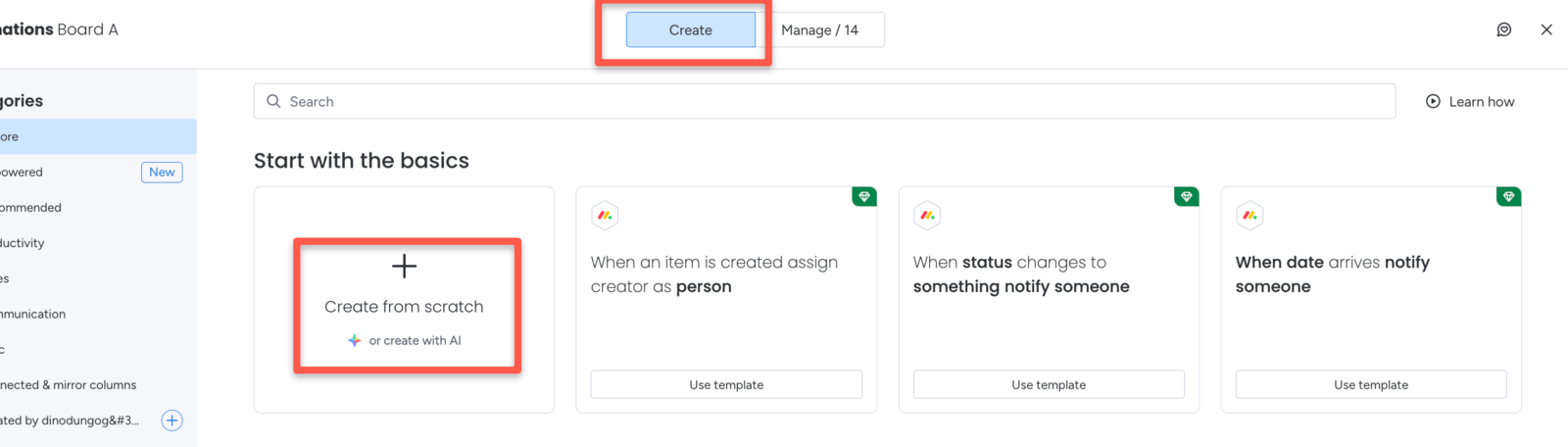
3
Choose your trigger
Pick the event that should remove the item — for example, when a status changes to a specific value.
4
Add a SIMB removal action
In the action slot, choose Same Item Multiple Boards and pick the removal action that fits: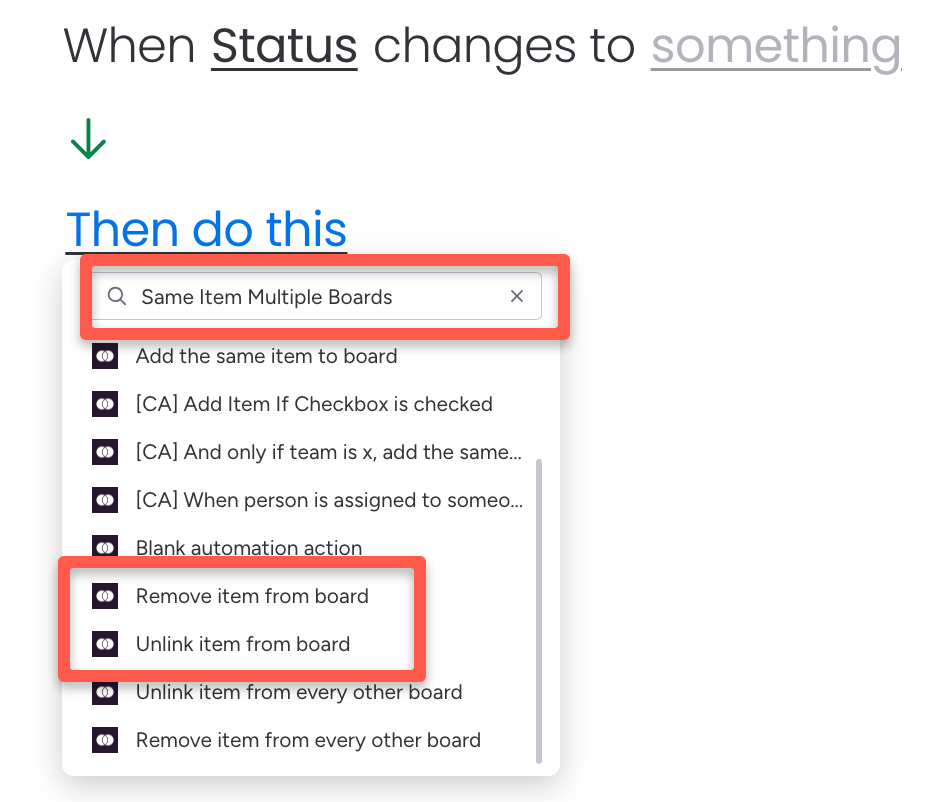
- Unlink item from Board — stops syncing and removes the item from that board; frees up app usage.
- Remove item from Board — deletes the item from that board and deducts usage.
5
Save the automation
Click Create Automation. From now on, every time the trigger fires, SIMB removes the item for you.
Remove From Every Other Board at Once
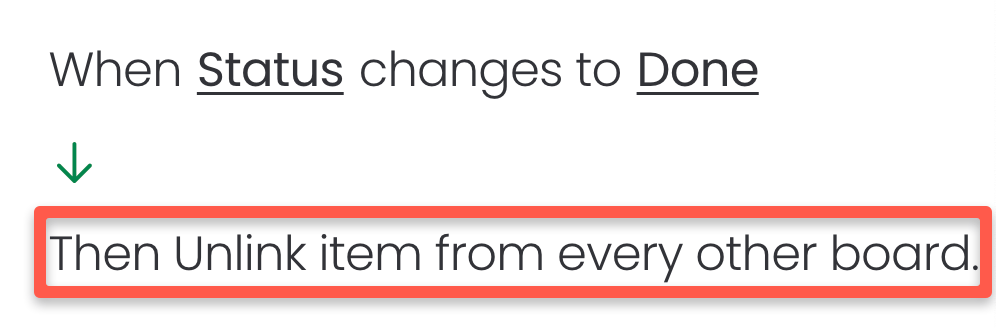
For bulk cleanup, SIMB also offers actions that act on every other board an item is shared to, not just one:- Unlink item from every other board — keeps the item on the current board and unlinks it everywhere else.
- Delete item from every other board — keeps the current board’s copy and deletes all the others.
Automation shows Success but no item appears
If a SIMB automation reports Success but creates nothing on the destination board, check the automation owner’s authorization first. Another teammate being authorized is not enough.- Identify who created and owns the affected automation.
- Check the triggering item’s or subitem’s Updates and the owner’s monday.com notifications for “The automation owner must authorize the app.”
- Have that owner open Same Item Multiple Boards under their own monday.com login and complete the authorization prompt, or open Authorize SIMB.
- Trigger the automation again after authorization. For a status-change recipe, make a new change that matches the recipe’s trigger; do not rely on a previous run being replayed.
- Confirm the item appears in the destination board and group. The Success entry alone does not confirm that it was created.
Good to Know
Automations work independently from the SIMB item view. You don’t need to have the item view added to your board for automations to function — they are a completely separate way to use the app.
- Synced items stay connected. When an item is added to another board via automation, column values continue to sync between boards according to your column mapping settings (matching name and type).
- Destination board list is filtered by board type. Automations can only connect regular boards to regular boards, or multi-level boards to multi-level boards — a board of the other type won’t appear in the destination list. Automations created before this restriction was introduced keep running as normal, so an old automation to a given board doesn’t mean a new, identical one can be created today.
- Automations are not retroactive. They apply only to events that happen after the automation is created. Items that already meet the trigger condition at the time you save the automation will not be automatically shared.
- You can stack multiple automations. Set up as many automation rules as you need on the same board — for example, one that fires on status changes and another that fires when a new item is created.
- Column Mapping preview is not available in automations. Columns sync based on name and type matching alone. Use Column Mapping during a manual share to align your boards before relying on automations.