Column Mapping is only available when manually sharing a single item via the SIMB item view. It does not appear when using automations or batch actions — those flows skip the mapping step. If you rely on automations, use Column Mapping during a manual share first to align your boards.
What Column Mapping Shows
The mapping window categorizes every column on the source board into one of three states:Preview and Fix Column Alignment
1
Open the item you want to share
Click the item and navigate to the Same Item Multiple Boards tab inside the item view.
2
Select the destination board
Choose the board where you want the item to appear. SIMB will immediately fetch that board’s column structure.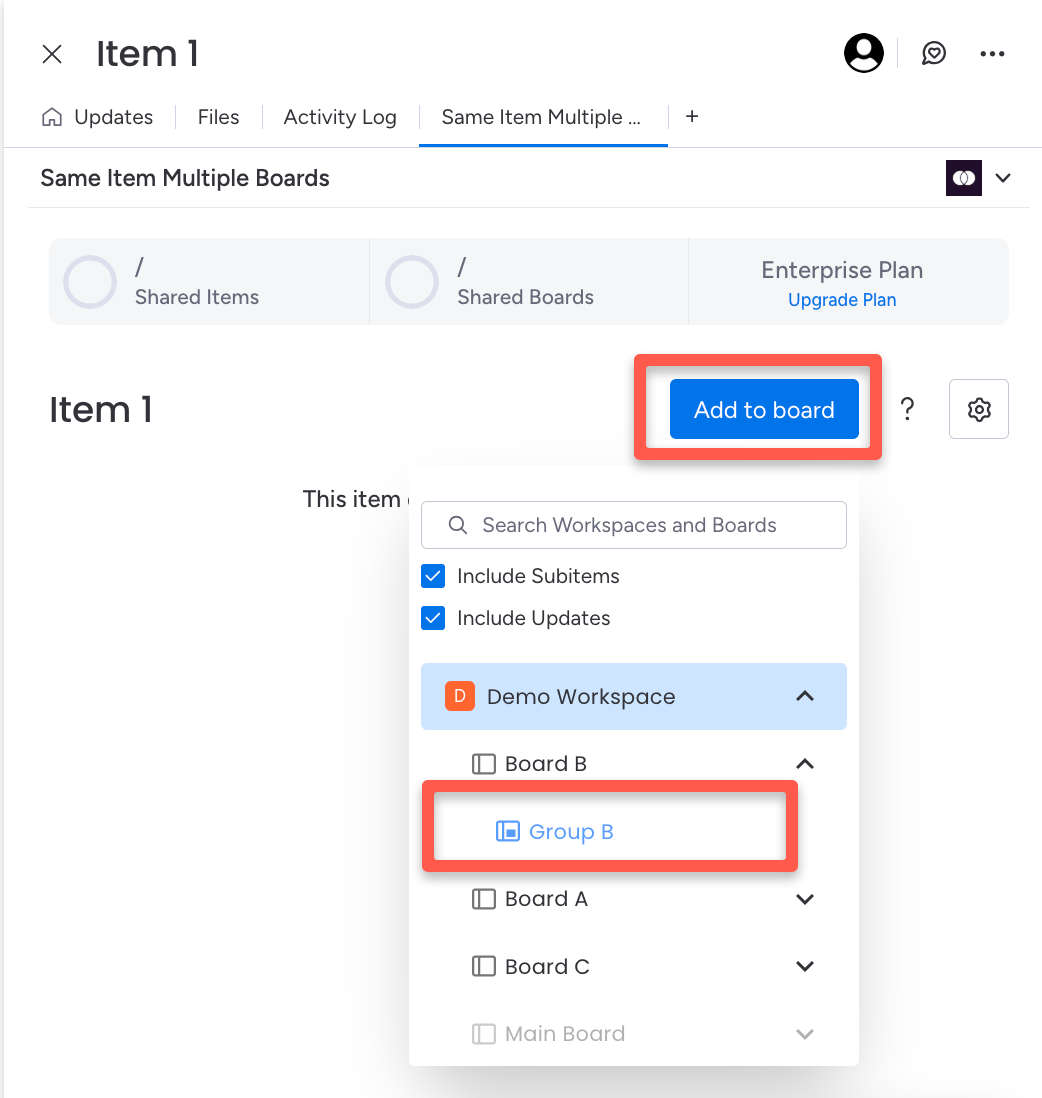
3
Review the Column Mapping window
A mapping panel opens, showing every column categorized as matching, mismatched, or missing. Green indicators mark columns that will sync. Warnings flag anything that needs attention.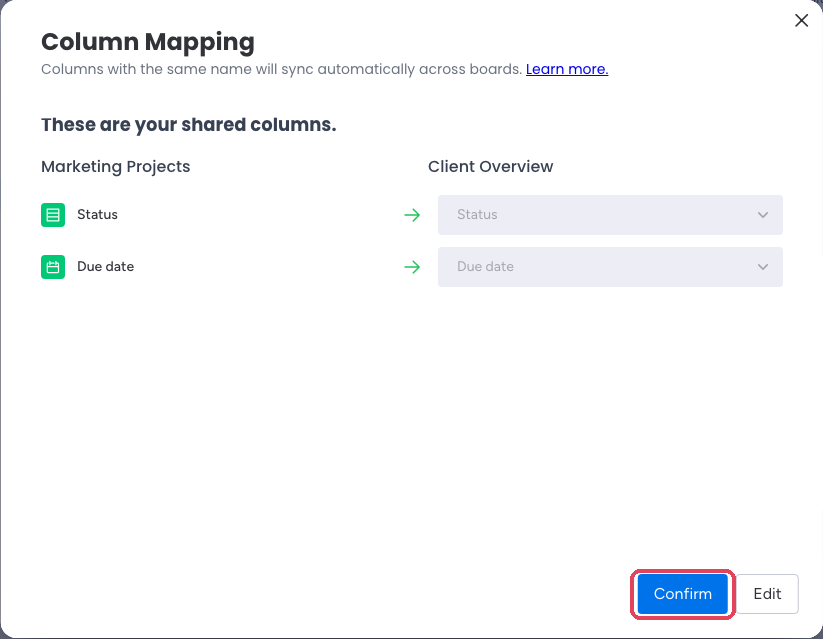
4
Create missing columns (optional but recommended)
For any column marked as missing, you’ll see a Create column button. Click it to automatically add that column to the destination board with the identical name and type. Repeat for each column you want to sync.
5
Confirm
Once you’re satisfied with the mapping, click Confirm. The item appears on the destination board and begins syncing all matched columns immediately.
Creating Missing Columns in One Click
When you click Create column next to a missing column, SIMB creates a new column on the destination board that:- Uses the exact same name as the source column
- Uses the exact same column type (Status, Text, Date, People, etc.)
Important Notes
- Column names must match exactly — including capitalization and spacing.
due dateandDue Dateare treated as different columns. - Column type must match. A Status column on one board will not sync with a Text column on another, even if the names are identical.
- Mismatched columns simply don’t sync — no error is raised on the item.
- Column Mapping does not apply to automations. Automations determine sync eligibility solely by comparing column names and types at the time the automation fires.
- You can rename or edit columns after syncing has started, but if you change a name so it no longer matches, syncing for that column will stop.
Troubleshooting Tips
If a column isn’t syncing after sharing:Check the exact name
Open both boards and confirm the column names are character-for-character identical, including case and spaces.
Confirm the column type
Both columns must be the same type. Rename isn’t enough — the type must also match (e.g., Status to Status, Date to Date).
Use Column Mapping to diagnose
Re-open the SIMB item view, select the destination board, and review the mapping window. It will clearly show any mismatch or missing column.
Check for unsupported types
Formula, Mirror, and Connected Boards columns are not supported for syncing. These will never appear as green in the mapping view.