Symptoms
You may be experiencing this issue if any of the following apply:- A destination board is not showing in the SIMB board picker
- You can’t find a board from another workspace
- Only some boards appear in the SIMB list
- An automation using SIMB can’t locate your board
Why This Happens
When you first install SIMB, monday.com asks you to choose between installing it for one workspace or all workspaces. If you selected a single workspace, boards in every other workspace are invisible to SIMB — they won’t appear as destinations when sharing items or configuring automations. Switching the installation scope to All Workspaces is all it takes to make them visible again.How to Fix It
1
Go to the Apps Marketplace
In monday.com, open Apps → Marketplace.
2
Search for Same Item Multiple Boards
Type Same Item Multiple Boards in the search bar and open the app listing.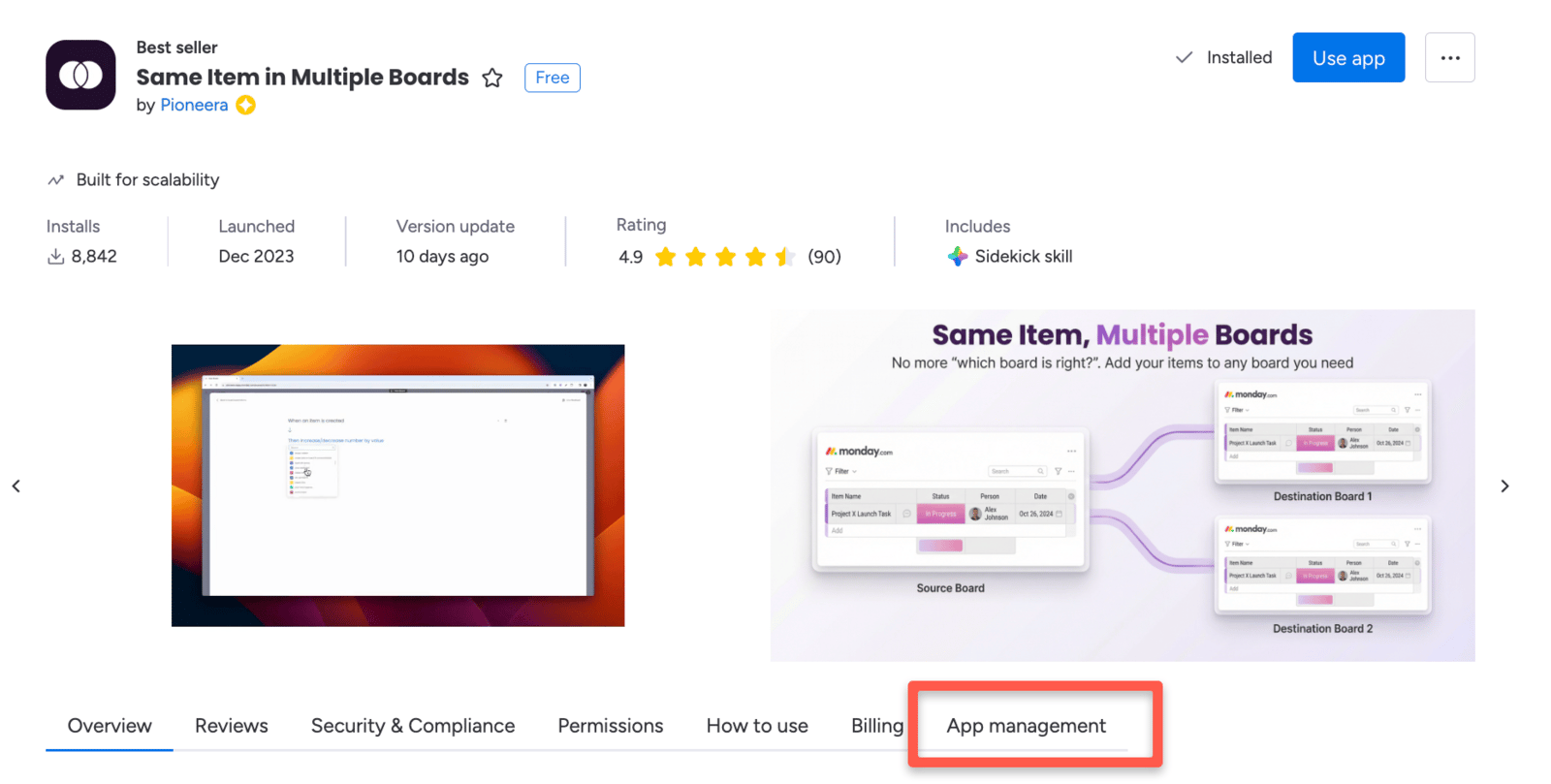
3
Open the App Management tab
Inside the SIMB app page, click the App Management tab.
4
Check your installation scope
Look at the current scope setting. You’ll see either: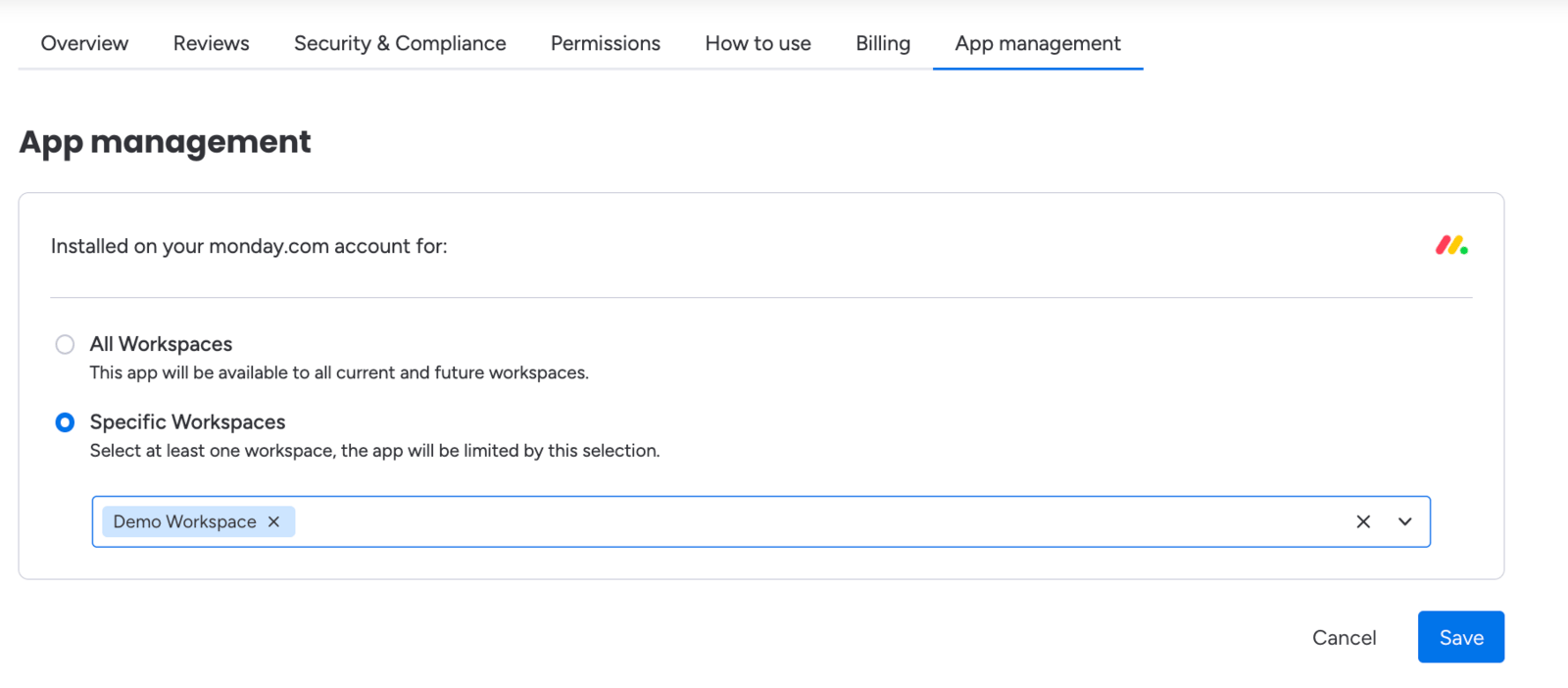
- All Workspaces — the app has full access (this is what you want)
- One specific workspace — boards in other workspaces are hidden from SIMB
5
Switch to All Workspaces
Select All Workspaces and save the change. This grants SIMB permission to access every board in your account, regardless of which workspace it belongs to.
6
Try linking the board again
Go back to your item, automation setup, or SIMB view and search for the board again. It should now appear in the list.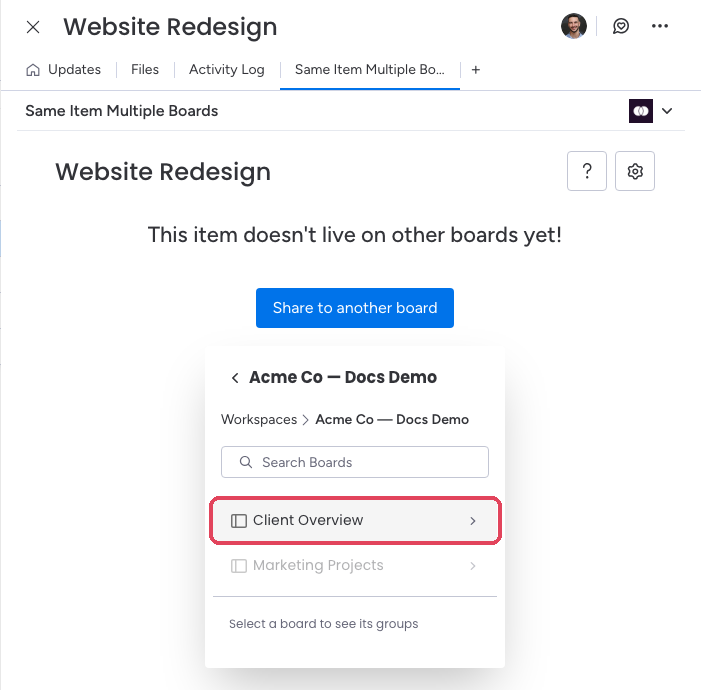
Still Not Showing?
If the board still doesn’t appear after switching to All Workspaces, check the following:- You have access to the board — if the board is private and you’re not a member, it won’t appear even with the correct installation scope.
- You’re in the correct workspace — confirm you haven’t accidentally navigated to a different workspace in your account.
- You’re logged in to the right account — if you have multiple monday.com accounts, make sure you’re using the one that has access to the board.
- The board you’re on is grayed out by design — in the manual-share picker, the item’s current board always appears grayed out; an item can’t be shared to its own board.
- In automations, the list is filtered by board type — a SIMB automation can only target boards of the same type as the board it runs on (regular ↔ regular, multi-level ↔ multi-level). A board of the other type won’t appear in the recipe’s board picker. See Automations.
If everything looks correct but the board still doesn’t show up, contact support@pioneera.io with a link to the board and the team will take a closer look.