Share Multiple Items at Once
1
Select the items you want to share
Click the checkbox to the left of each item you want to share. To select a consecutive range quickly, click the first item’s checkbox, then Shift + Click the last item in the range — everything in between will be selected automatically.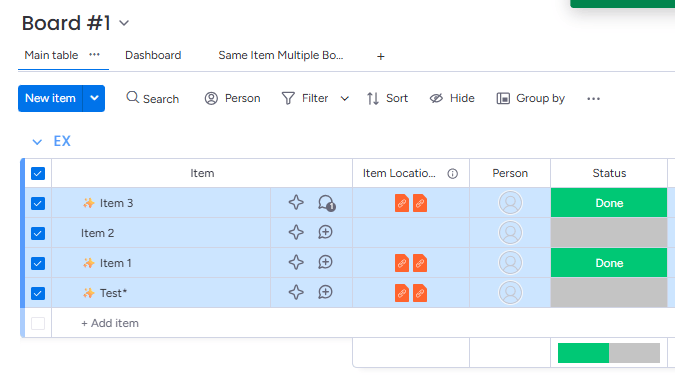
2
Open the Batch Actions toolbar
Once at least one item is checked, a toolbar appears at the bottom of your screen. This is the Batch Actions toolbar, which surfaces actions you can perform on all selected items at once.
3
Click Apps
In the Batch Actions toolbar, click Apps. This opens a list of installed apps that support batch operations.
4
Choose Same Item Multiple Boards
Select Same Item Multiple Boards from the app list. SIMB opens a pop-up window.
5
Select the destination board
In the SIMB pop-up, choose the board where all selected items should appear.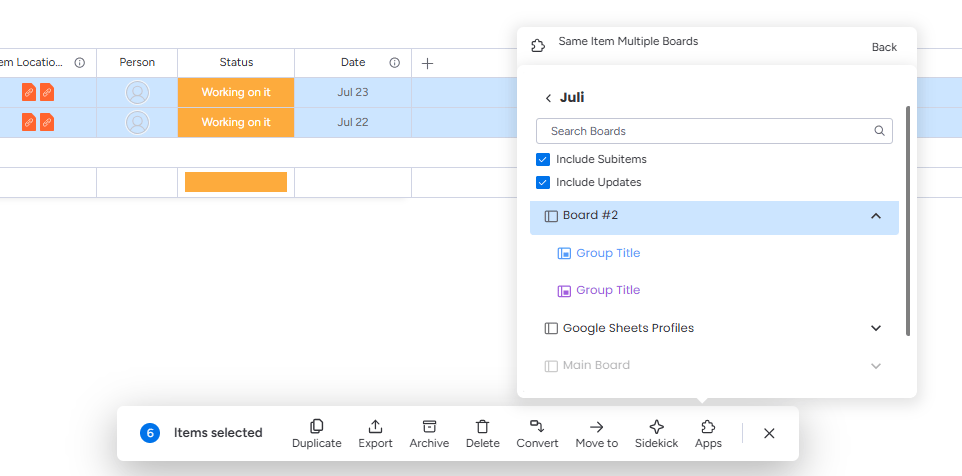
6
Click Add
Click Add to confirm. All selected items are immediately added to the destination board, maintaining their names, column values, and structure.
Column Mapping Is Not Available for Batch Actions
Unlike manual single-item sharing, Batch Actions do not show the Column Mapping preview. SIMB shares all selected items immediately when you click Add, without an opportunity to review or fix column alignment first.To ensure columns sync correctly during a batch share, use Column Mapping on a single item first to align the two boards — then use Batch Actions for the remainder. Any columns you create or fix during that manual share will be in place for the batch.
Share Subitems to Another Board
You can also use Batch Actions to send subitems to another board as regular top-level items. This is useful when subitems have grown into standalone tasks that need to live on a different board.1
Open the parent item
Click the parent item to expand its subitems row, or open the item detail view to see the subitems section.
2
Select the subitems
Click the checkboxes next to the subitems you want to share. Use Shift + Click to select a range.
3
Open the Batch Actions toolbar and click Apps
The Batch Actions toolbar appears at the bottom of the screen. Click Apps.
4
Choose Same Item Multiple Boards
Select Same Item Multiple Boards from the app list.
5
Pick the destination board and click Add
Choose the board where the subitems should appear and click Add. The subitems are added to the destination board as regular items.