How it works
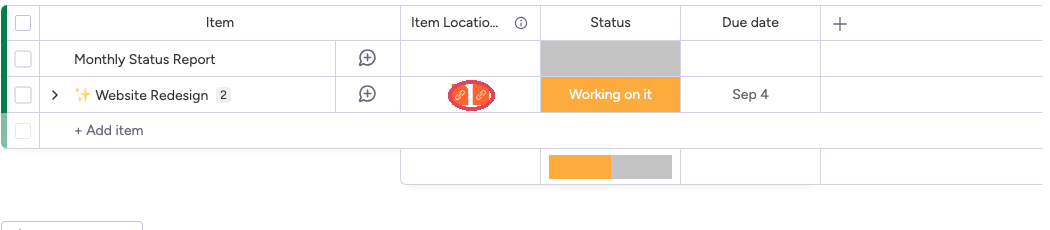
The Item Locations Column only appears after an item has been added to at least one other board. If a board has no shared items yet, the column will not be visible.
Hover to see board names
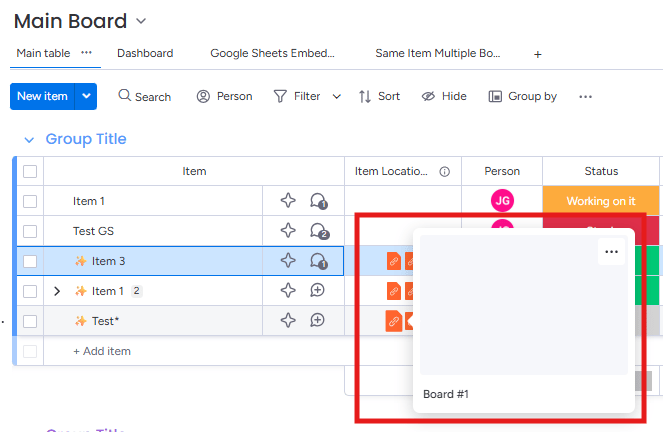
Hover over the icons inside the column to see the names of every board where the item currently exists.
Click to navigate
Click a board name to jump directly to that item on the selected board — no searching required.
Toggle on or off
If the column isn’t needed for your workflow, disable it from SIMB settings at any time.
Re-add if removed
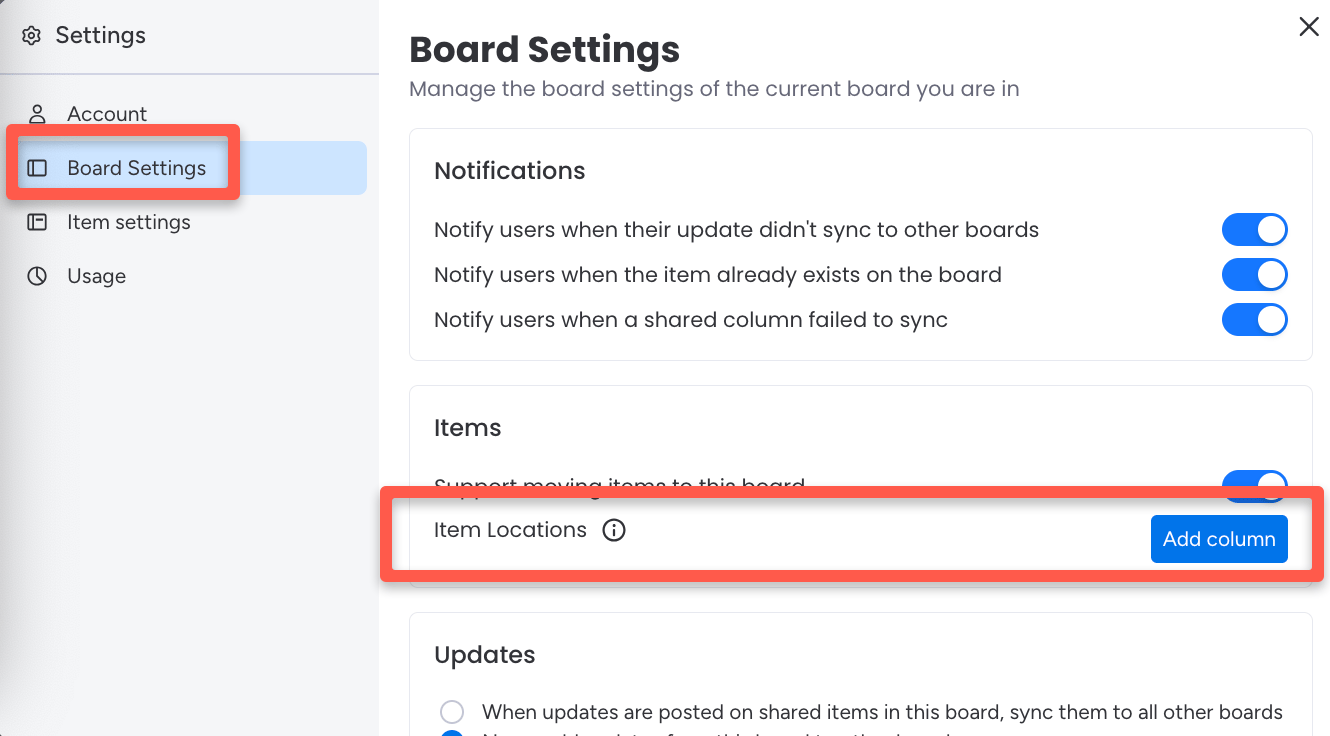
If you disabled or deleted the column, you can restore it from Board Settings inside the SIMB tab.
Disable the Item Locations Column
If this feature doesn’t fit your workflow, you can turn it off at any time.1
Open an item and go to the SIMB tab
Click on any item to open it, then select the Same Item Multiple Boards tab.
2
Open Settings
Click the Settings (⚙️) icon in the top corner of the SIMB tab.
3
Toggle off Item Locations Column
In Account Settings → Preferences, find the Item Locations Column toggle and switch it off.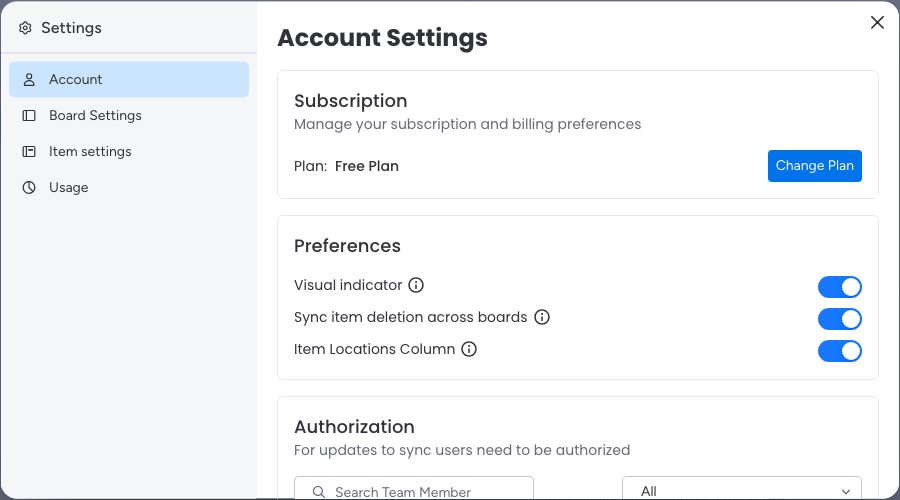
Re-enable the Item Locations Column
If you disabled the column earlier and want to bring it back, you can restore it through Board Settings.1
Open an item and go to the SIMB tab
Click on any item to open it, then select the Same Item Multiple Boards tab.
2
Open Settings
Click the Settings (⚙️) icon.
3
Go to Board Settings
Select Board Settings from the settings menu.
4
Add the Item Locations Column
Click Add Column next to Item Locations. The column will be restored on your board immediately.