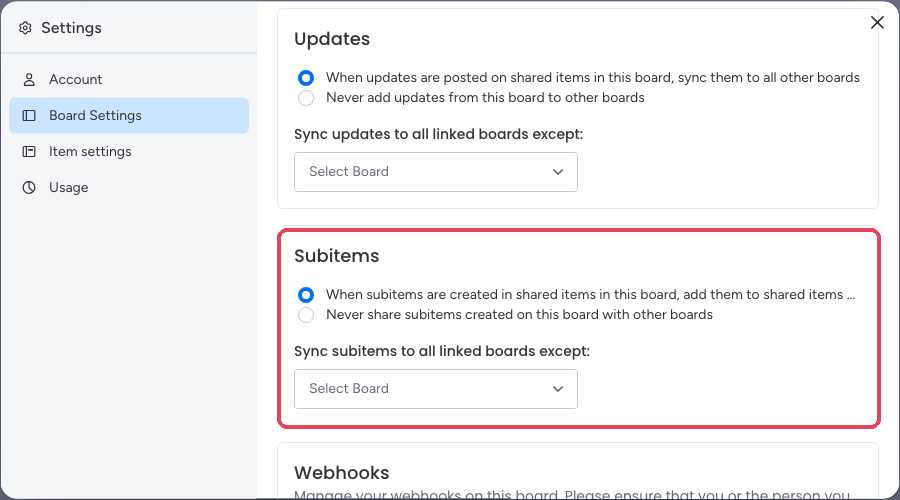
Subitem syncing is included in every SIMB installation and enabled by default. There is nothing you need to turn on — subitems just work out of the box.
What syncs
When a parent item exists on multiple boards through SIMB, all of the following sync automatically for each subitem:- Appearance — subitems instantly appear on every connected board the moment you create them
- Column values — any supported column type stays in sync across all boards
- Updates — messages posted inside a subitem appear on the same subitem on every board
Supported column types
The following column types sync for subitems:- Status
- Text and Long Text
- People
- Date
- Dropdown
- Numbers
- Rating
- Email and Phone
- File
- Timeline
- Link
- Updates
Example workflow
Imagine you have two boards:- Board A — “Product Roadmap”
- Board B — “Engineering Sprint”
- UX design draft
- API endpoint
- QA checklist
Subitem automation shows Success but creates nothing
For recipes that add the same subitem as an item on another board, the automation creator must authorize SIMB personally. Without that authorization, the run can show Success while no item appears. Have the creator authorize and trigger the recipe again. See the troubleshooting steps.Promote subitems to full items on another board
Sometimes a subitem grows in scope and needs to become a standalone item on a different team’s board. SIMB lets you promote subitems to regular items on any board, with two-way sync maintained automatically.1
Select the subitems you want to promote
On your source board, check the boxes next to the subitems you want to send to another board.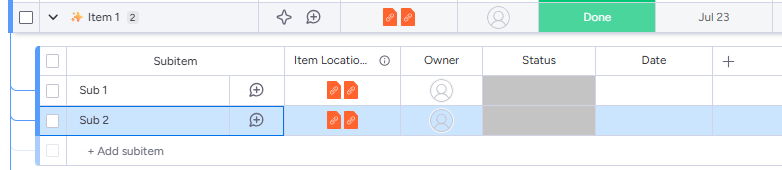
2
Open the Apps menu
At the bottom of the screen, click Apps.
3
Choose Same Item Multiple Boards
Select Same Item Multiple Boards (SIMB) from the list of available apps.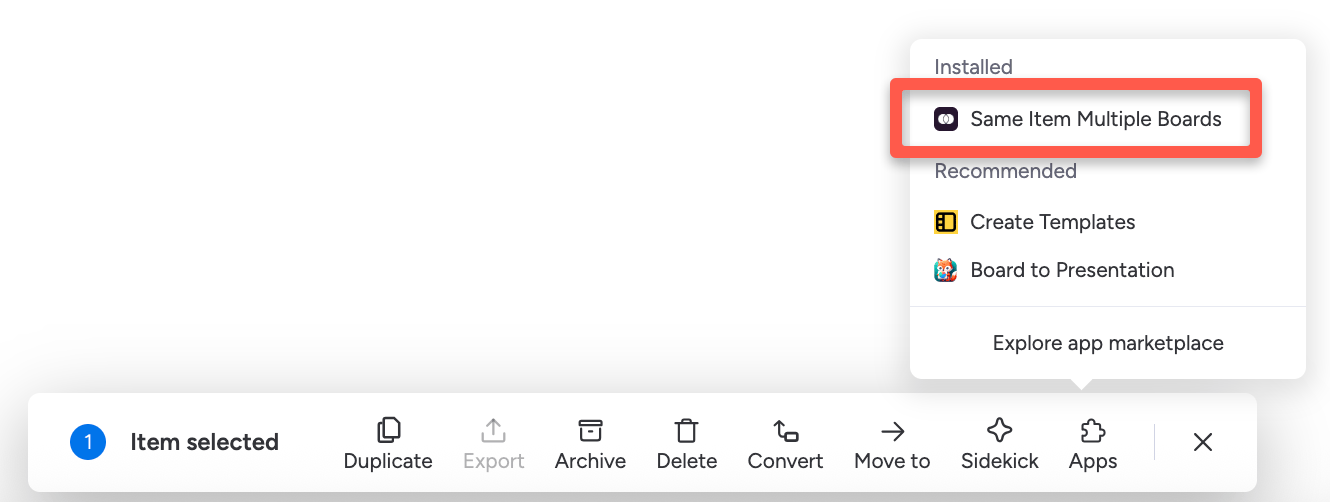
4
Pick a destination board and group
Choose the board where the subitems should appear as regular items (for example, your “Dev Team” board). Optionally, select a specific group within that board.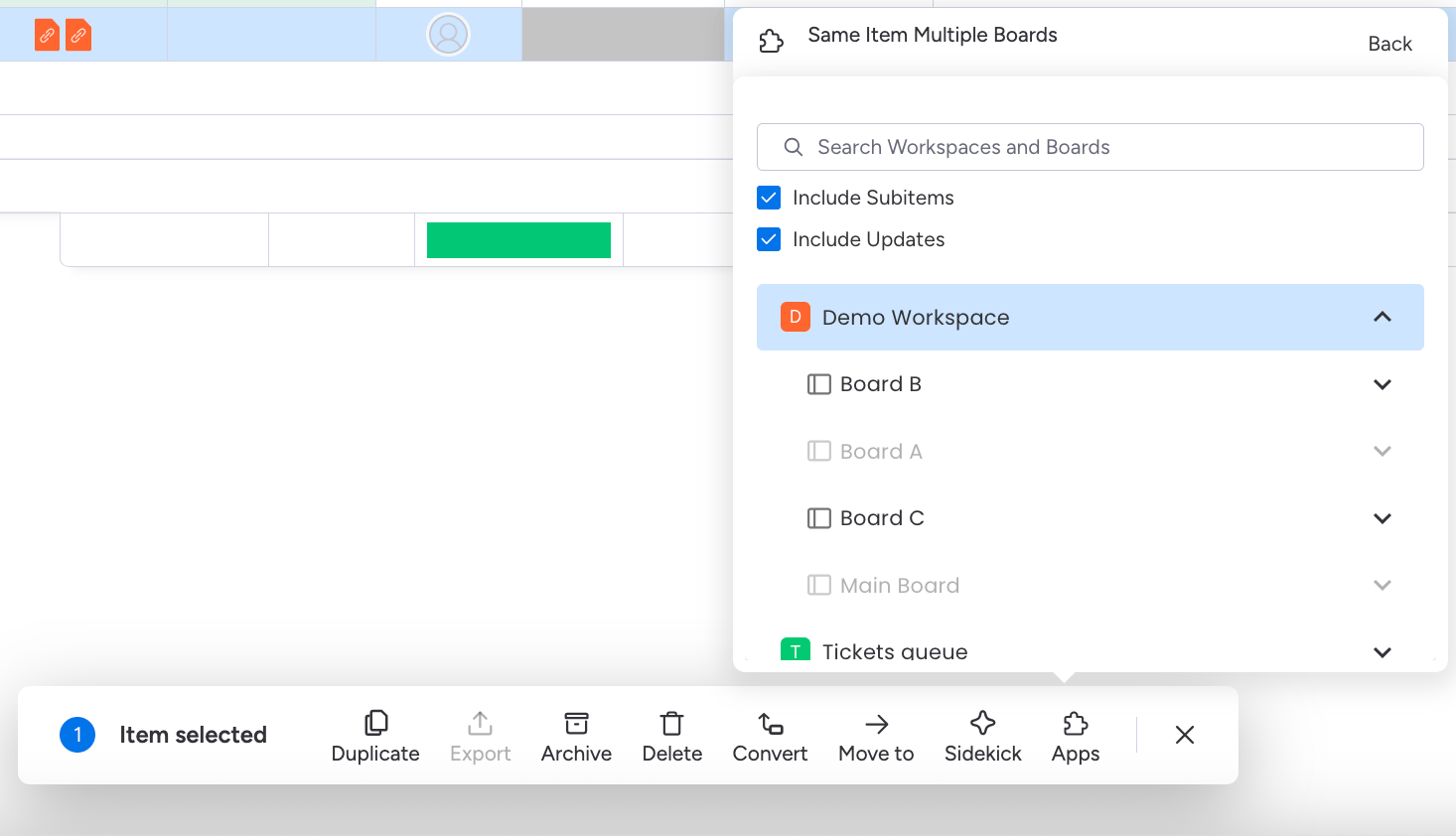
This list only shows boards of the same type (regular or multi-level) as your source board — SIMB can’t connect a multi-level board to a regular board, or vice versa. If the board you want isn’t listed, that’s why; see a board is missing from the destination board list.
5
Wait for the sync to complete
SIMB adds the selected subitems as new items on the target board. From this point forward, changes made on either board — status updates, comments, column values — sync automatically in both directions.