Share an Item Manually
The whole flow, start to finish:1
Open the item and click the Same Item Multiple Boards tab
Click the item you want to share to open its detail view, then click the Same Item Multiple Boards tab at the top. If you don’t see the tab, click the + at the end of the tab row and add it from the Item Views Center (search “Same Item Multiple Boards”), or ask your board admin to add it.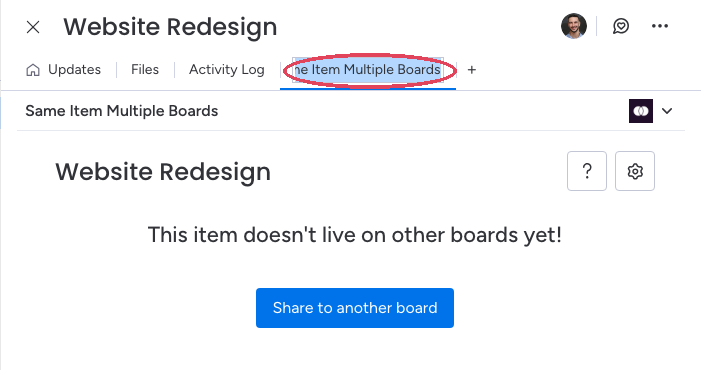
2
Click "Share to another board"
If the item isn’t shared anywhere yet, you’ll see “This item doesn’t live on other boards yet!” — click the blue Share to another board button.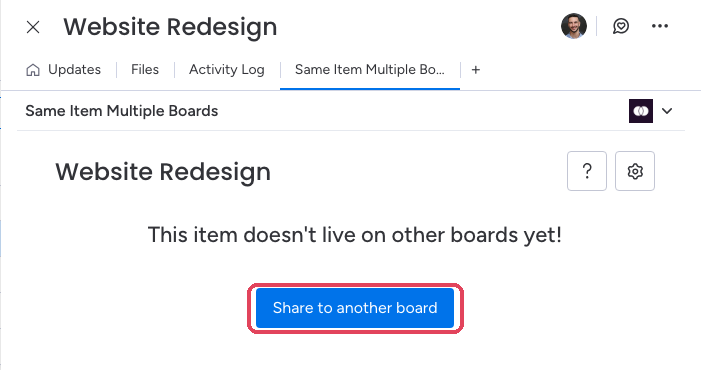
3
Pick the workspace
A picker opens listing your workspaces. Click the workspace that contains the board you want to share to.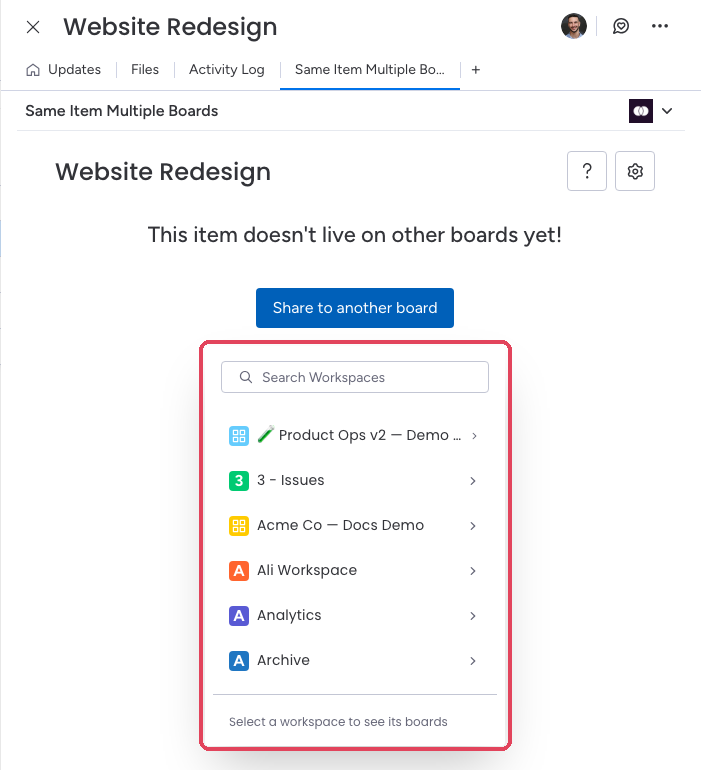
4
Pick the destination board
Click the board where the item should also live. The board you’re on now is grayed out — an item can’t be shared to its own board.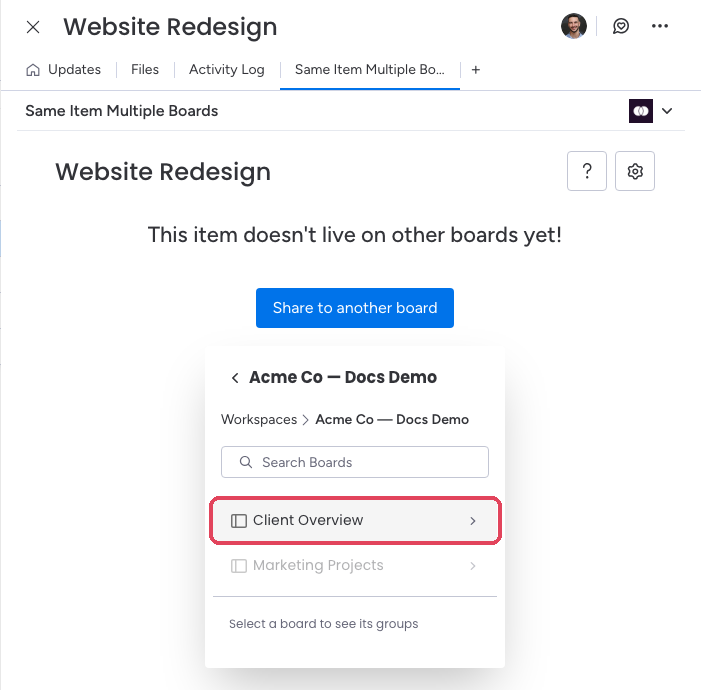
5
Pick the group
Choose which group on the destination board the item should be added to.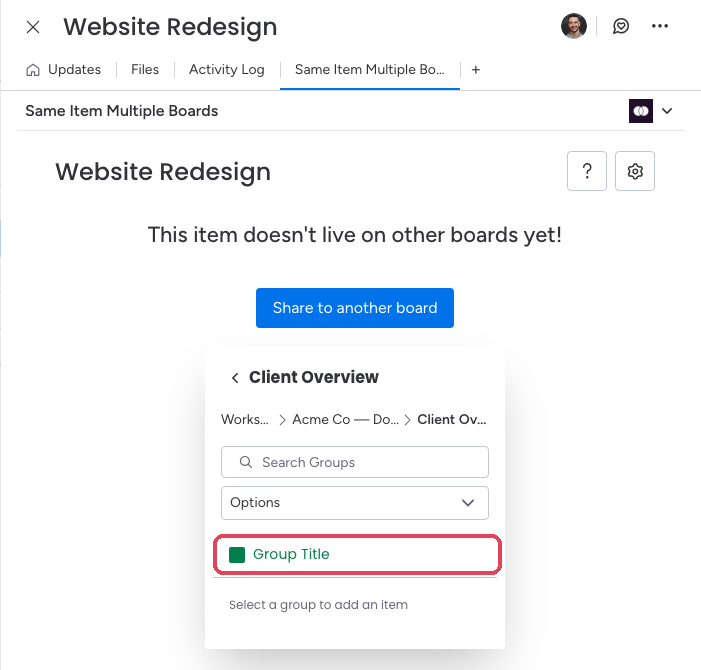
6
Review the Column Mapping and click Confirm
SIMB shows you exactly which columns will sync between the two boards. Review the pairs, then click Confirm. (Click Edit if you want to remap a column first — see Column Mapping.)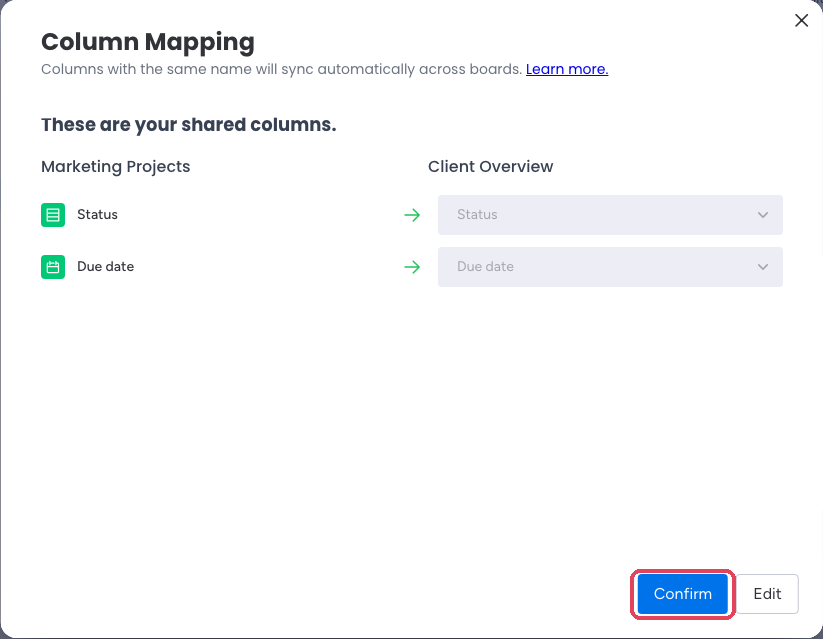
7
Done — the item now lives on both boards
A progress bar runs for a few seconds, then the SIMB view lists the item’s Current Board and every board it’s Also on, plus the columns being synced.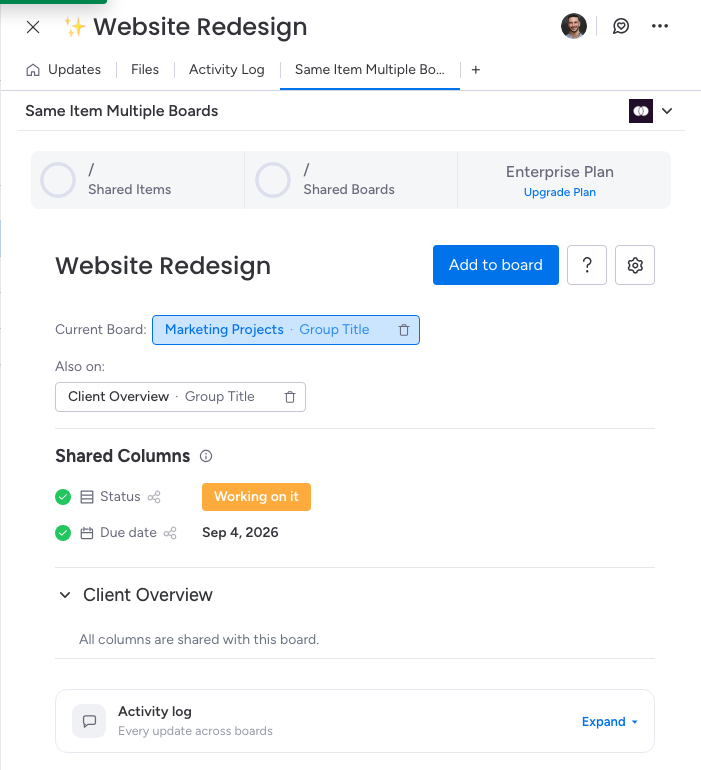
What Happens After Sharing
Once you click Add, the item appears on the destination board in its default group. Any columns that share the same name and the same column type between the two boards will start syncing automatically — change a Status on one board and it updates everywhere the item lives. Columns that don’t match won’t sync, but they won’t block the share either.Visual Indicator
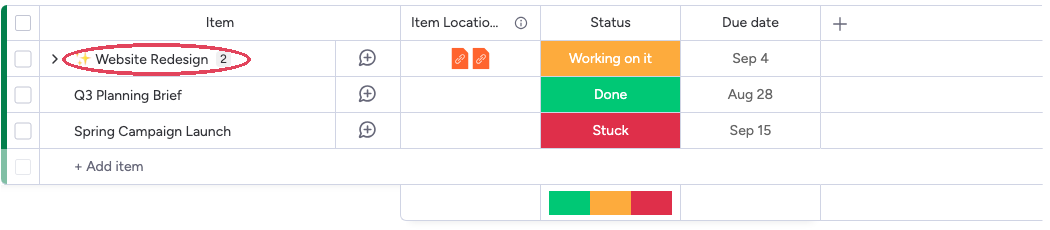
Remove an Item From a Specific Board
You can remove a shared item from a single board right from the Same Item Multiple Boards item view. SIMB gives you two choices — Unlink (stop syncing but keep the item intact everywhere else) or Delete (permanently remove that board’s copy).1
Open the item
Click the item you want to remove from a board.
2
Open the SIMB item view
Go to the Same Item Multiple Boards tab inside the item — it lists every board the item currently lives on.
3
Click the trash-bin icon
Find the board you want to remove the item from and click the trash-bin icon next to it.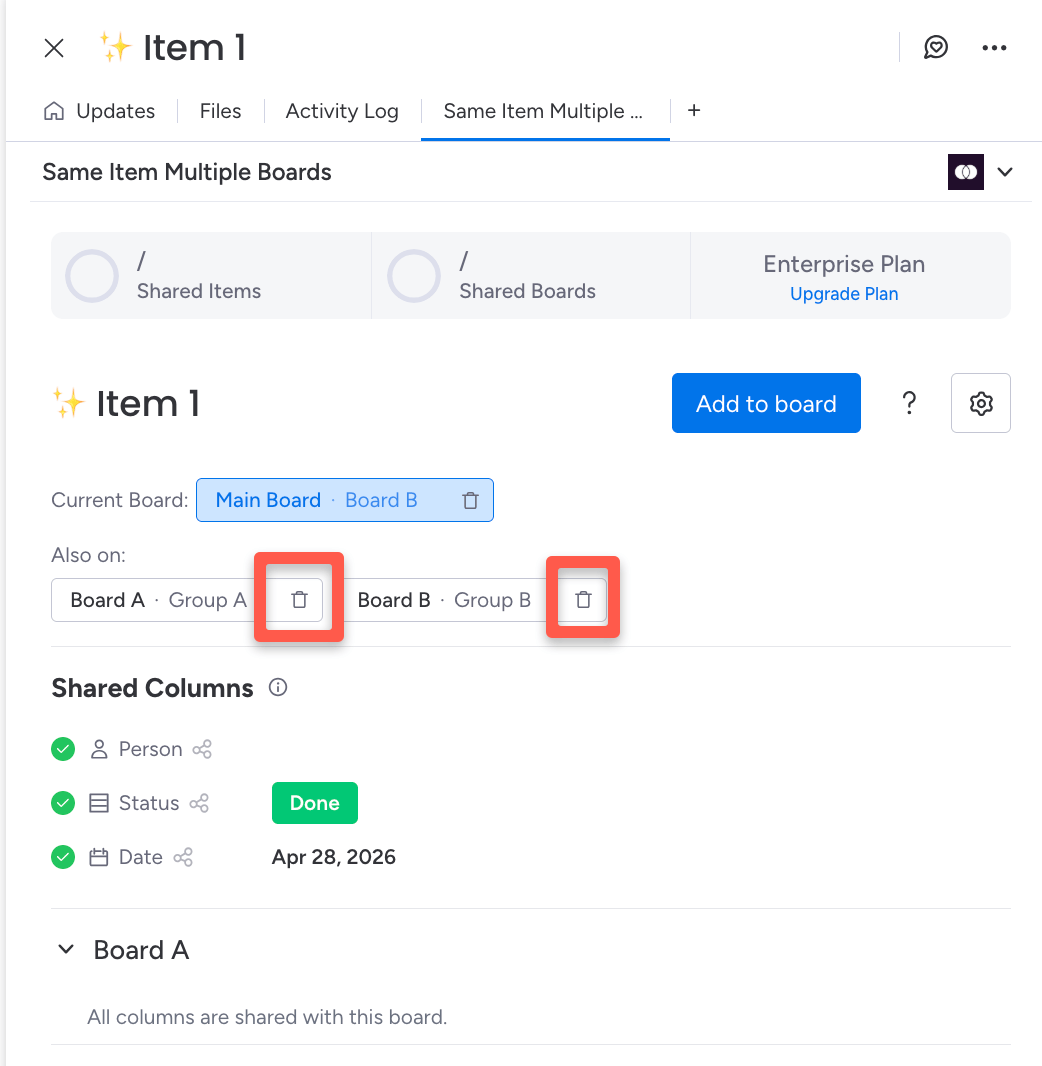
4
Choose Unlink or Delete
Pick the action you want: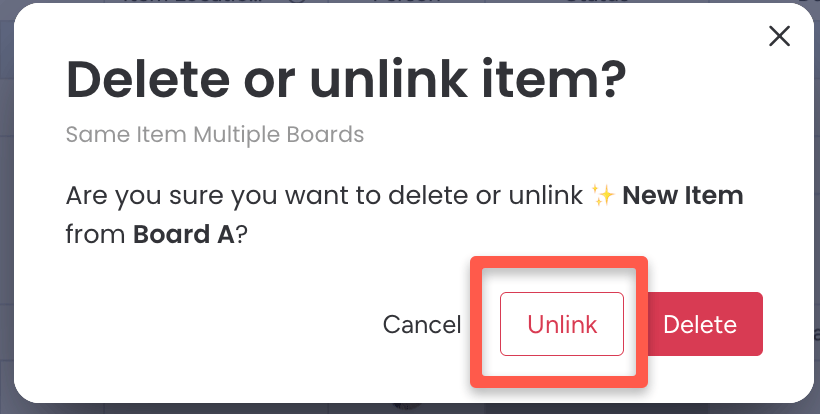
- Unlink — removes the item from that board and stops syncing it there, but keeps it fully intact and synced on every other board. Nothing is lost.
- Delete — permanently removes the item from that one board.
Unlink only affects the board you chose — the item stays live and synced on every other board it was shared to. Use Delete only when you want that board’s copy gone for good.
Column Requirements for Syncing
SIMB syncs column values between boards when both of the following are true:- The columns have the exact same name (case-sensitive)
- The columns are the same type (for example, both are Status columns, both are Date columns, and so on)
The following column types are not supported for syncing: Formula, Mirror, Connected Boards, and certain other special column types. Values in these columns won’t carry over even if the names match.