Prerequisites
Before you begin, make sure you have:- An active monday.com account
- Permission to install apps from the Marketplace (admin or app-install permissions)
- Access to at least one board where you want to start sharing items
Install from the Marketplace
1
Open the App Marketplace
In your monday.com workspace, click the Marketplace icon in the left-hand sidebar to open the App Marketplace.
2
Search for the app
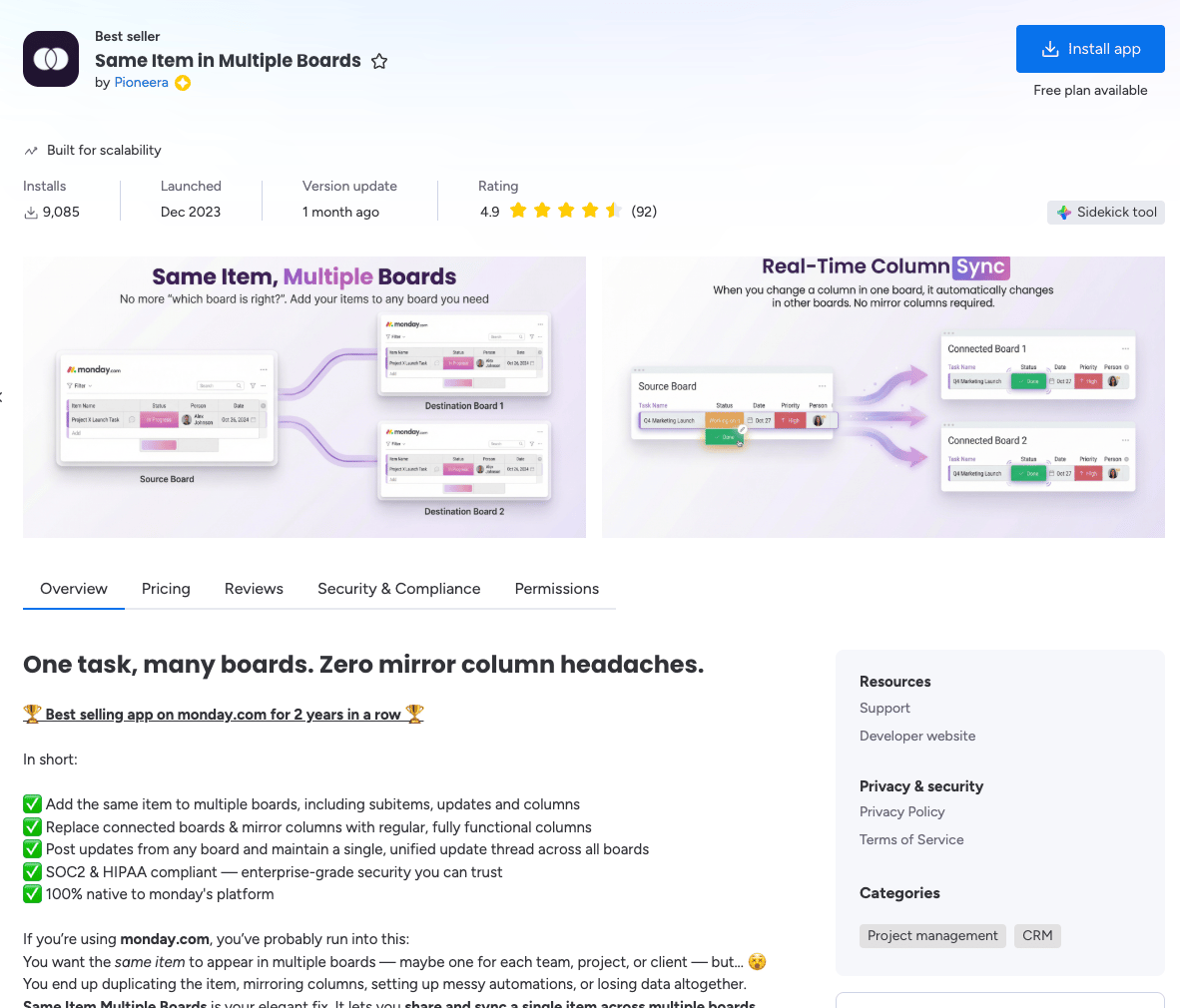
In the Marketplace search bar, type Same Item Multiple Boards and select the app from the results.
3
Install the app
4
Select a workspace and board
Choose the workspace and the first board where you want to set up the app, then click Add app to confirm.
5
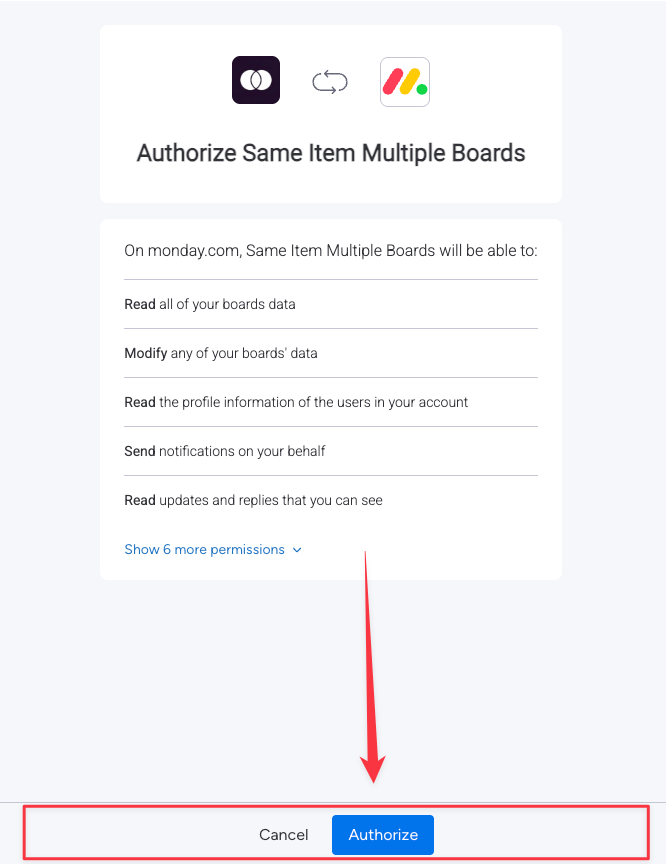
Authorize the app
6
Verify the installation
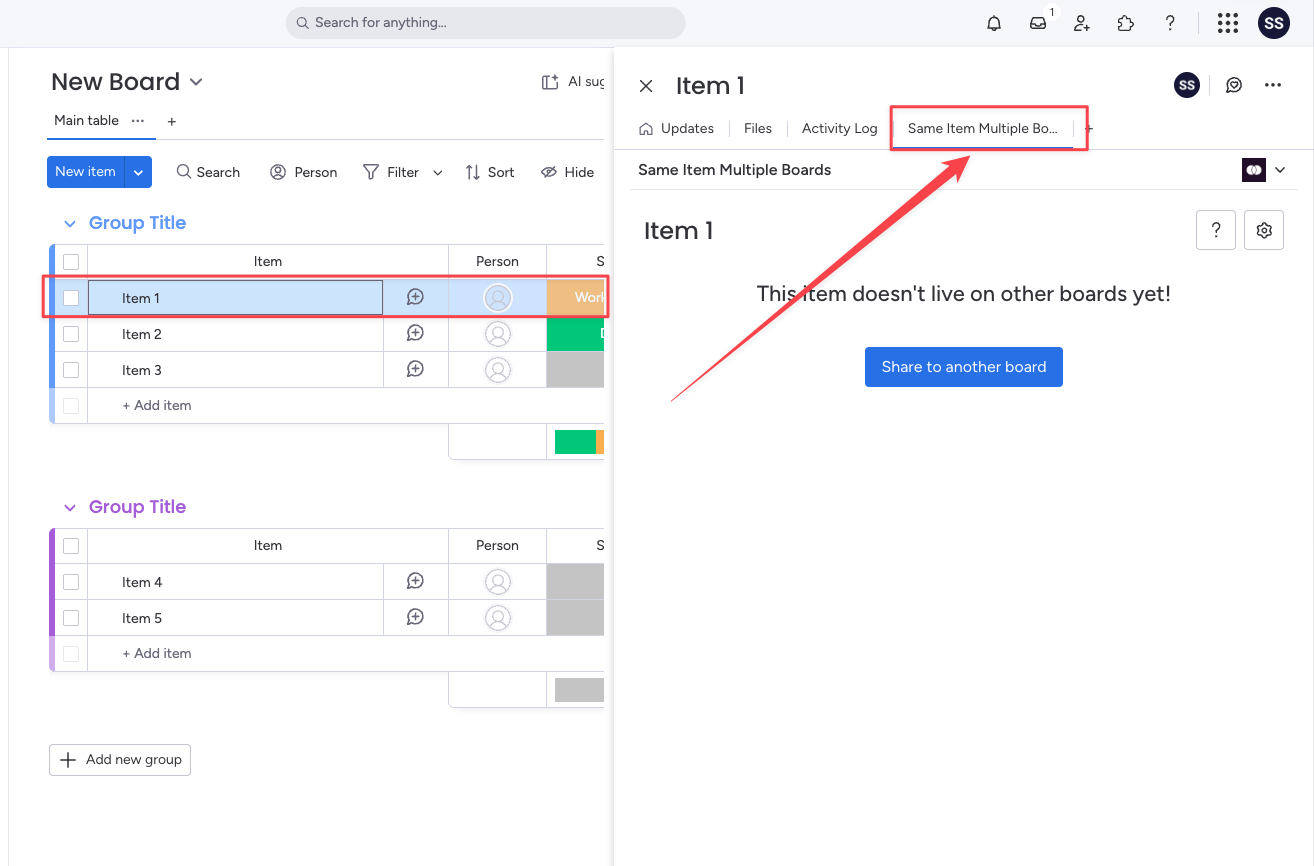
Once installed, open any item on your selected board. You should see a new Same Item Multiple Boards tab appear in the item view. The app is ready to use.
Add the App View to Additional Boards
1
Open an item on the target board
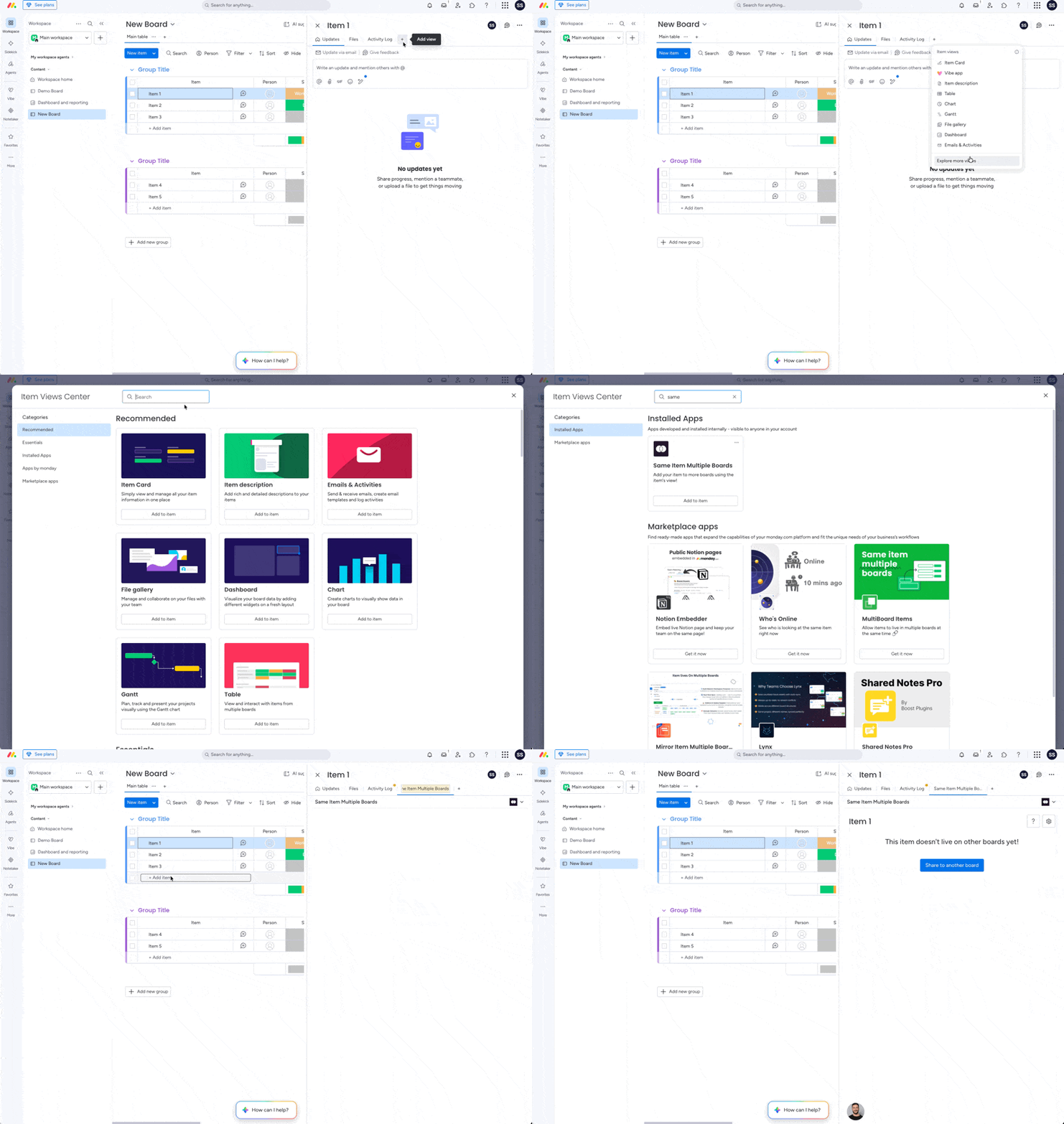
Navigate to the board where you want to enable SIMB and click on any item to open its item view.
2
Click the + at the end of the tab row
In the item view panel, click the + next to the last tab (Updates / Files / Activity Log), then click Explore more views to open the Item Views Center.
3
Search for SIMB
Type Same Item Multiple Boards in the Item Views Center search field.
4
Add the view
Click Add to item on the Same Item Multiple Boards card. The tab now appears in the item view for every item on that board.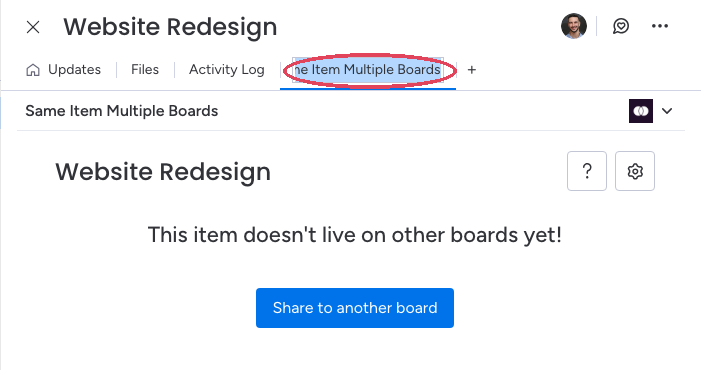
Adding the app view is optional. You can still use SIMB through automations and workflows on any board even if you have not manually added the item view. The view is only required when you want to manually share or manage items directly from the item panel.
Enable Across All Workspaces
If you manage boards in multiple monday.com workspaces, make sure you selected all workspaces during the installation step. This setting allows SIMB to surface boards from any workspace as a sharing destination. If you skipped that option, you can revisit app permissions from the Marketplace under the App Management tab.For update syncing (comments and replies) to work across boards, each team member who posts updates needs to individually authorize the app. Users will see a prompt the first time they interact with SIMB asking them to authorize their account. This is a one-time step per user.