Choose Your Path
- Option 1: Manual Sharing
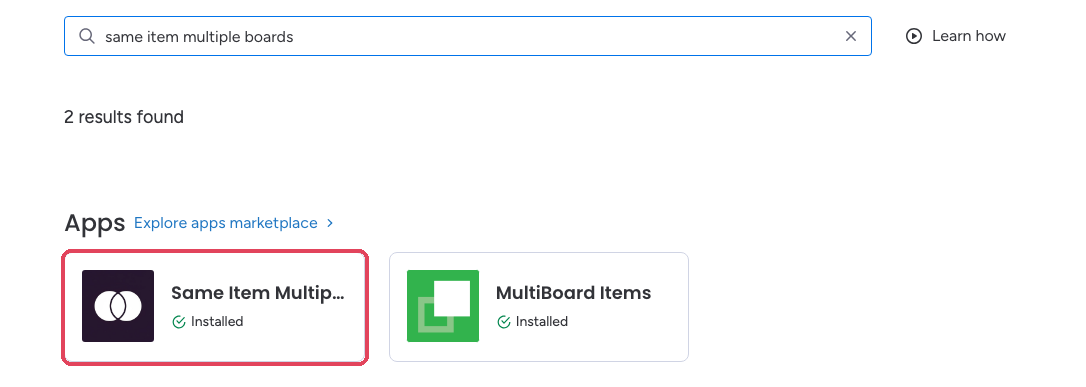
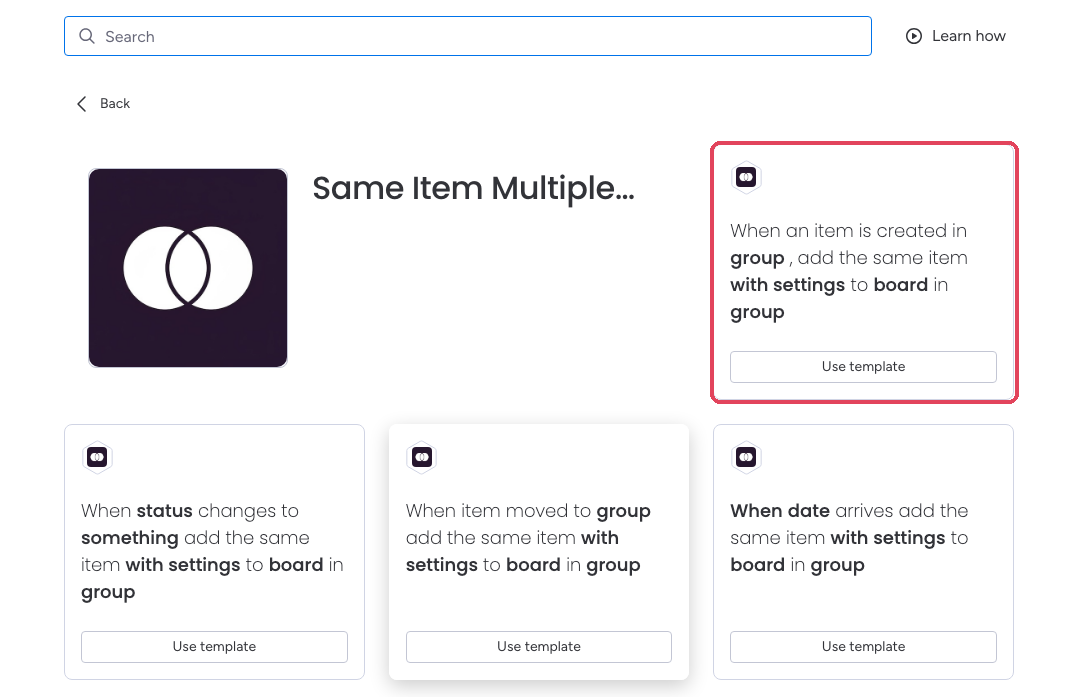
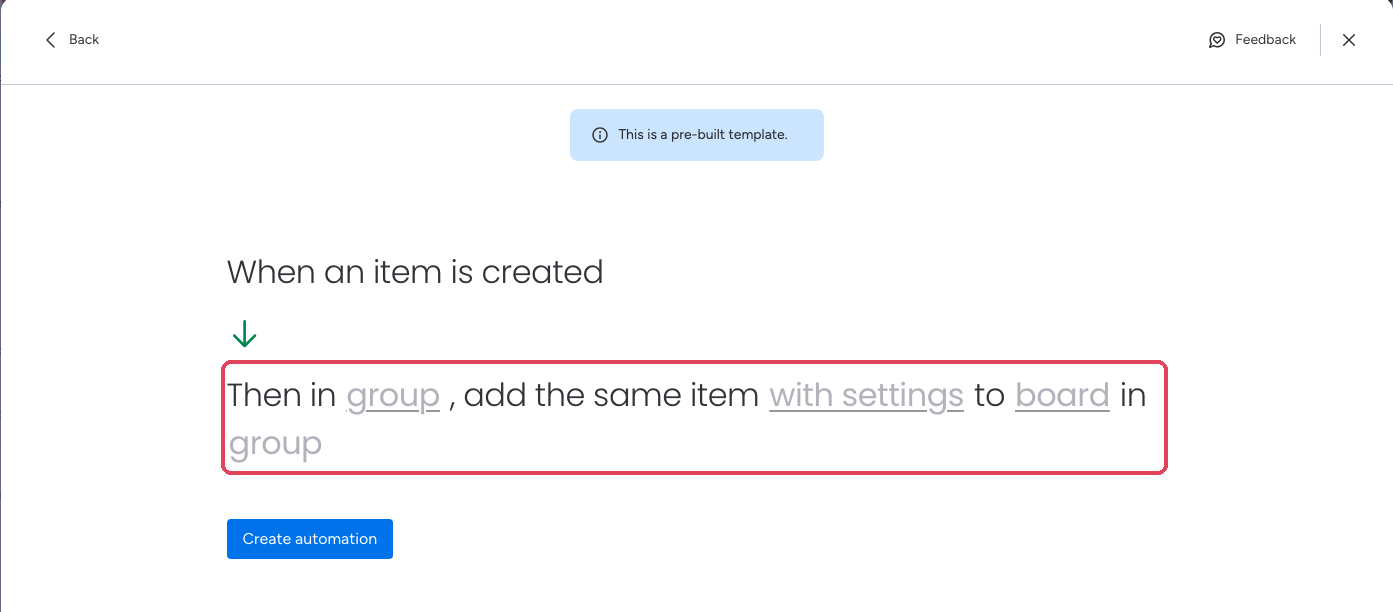
- Option 2: Automations
Manual sharing gives you direct control over which items appear on which boards. Use this approach when you want to make one-off decisions rather than automating a recurring pattern.
1
Open the item and click the Same Item Multiple Boards tab
On your source board, click the item you want to share to open its item view panel, then click the Same Item Multiple Boards tab. If you do not see this tab, follow the steps in the Installation guide to add the view to your board.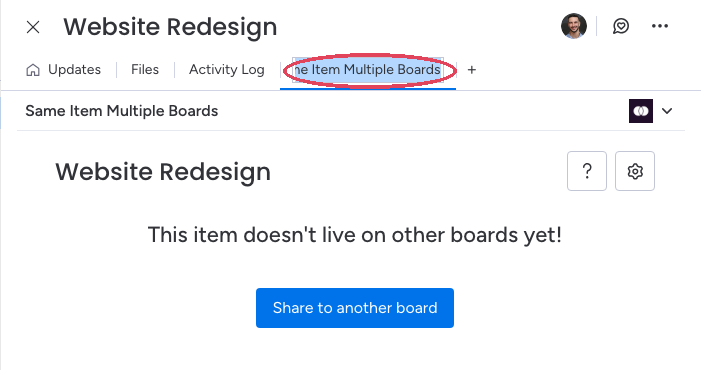
2
Click "Share to another board"
Click the blue Share to another board button.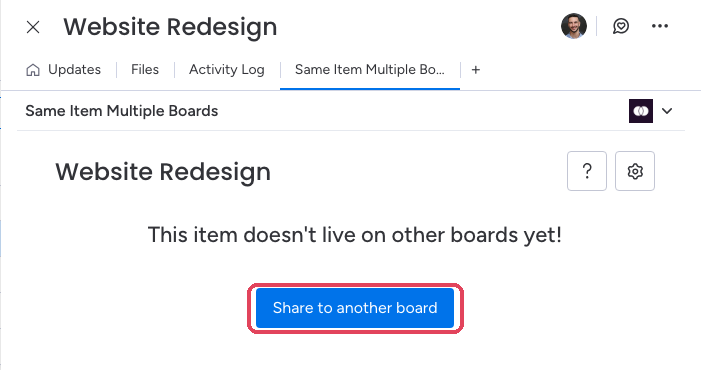
3
Pick the workspace, board, and group
A picker walks you through it: click the workspace, then the destination board, then the group the item should land in.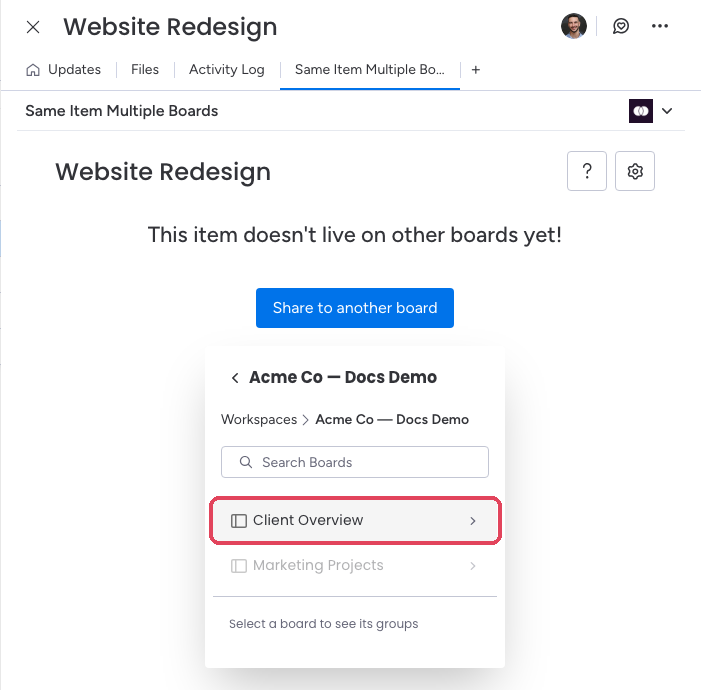
4
Review the Column Mapping and click Confirm
SIMB shows which columns will sync between the boards. Click Confirm to complete the share. The item now appears on both boards, and changes on either side sync in real time.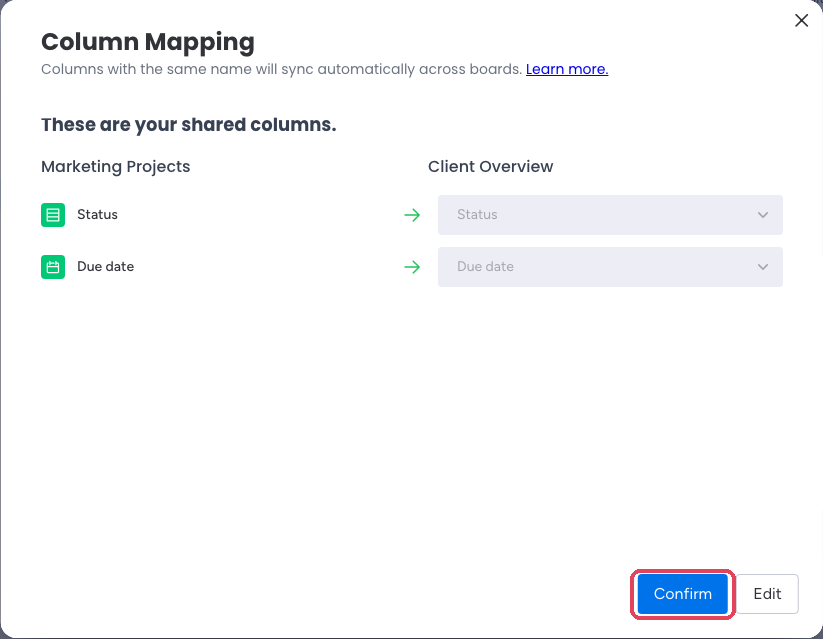

Column Sync Requirements
SIMB syncs column values between boards automatically, but only when two conditions are met:- The column has the same name on both boards
- The column is the same type on both boards (for example, both are Status columns, or both are Date columns)
Visual Indicators
Once an item is shared across multiple boards, SIMB adds a small icon next to the item’s name on every board where it appears. This icon is your at-a-glance signal that the item is synced — you can scan a board and instantly spot which items are shared without opening them.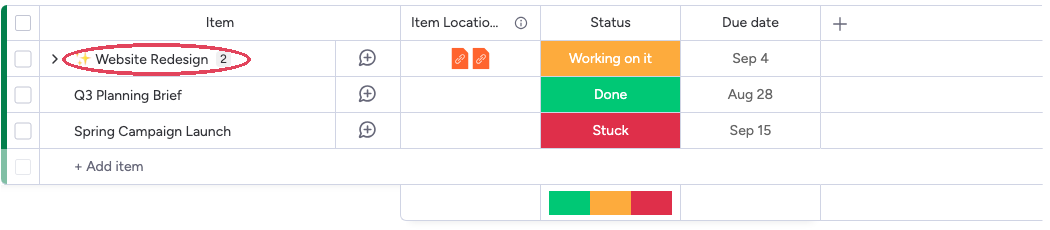
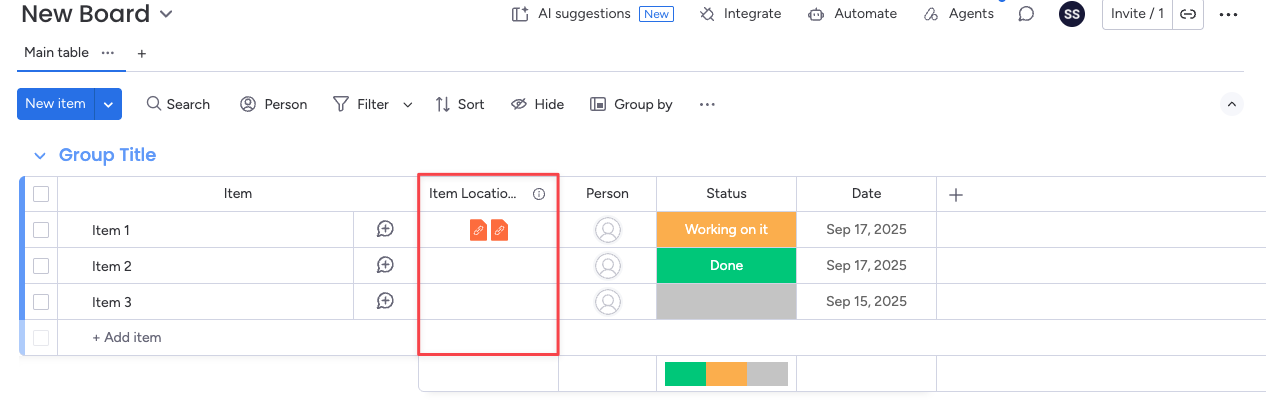
Item Locations Column (Optional)
Remove an Item from a Board
If an item no longer belongs on a particular board but should remain on all others, you can remove it from that board without deleting it anywhere:1
Open the item's SIMB view
Click the item to open its item view panel, then click the Same Item Multiple Boards tab.
2
Click the trash-bin icon next to the board
In the list of boards where the item currently lives, click the trash-bin icon next to the board you want to remove it from, then choose Unlink (keep the item on other boards) or Delete (remove that board’s copy for good).
Next Steps
You’ve shared your first item — here’s where to go from here:Column Mapping
Learn how to review and fix column matches before sharing items to avoid sync gaps.
Automations Deep Dive
Explore all available automation recipes and advanced trigger configurations.
Subitem Sync
Find out how subitems behave when their parent item is shared across boards.
Batch Actions
Share multiple items to another board at once using the batch actions toolbar.