The short answer
Don’t invite clients into your internal board and try to hide things — separate the boards and sync the items. Your internal delivery board keeps costs, notes, and honest conversation; each client gets their own board showing only the items and columns they should see; the items are the same on both, so status is always current and nothing is updated twice.Why permissions alone don’t cut it
A guest invited to a board sees that board — its columns, updates, and files. Column-level restrictions exist only on higher-tier plans, and one mis-scoped column (cost, margin, “real deadline”, a candid team comment) is in front of your client. Teams also mix client work with other clients’ work on one delivery board — a guest there can see names they shouldn’t. Separation makes the safe state the default: the wall between boards protects you; the sync makes the wall livable.The pattern, step by step
- Keep your internal board as is — all clients, all columns, no guests, ever.
- Create one board per client. Only the columns the client should see: status, timeline, deliverables, owner.
- Share each client’s items to their board with Same Item Multiple Boards — manually or with an automation like “when Client column is set to Acme, share item to Acme board”. Column sync follows matching column names, so internal-only columns (cost, notes) simply don’t exist on the client board and never sync (how column matching works).
- Invite the client as a guest to their board only.
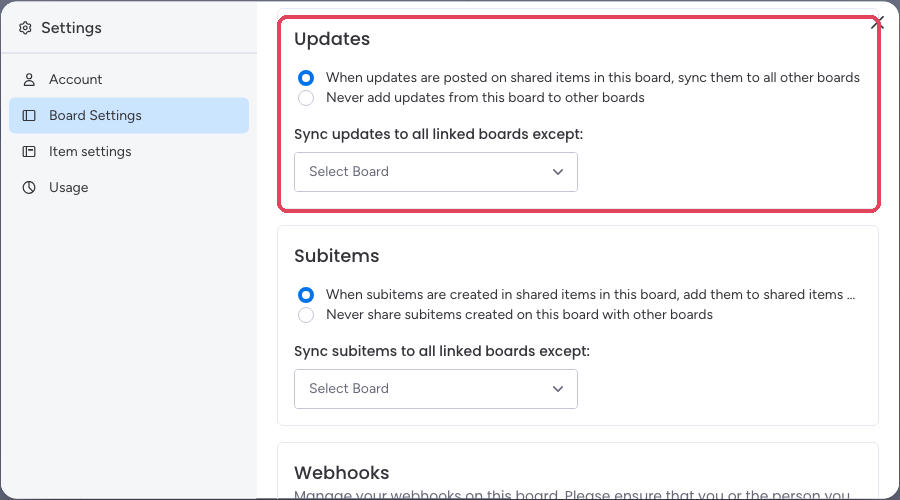
- Optional: turn off update syncing toward the client board if your team’s item comments should stay internal, or keep one shared thread if you want the conversation with the client on the item.