Fix the whole board at once
Use this approach to scan and sync all items on a board in one go.1
Open the board and go to the Same Item Multiple Boards Overview tab
Navigate to the board where the shared items live and click the Same Item Multiple Boards tab in the view bar. If you do not see this tab, click Add View, select Apps, then Explore more apps, and search for Same Item Multiple Boards.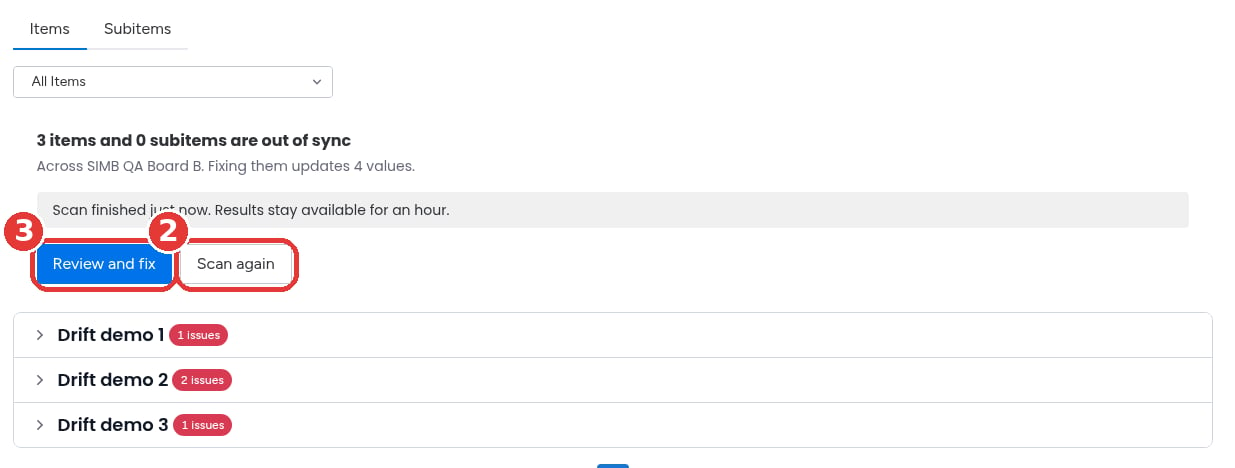
2
Click Scan for issues
Click Scan for issues at the top of the Overview tab. When the scan finishes, a summary shows how many items and values are out of sync.
3
Click Review and fix
Click Review and fix to open the sync dialog. It lists every item and column that will change. Each value is copied from the board where it was changed most recently.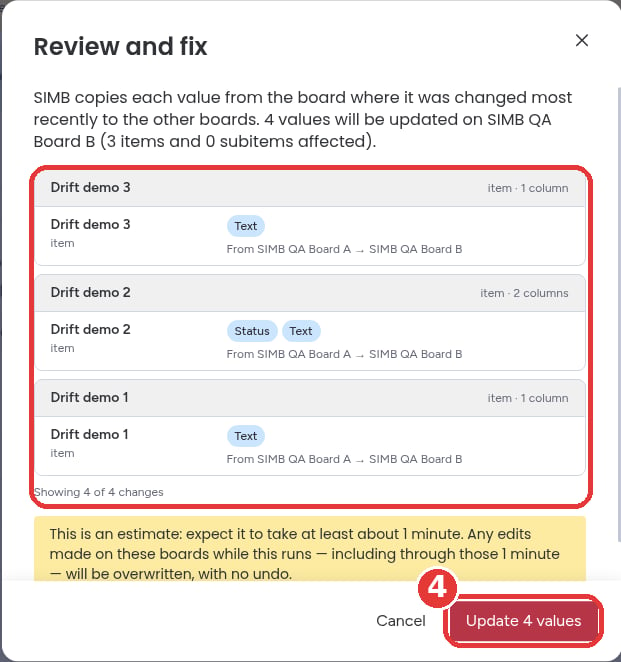
4
Click Update values
Review the changes, then click Update N values (where N is the number of values that will change).
5
Click Scan again to confirm
When the update finishes, an All values updated banner appears. Click Scan again to confirm everything is in sync.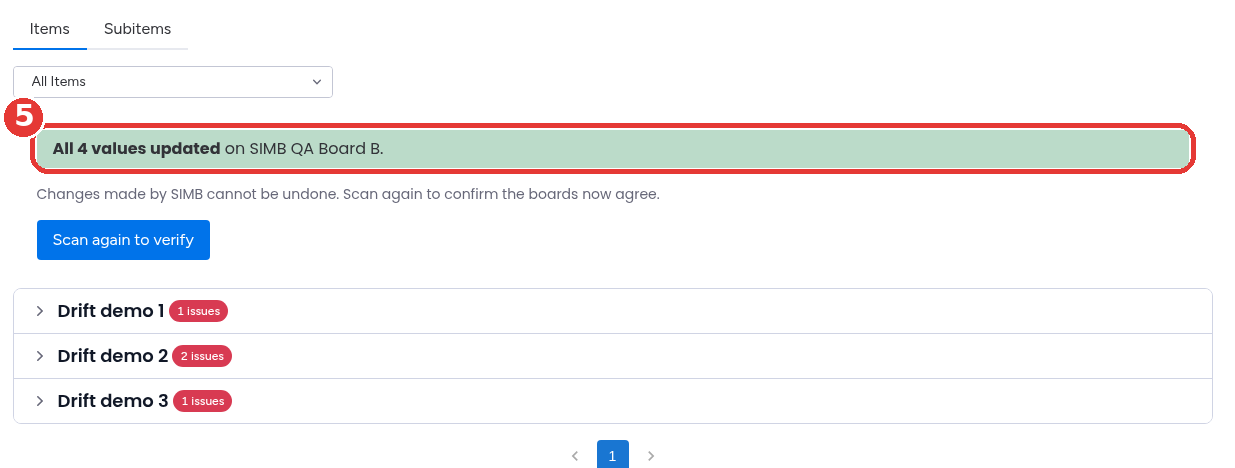
Red issue badges on items can stay visible until you refresh the page.
Fix one item
If you only need to sync a single item or a specific column, you can do so directly from the item view.1
Open the item
Click the item you want to sync to open its detail view.
2
Go to the Same Item Multiple Boards tab
Click the Same Item Multiple Boards tab at the top of the item view.
3
Resynchronize columns
You have two options:
- To sync all columns at once, click the Resynchronize all columns icon (the refresh icon at the top, next to Add to board).
- To sync a single column, click the Resync icon next to that column.
You can also expand the item in the board view and click Sync Latest to sync its values.